How the Userplane MCP server authenticates AI clients using OAuth 2.1
The Userplane MCP server uses OAuth 2.1 for authentication. AI clients handle the OAuth flow automatically when you first connect. No API keys or manual token management required.
You add https://api.userplane.io/mcp to your AI client’s MCP settings.
2
First tool call triggers OAuth
When you ask your agent to do something that requires Userplane data, the client initiates the
OAuth flow.
3
Sign in via browser
A browser window opens. Sign in with your Userplane credentials.
4
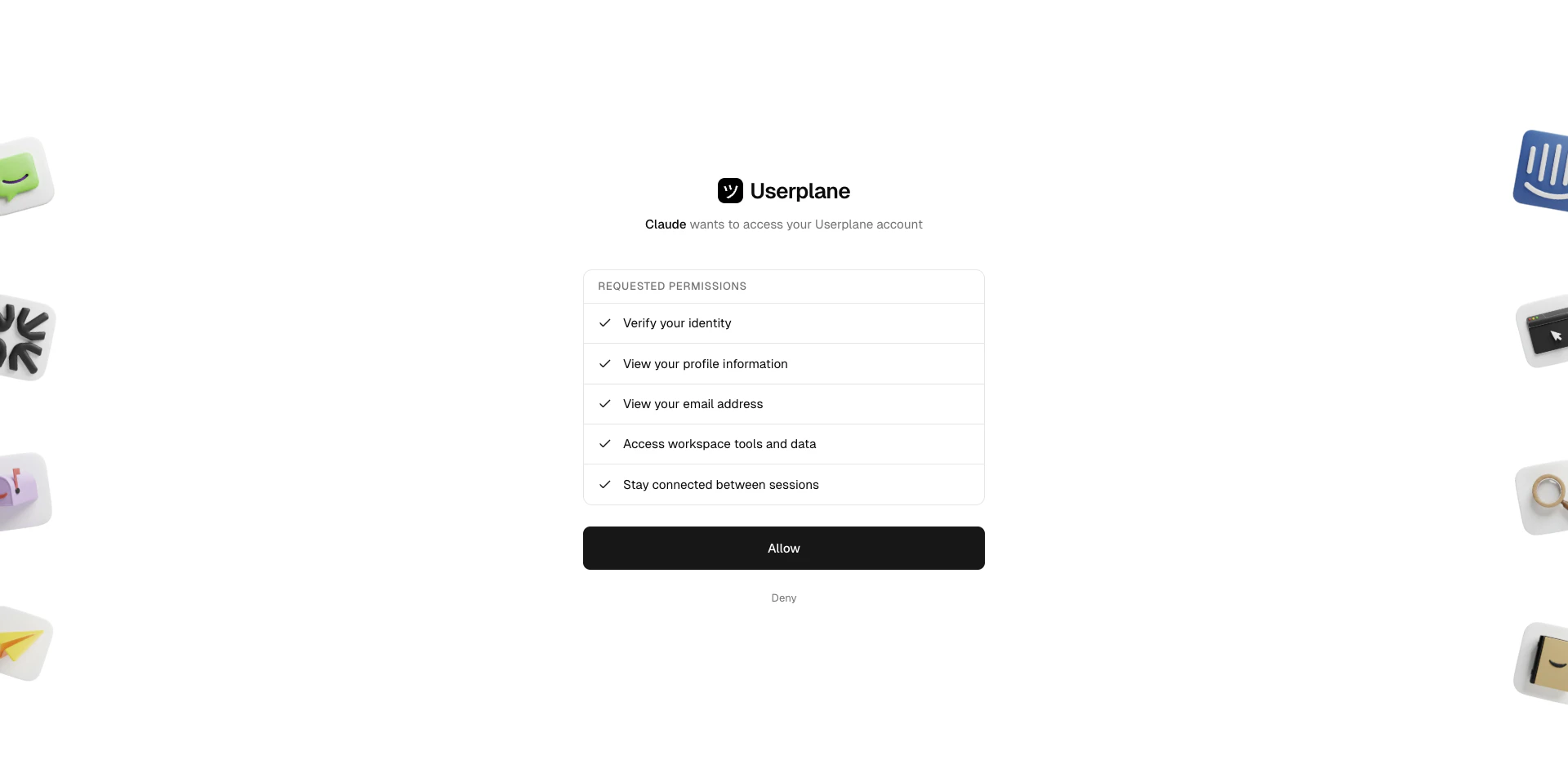
Approve access
The consent screen shows the requesting client and the mcp:tools scope. Click Allow.
OAuth consent screen
5
Connection established
The client receives an access token and can make authenticated tool calls. Tokens refresh
automatically — you won’t need to sign in again unless you revoke access.
MCP tools respect the same workspace roles as the Userplane dashboard and REST API.
Capability
Required role
Read data (list, get, show)
Any workspace member
Create recording links
Any workspace member
Update recording links
Any workspace member
Delete recordings
Admin, Owner, or creator
Delete recording links
Admin, Owner, or creator
Your workspace role determines what operations are available through the MCP server. If you
receive a permission error, check your role in Workspace Settings >
Team.
Per-client registration — each AI client (Claude, Codex, Cursor, VS Code, ChatGPT) registers as a separate OAuth client. Revoking one client’s access does not affect others.
Token scoping — access tokens are scoped to mcp:tools and carry no broader permissions.
JWT verification — every request is verified against Userplane’s JWKS endpoint with issuer and audience checks.
No shared secrets — no API keys or client secrets are shared with the AI client. All clients use PKCE (public client flow).
Each authorized MCP client appears in your account’s Connected Apps list. From there you can review permissions, check authorization dates, and revoke access.To revoke a specific client’s access:
Locate the client and open the actions menu (three dots).
Select Revoke Access, type the application name to confirm, and click Revoke.
The client loses access immediately. Other connected clients are not affected.
For the full walkthrough including screenshots, see Connected Apps.
The Userplane REST API uses uspl_ API keys for authentication (see API
Authentication). The MCP server uses OAuth 2.1 instead — the two
authentication methods provide access to the same underlying resources through different
interfaces.
{"docsConfig":{"theme":"aspen","$schema":"https://mintlify.com/docs.json","name":"Userplane Docs","colors":{"primary":"#000000","light":"#FAFAFA","dark":"#000000"},"logo":{"light":"https://mintcdn.com/userplane/e34bWffW8FdiqmQz/static/logo-light.svg?fit=max\u0026auto=format\u0026n=e34bWffW8FdiqmQz\u0026q=85\u0026s=b60f979b7800d446f3f5d5274c095cb2","dark":"https://mintcdn.com/userplane/e34bWffW8FdiqmQz/static/logo-dark.svg?fit=max\u0026auto=format\u0026n=e34bWffW8FdiqmQz\u0026q=85\u0026s=f638b932d019423317aaca6685f22ea6"},"favicon":"https://mintcdn.com/userplane/e34bWffW8FdiqmQz/static/favicon.svg?fit=max\u0026auto=format\u0026n=e34bWffW8FdiqmQz\u0026q=85\u0026s=fd9fbcc5e1783343c767381ce1744d03","api":{"playground":{"display":"interactive"}},"appearance":{"default":"light","strict":true},"navbar":{"primary":{"type":"button","label":"Dashboard","href":"https://dash.userplane.io"}},"styling":{"latex":true},"navigation":{"pages":[]}},"deployment":{"deploymentMetadataValue":{"subdomain":"userplane","hasAudioNarration":false,"actualSubdomain":"userplane","customDomains":["docs.userplane.io"],"gitSource":{"type":"github","owner":"0xnyn","repo":"userplane","deployBranch":"main","contentDirectory":"apps/docs","isPrivate":true,"mountPath":"","label":""},"chroma":{"liveDeploymentHistoryId":"6a21eb6f2fb2a99bab92da64","collectionId":"8e53ea74-03f5-4b56-ab3a-aff2a4fe9720","schemaVersion":"v2"},"entitlements":{},"buildId":"6a21eb6f2fb2a99bab92da64:success","clientVersion":"0.0.3908","searchFilterCounts":[{"language":"default","tag":"Integrations","count":62},{"language":"default","tag":"Guide","count":47},{"language":"default","tag":"Extensions \u0026 Plugins","count":34},{"language":"default","tag":"API","count":28},{"language":"default","tag":"Developer","count":24},{"language":"default","tag":"Recordings","count":21},{"language":"default","tag":"Help Desk","count":16},{"language":"default","tag":"Claude Code","count":14},{"language":"default","tag":"Framework Guides","count":13},{"language":"default","tag":"Getting Started","count":12}]},"assistantConfig":{"enableAskAiButton":false,"enableStarterQuestions":false,"enableAskAiSearchBar":true},"hasChatPermissions":false,"hasWebMcpPermissions":false,"toggles":[{"name":"kill-isr","enabled":true,"variant":{"name":"disabled","enabled":false,"feature_enabled":true},"impressionData":false},{"name":"agent-mintlify-slack","enabled":true,"variant":{"name":"disabled","enabled":false,"feature_enabled":true},"impressionData":false},{"name":"editor-v7-file-tree","enabled":true,"variant":{"name":"disabled","enabled":false,"feature_enabled":true},"impressionData":false},{"name":"agent-integrations-settings","enabled":true,"variant":{"name":"disabled","enabled":false,"feature_enabled":true},"impressionData":false},{"name":"automations-pr-grouping","enabled":true,"variant":{"name":"disabled","enabled":false,"feature_enabled":true},"impressionData":false},{"name":"custom-prefix","enabled":true,"variant":{"name":"disabled","enabled":false,"feature_enabled":true},"impressionData":false},{"name":"analytics-v7","enabled":true,"variant":{"name":"disabled","enabled":false,"feature_enabled":true},"impressionData":false},{"name":"user-flows-analytics","enabled":true,"variant":{"name":"disabled","enabled":false,"feature_enabled":true},"impressionData":false},{"name":"no-publish-flow","enabled":true,"variant":{"name":"disabled","enabled":false,"feature_enabled":true},"impressionData":false},{"name":"workos-onboarding","enabled":true,"variant":{"name":"disabled","enabled":false,"feature_enabled":true},"impressionData":false},{"name":"llms-txt-v2","enabled":true,"variant":{"name":"disabled","enabled":false,"feature_enabled":true},"impressionData":false},{"name":"pause-universal-search-reconcile","enabled":true,"variant":{"name":"disabled","enabled":false,"feature_enabled":true},"impressionData":false},{"name":"snapshot-serving-live","enabled":true,"variant":{"name":"disabled","enabled":false,"feature_enabled":true},"impressionData":false},{"name":"stripTemperatureMiddleware","enabled":true,"variant":{"name":"disabled","enabled":false,"feature_enabled":true},"impressionData":false},{"name":"per-site-search-delta","enabled":true,"variant":{"name":"disabled","enabled":false,"feature_enabled":true},"impressionData":false},{"name":"support-platform-pylon-zendesk","enabled":true,"variant":{"name":"disabled","enabled":false,"feature_enabled":true},"impressionData":false},{"name":"editor-branches-v2-autocommit","enabled":true,"variant":{"name":"disabled","enabled":false,"feature_enabled":true},"impressionData":false},{"name":"editor-branches-v2","enabled":true,"variant":{"name":"disabled","enabled":false,"feature_enabled":true},"impressionData":false},{"name":"snapshot-serving","enabled":true,"variant":{"name":"disabled","enabled":false,"feature_enabled":true},"impressionData":false},{"name":"instant-rollback","enabled":true,"variant":{"name":"disabled","enabled":false,"feature_enabled":true},"impressionData":false},{"name":"granular-notifications-server","enabled":true,"variant":{"name":"disabled","enabled":false,"feature_enabled":true},"impressionData":false},{"name":"granular-notifications","enabled":true,"variant":{"name":"disabled","enabled":false,"feature_enabled":true},"impressionData":false},{"name":"editor-private-page-search","enabled":true,"variant":{"name":"disabled","enabled":false,"feature_enabled":true},"impressionData":false},{"name":"automations-fable","enabled":true,"variant":{"name":"disabled","enabled":false,"feature_enabled":true},"impressionData":false},{"name":"fixed-ai-action-pricing","enabled":true,"variant":{"name":"disabled","enabled":false,"feature_enabled":true},"impressionData":false},{"name":"automation-resolve-merge-conflict","enabled":true,"variant":{"name":"disabled","enabled":false,"feature_enabled":true},"impressionData":false},{"name":"scoped-publishing","enabled":true,"variant":{"name":"disabled","enabled":false,"feature_enabled":true},"impressionData":false},{"name":"mintql","enabled":true,"variant":{"name":"disabled","enabled":false,"feature_enabled":true},"impressionData":false},{"name":"page-level-analytics","enabled":true,"variant":{"name":"disabled","enabled":false,"feature_enabled":true},"impressionData":false},{"name":"teamspace","enabled":true,"variant":{"name":"disabled","enabled":false,"feature_enabled":true},"impressionData":false},{"name":"editor-version-history-v2","enabled":true,"variant":{"name":"disabled","enabled":false,"feature_enabled":true},"impressionData":false},{"name":"vite-origin","enabled":true,"variant":{"name":"disabled","enabled":false,"feature_enabled":true},"impressionData":false},{"name":"editor-nav-generations","enabled":true,"variant":{"name":"disabled","enabled":false,"feature_enabled":true},"impressionData":false},{"name":"billing-page-v2","enabled":true,"variant":{"name":"disabled","enabled":false,"feature_enabled":true},"impressionData":false},{"name":"workspace-projects","enabled":true,"variant":{"name":"disabled","enabled":false,"feature_enabled":true},"impressionData":false},{"name":"assistant-v5","enabled":true,"variant":{"name":"disabled","enabled":false,"feature_enabled":true},"impressionData":false},{"name":"byok-sep-25","enabled":true,"variant":{"name":"disabled","enabled":false,"feature_enabled":true},"impressionData":false},{"name":"fork-pr-previews","enabled":true,"variant":{"name":"disabled","enabled":false,"feature_enabled":true},"impressionData":false},{"name":"revalidation-jwt","enabled":true,"variant":{"name":"disabled","enabled":false,"feature_enabled":true},"impressionData":false},{"name":"editor-agent-model-picker","enabled":true,"variant":{"name":"disabled","enabled":false,"feature_enabled":true},"impressionData":false},{"name":"client-snapshot-docs-config","enabled":true,"variant":{"name":"disabled","enabled":false,"feature_enabled":true},"impressionData":false},{"name":"hobby-abuse-scan","enabled":true,"variant":{"name":"disabled","enabled":false,"feature_enabled":true},"impressionData":false},{"name":"dashboard-inbox","enabled":true,"variant":{"name":"disabled","enabled":false,"feature_enabled":true},"impressionData":false}],"isAtlas":false,"googleFontsInlined":false},"customCss":[],"page":{"pagePath":"integrations/mcp-authentication","slug":"/integrations/mcp-authentication","pageMetadata":{"title":"Authentication","description":"How the Userplane MCP server authenticates AI clients using OAuth 2.1","href":"/integrations/mcp-authentication"},"description":{"compiledSource":"\"use strict\";\nconst {jsx: _jsx} = arguments[0];\nconst {useMDXComponents: _provideComponents} = arguments[0];\nfunction _createMdxContent(props) {\n const _components = {\n p: \"p\",\n ..._provideComponents(),\n ...props.components\n };\n return _jsx(_components.p, {\n children: \"How the Userplane MCP server authenticates AI clients using OAuth 2.1\"\n });\n}\nfunction MDXContent(props = {}) {\n const {wrapper: MDXLayout} = {\n ..._provideComponents(),\n ...props.components\n };\n return MDXLayout ? _jsx(MDXLayout, {\n ...props,\n children: _jsx(_createMdxContent, {\n ...props\n })\n }) : _createMdxContent(props);\n}\nreturn {\n default: MDXContent\n};\n","frontmatter":{},"scope":{}},"pageType":"default","mdx":{"mdxSource":{"compiledSource":"\"use strict\";const{Fragment:_Fragment,jsx:_jsx,jsxs:_jsxs}=arguments[0];const{useMDXComponents:_provideComponents}=arguments[0];function _createMdxContent(props){const _components={a:`a`,code:`code`,li:`li`,ol:`ol`,p:`p`,strong:`strong`,tbody:`tbody`,td:`td`,th:`th`,thead:`thead`,tr:`tr`,ul:`ul`,..._provideComponents(),...props.components},{Frame,Heading,Note,OptimizedImage,Step,Steps,Table}=_components;if(!Frame)_missingMdxReference(`Frame`,true);if(!Heading)_missingMdxReference(`Heading`,true);if(!Note)_missingMdxReference(`Note`,true);if(!OptimizedImage)_missingMdxReference(`OptimizedImage`,true);if(!Step)_missingMdxReference(`Step`,true);if(!Steps)_missingMdxReference(`Steps`,true);if(!Table)_missingMdxReference(`Table`,true);return _jsxs(_Fragment,{children:[_jsx(_components.p,{children:`The Userplane MCP server uses OAuth 2.1 for authentication. AI clients handle the OAuth flow automatically when you first connect. No API keys or manual token management required.`}),`\n`,_jsx(Heading,{level:`2`,id:`how-it-works`,children:`How it works`}),`\n`,_jsx(_components.p,{children:`The MCP server implements the following standards:`}),`\n`,_jsxs(Table,{children:[_jsx(_components.thead,{children:_jsxs(_components.tr,{children:[_jsx(_components.th,{children:`Standard`}),_jsx(_components.th,{children:`Purpose`})]})}),_jsxs(_components.tbody,{children:[_jsxs(_components.tr,{children:[_jsx(_components.td,{children:_jsx(_components.strong,{children:`OAuth 2.1`})}),_jsx(_components.td,{children:`Authorization framework`})]}),_jsxs(_components.tr,{children:[_jsxs(_components.td,{children:[_jsx(_components.strong,{children:`Dynamic Client Registration`}),` (RFC 7591)`]}),_jsx(_components.td,{children:`Each AI client registers automatically — no manual provisioning`})]}),_jsxs(_components.tr,{children:[_jsx(_components.td,{children:_jsx(_components.strong,{children:`PKCE`})}),_jsx(_components.td,{children:`Proof Key for Code Exchange protects the authorization flow`})]}),_jsxs(_components.tr,{children:[_jsx(_components.td,{children:_jsx(_components.strong,{children:`JWT`})}),_jsx(_components.td,{children:`Access tokens are JWTs verified against Userplane’s JWKS endpoint`})]})]})]}),`\n`,_jsxs(_components.p,{children:[`The server uses a single OAuth scope: `,_jsx(_components.code,{children:`mcp:tools`}),`.`]}),`\n`,_jsx(Heading,{level:`2`,id:`what-happens-when-you-connect`,children:`What happens when you connect`}),`\n`,_jsxs(Steps,{children:[_jsx(Step,{title:`Add the server URL`,children:_jsxs(_components.p,{children:[`You add `,_jsx(_components.code,{children:`https://api.userplane.io/mcp`}),` to your AI client’s MCP settings.`]})}),_jsx(Step,{title:`First tool call triggers OAuth`,children:_jsx(_components.p,{children:`When you ask your agent to do something that requires Userplane data, the client initiates the\nOAuth flow.`})}),_jsx(Step,{title:`Sign in via browser`,children:_jsx(_components.p,{children:`A browser window opens. Sign in with your Userplane credentials.`})}),_jsxs(Step,{title:`Approve access`,children:[_jsxs(_components.p,{children:[`The consent screen shows the requesting client and the `,_jsx(_components.code,{children:`mcp:tools`}),` scope. Click `,_jsx(_components.strong,{children:`Allow`}),`.`]}),_jsx(Frame,{caption:`OAuth consent screen`,children:_jsx(OptimizedImage,{src:`https://mintcdn.com/userplane/q948NEPnf1eM8DIT/media/mcp/claude/oauth/consent-screen.png?fit=max\u0026auto=format\u0026n=q948NEPnf1eM8DIT\u0026q=85\u0026s=48bc32b7fdfbea77746acda9ed7d2f36`,\"data-og-width\":`1920`,width:`1920`,\"data-og-height\":`958`,height:`958`,\"data-path\":`media/mcp/claude/oauth/consent-screen.png`,\"data-optimize\":`true`,\"data-opv\":`3`,srcset:`https://mintcdn.com/userplane/q948NEPnf1eM8DIT/media/mcp/claude/oauth/consent-screen.png?w=280\u0026fit=max\u0026auto=format\u0026n=q948NEPnf1eM8DIT\u0026q=85\u0026s=bfdae503076fb6fba30be8b99bb90975 280w, https://mintcdn.com/userplane/q948NEPnf1eM8DIT/media/mcp/claude/oauth/consent-screen.png?w=560\u0026fit=max\u0026auto=format\u0026n=q948NEPnf1eM8DIT\u0026q=85\u0026s=ed91d3d89ecbe2e8441662cef2561a16 560w, https://mintcdn.com/userplane/q948NEPnf1eM8DIT/media/mcp/claude/oauth/consent-screen.png?w=840\u0026fit=max\u0026auto=format\u0026n=q948NEPnf1eM8DIT\u0026q=85\u0026s=6446ca65f78c2bb04de566ad262baeca 840w, https://mintcdn.com/userplane/q948NEPnf1eM8DIT/media/mcp/claude/oauth/consent-screen.png?w=1100\u0026fit=max\u0026auto=format\u0026n=q948NEPnf1eM8DIT\u0026q=85\u0026s=fd28a21f0eb93f3e2acf1b017ddeae40 1100w, https://mintcdn.com/userplane/q948NEPnf1eM8DIT/media/mcp/claude/oauth/consent-screen.png?w=1650\u0026fit=max\u0026auto=format\u0026n=q948NEPnf1eM8DIT\u0026q=85\u0026s=8054bd3a16fe77ad2cb5a512571021a7 1650w, https://mintcdn.com/userplane/q948NEPnf1eM8DIT/media/mcp/claude/oauth/consent-screen.png?w=2500\u0026fit=max\u0026auto=format\u0026n=q948NEPnf1eM8DIT\u0026q=85\u0026s=0ba4beb6eb46df1075829f5a9a2c0b28 2500w`})})]}),_jsx(Step,{title:`Connection established`,children:_jsx(_components.p,{children:`The client receives an access token and can make authenticated tool calls. Tokens refresh\nautomatically — you won’t need to sign in again unless you revoke access.`})})]}),`\n`,_jsx(Heading,{level:`2`,id:`permissions`,children:`Permissions`}),`\n`,_jsx(_components.p,{children:`MCP tools respect the same workspace roles as the Userplane dashboard and REST API.`}),`\n`,_jsxs(Table,{children:[_jsx(_components.thead,{children:_jsxs(_components.tr,{children:[_jsx(_components.th,{children:`Capability`}),_jsx(_components.th,{children:`Required role`})]})}),_jsxs(_components.tbody,{children:[_jsxs(_components.tr,{children:[_jsx(_components.td,{children:`Read data (list, get, show)`}),_jsx(_components.td,{children:`Any workspace member`})]}),_jsxs(_components.tr,{children:[_jsx(_components.td,{children:`Create recording links`}),_jsx(_components.td,{children:`Any workspace member`})]}),_jsxs(_components.tr,{children:[_jsx(_components.td,{children:`Update recording links`}),_jsx(_components.td,{children:`Any workspace member`})]}),_jsxs(_components.tr,{children:[_jsx(_components.td,{children:`Delete recordings`}),_jsx(_components.td,{children:`Admin, Owner, or creator`})]}),_jsxs(_components.tr,{children:[_jsx(_components.td,{children:`Delete recording links`}),_jsx(_components.td,{children:`Admin, Owner, or creator`})]})]})]}),`\n`,_jsx(Note,{children:_jsxs(_components.p,{children:[`Your workspace role determines what operations are available through the MCP server. If you\nreceive a permission error, check your role in `,_jsx(_components.a,{href:`https://dash.userplane.io/_/settings?tab=team`,children:`Workspace Settings >\nTeam`}),`.`]})}),`\n`,_jsx(Heading,{level:`2`,id:`security`,children:`Security`}),`\n`,_jsxs(_components.ul,{children:[`\n`,_jsxs(_components.li,{children:[_jsx(_components.strong,{children:`Per-client registration`}),` — each AI client (Claude, Codex, Cursor, VS Code, ChatGPT) registers as a separate OAuth client. Revoking one client’s access does not affect others.`]}),`\n`,_jsxs(_components.li,{children:[_jsx(_components.strong,{children:`Token scoping`}),` — access tokens are scoped to `,_jsx(_components.code,{children:`mcp:tools`}),` and carry no broader permissions.`]}),`\n`,_jsxs(_components.li,{children:[_jsx(_components.strong,{children:`JWT verification`}),` — every request is verified against Userplane’s JWKS endpoint with issuer and audience checks.`]}),`\n`,_jsxs(_components.li,{children:[_jsx(_components.strong,{children:`No shared secrets`}),` — no API keys or client secrets are shared with the AI client. All clients use PKCE (public client flow).`]}),`\n`]}),`\n`,_jsx(Heading,{level:`2`,id:`managing-connections`,children:`Managing connections`}),`\n`,_jsxs(_components.p,{children:[`Each authorized MCP client appears in your account’s `,_jsx(_components.a,{href:`https://dash.userplane.io/_/account?tab=connections`,children:`Connected Apps`}),` list. From there you can review permissions, check authorization dates, and revoke access.`]}),`\n`,_jsx(_components.p,{children:`To revoke a specific client’s access:`}),`\n`,_jsxs(_components.ol,{children:[`\n`,_jsxs(_components.li,{children:[`Go to `,_jsx(_components.a,{href:`https://dash.userplane.io/_/account?tab=connections`,children:`Account Settings > Connections`}),`.`]}),`\n`,_jsx(_components.li,{children:`Locate the client and open the actions menu (three dots).`}),`\n`,_jsxs(_components.li,{children:[`Select `,_jsx(_components.strong,{children:`Revoke Access`}),`, type the application name to confirm, and click `,_jsx(_components.strong,{children:`Revoke`}),`.`]}),`\n`]}),`\n`,_jsx(_components.p,{children:`The client loses access immediately. Other connected clients are not affected.`}),`\n`,_jsx(Note,{children:_jsxs(_components.p,{children:[`For the full walkthrough including screenshots, see `,_jsx(_components.a,{href:`/account/connections`,children:`Connected Apps`}),`.`]})}),`\n`,_jsx(Note,{children:_jsxs(_components.p,{children:[`The Userplane REST API uses `,_jsx(_components.code,{children:`uspl_`}),` API keys for authentication (see `,_jsx(_components.a,{href:`/api/authentication`,children:`API\nAuthentication`}),`). The MCP server uses OAuth 2.1 instead — the two\nauthentication methods provide access to the same underlying resources through different\ninterfaces.`]})}),`\n`,_jsx(Heading,{level:`2`,id:`related-articles`,children:`Related articles`}),`\n`,_jsxs(_components.ul,{children:[`\n`,_jsxs(_components.li,{children:[_jsx(_components.a,{href:`/integrations/mcp-workspace`,children:`Userplane MCP`}),` — overview of the workspace MCP server.`]}),`\n`,_jsxs(_components.li,{children:[_jsx(_components.a,{href:`/integrations/mcp-getting-started`,children:`Getting Started`}),` — connect your AI client and start analyzing recordings.`]}),`\n`,_jsxs(_components.li,{children:[_jsx(_components.a,{href:`/account/connections`,children:`Connected Apps`}),` — view and revoke MCP client access from Account Settings.`]}),`\n`,_jsxs(_components.li,{children:[_jsx(_components.a,{href:`/api/authentication`,children:`API Authentication`}),` — REST API authentication with `,_jsx(_components.code,{children:`uspl_`}),` API keys.`]}),`\n`,_jsxs(_components.li,{children:[_jsx(_components.a,{href:`/workspace/roles-permissions`,children:`Roles \u0026 Permissions`}),` — full breakdown of workspace roles.`]}),`\n`]})]})}function MDXContent(props={}){const{wrapper:MDXLayout}={..._provideComponents(),...props.components};return MDXLayout?_jsx(MDXLayout,{...props,children:_jsx(_createMdxContent,{...props})}):_createMdxContent(props)}return{default:MDXContent};function _missingMdxReference(id,component){throw new Error(`Expected `+(component?`component`:`object`)+\" `\"+id+\"` to be defined: you likely forgot to import, pass, or provide it.\")}","frontmatter":{},"scope":{"config":{},"pageMetadata":{"title":"Authentication","description":"How the Userplane MCP server authenticates AI clients using OAuth 2.1","href":"/integrations/mcp-authentication"}}},"mdxSourceWithNoJs":null},"mdxExtracts":{"tableOfContents":[{"title":"How it works","slug":"how-it-works","depth":2,"children":[]},{"title":"What happens when you connect","slug":"what-happens-when-you-connect","depth":2,"children":[]},{"title":"Permissions","slug":"permissions","depth":2,"children":[]},{"title":"Security","slug":"security","depth":2,"children":[]},{"title":"Managing connections","slug":"managing-connections","depth":2,"children":[]},{"title":"Related articles","slug":"related-articles","depth":2,"children":[]}],"codeExamples":{}},"jsLinks":["/_mintlify/custom/userplane/95cb985acf23057a/eslint.config.js"],"subdomain":"userplane","siteName":"Userplane Docs","title":"Authentication - Userplane Docs","navMaps":{"firstHrefInVersion":{},"firstHrefInLanguage":{}},"lastModified":"2026-05-06T18:42:37.414Z","originalFileLocation":"integrations/mcp-authentication.mdx"},"headHtml":"\u003cscript data-mint-head>(function(){var d=document.documentElement,p=\"light\";if(!p){try{p=localStorage.getItem(\"isDarkMode\")}catch(e){}if(p==='true')p='dark';else if(p==='false')p='light';if(p!=='light'\u0026\u0026p!=='dark'\u0026\u0026p!=='system')p=\"light\"}var r=p==='system'?(matchMedia(\"(prefers-color-scheme: dark)\").matches?'dark':'light'):p;d.classList.remove(r==='dark'?'light':'dark');d.classList.add(r);d.setAttribute(\"data-theme-preference\",p)})();\u003c/script>\u003cmeta data-mint-head name=\"description\" content=\"How the Userplane MCP server authenticates AI clients using OAuth 2.1\">\u003cmeta data-mint-head name=\"application-name\" content=\"Userplane Docs\">\u003cmeta data-mint-head name=\"generator\" content=\"Mintlify\">\u003clink data-mint-head rel=\"icon\" type=\"image/png\" sizes=\"192x192\" href=\"/mintlify-assets/_mintlify/favicons/userplane/fDBjjV0nXQ3P7r2U/_generated/favicon/android-chrome-192x192.png\" media=\"(prefers-color-scheme: light)\">\u003clink data-mint-head rel=\"apple-touch-icon\" type=\"image/png\" sizes=\"180x180\" href=\"/mintlify-assets/_mintlify/favicons/userplane/fDBjjV0nXQ3P7r2U/_generated/favicon/apple-touch-icon.png\">\u003clink data-mint-head rel=\"icon\" type=\"image/png\" sizes=\"16x16\" href=\"/mintlify-assets/_mintlify/favicons/userplane/fDBjjV0nXQ3P7r2U/_generated/favicon/favicon-16x16.png\" media=\"(prefers-color-scheme: light)\">\u003clink data-mint-head rel=\"icon\" type=\"image/png\" sizes=\"32x32\" href=\"/mintlify-assets/_mintlify/favicons/userplane/fDBjjV0nXQ3P7r2U/_generated/favicon/favicon-32x32.png\" media=\"(prefers-color-scheme: light)\">\u003clink data-mint-head rel=\"shortcut icon\" type=\"image/x-icon\" href=\"/mintlify-assets/_mintlify/favicons/userplane/fDBjjV0nXQ3P7r2U/_generated/favicon/favicon.ico\" media=\"(prefers-color-scheme: light)\">\u003clink data-mint-head rel=\"icon\" type=\"image/png\" sizes=\"192x192\" href=\"/mintlify-assets/_mintlify/favicons/userplane/fDBjjV0nXQ3P7r2U/_generated/favicon-dark/android-chrome-192x192.png\" media=\"(prefers-color-scheme: dark)\">\u003clink data-mint-head rel=\"icon\" type=\"image/png\" sizes=\"16x16\" href=\"/mintlify-assets/_mintlify/favicons/userplane/fDBjjV0nXQ3P7r2U/_generated/favicon-dark/favicon-16x16.png\" media=\"(prefers-color-scheme: dark)\">\u003clink data-mint-head rel=\"icon\" type=\"image/png\" sizes=\"32x32\" href=\"/mintlify-assets/_mintlify/favicons/userplane/fDBjjV0nXQ3P7r2U/_generated/favicon-dark/favicon-32x32.png\" media=\"(prefers-color-scheme: dark)\">\u003clink data-mint-head rel=\"shortcut icon\" type=\"image/x-icon\" href=\"/mintlify-assets/_mintlify/favicons/userplane/fDBjjV0nXQ3P7r2U/_generated/favicon-dark/favicon.ico\" media=\"(prefers-color-scheme: dark)\">\u003cmeta data-mint-head property=\"og:title\" content=\"Authentication - Userplane Docs\">\u003cmeta data-mint-head property=\"og:description\" content=\"How the Userplane MCP server authenticates AI clients using OAuth 2.1\">\u003cmeta data-mint-head property=\"og:site_name\" content=\"Userplane Docs\">\u003cmeta data-mint-head property=\"og:url\" content=\"https://docs.userplane.io/integrations/mcp-authentication\">\u003cmeta data-mint-head property=\"og:type\" content=\"website\">\u003cmeta data-mint-head name=\"twitter:card\" content=\"summary_large_image\">\u003cmeta data-mint-head name=\"twitter:title\" content=\"Authentication - Userplane Docs\">\u003cmeta data-mint-head name=\"twitter:description\" content=\"How the Userplane MCP server authenticates AI clients using OAuth 2.1\">\u003cmeta data-mint-head name=\"msapplication-config\" content=\"/mintlify-assets/_mintlify/favicons/userplane/fDBjjV0nXQ3P7r2U/_generated/favicon/browserconfig.xml\">\u003cmeta data-mint-head name=\"apple-mobile-web-app-title\" content=\"Userplane Docs\">\u003cmeta data-mint-head name=\"msapplication-TileColor\" content=\"#000000\">\u003clink data-mint-head rel=\"canonical\" href=\"https://docs.userplane.io/integrations/mcp-authentication\">\u003clink data-mint-head rel=\"alternate\" type=\"application/xml\" href=\"/sitemap.xml\">\u003clink data-mint-head rel=\"alternate\" type=\"text/markdown\" href=\"/integrations/mcp-authentication.md\">\u003cscript data-mint-head type=\"application/ld+json\">{\"@context\":\"https://schema.org\",\"@graph\":[{\"@type\":\"Organization\",\"@id\":\"https://docs.userplane.io/#organization\",\"name\":\"Userplane Docs\",\"url\":\"https://docs.userplane.io\",\"logo\":{\"@type\":\"ImageObject\",\"url\":\"https://mintcdn.com/userplane/e34bWffW8FdiqmQz/static/logo-light.svg?fit=max\u0026auto=format\u0026n=e34bWffW8FdiqmQz\u0026q=85\u0026s=b60f979b7800d446f3f5d5274c095cb2\"}},{\"@type\":\"WebSite\",\"@id\":\"https://docs.userplane.io#website\",\"name\":\"Userplane Docs\",\"url\":\"https://docs.userplane.io\",\"publisher\":{\"@id\":\"https://docs.userplane.io/#organization\"}},{\"@type\":\"WebPage\",\"@id\":\"https://docs.userplane.io/integrations/mcp-authentication#webpage\",\"url\":\"https://docs.userplane.io/integrations/mcp-authentication\",\"name\":\"Authentication\",\"description\":\"How the Userplane MCP server authenticates AI clients using OAuth 2.1\",\"dateModified\":\"2026-05-06T18:42:37.414Z\",\"isPartOf\":{\"@id\":\"https://docs.userplane.io#website\"},\"breadcrumb\":{\"@id\":\"https://docs.userplane.io/integrations/mcp-authentication#breadcrumb\"}},{\"@type\":\"BreadcrumbList\",\"@id\":\"https://docs.userplane.io/integrations/mcp-authentication#breadcrumb\",\"itemListElement\":[{\"@type\":\"ListItem\",\"position\":1,\"name\":\"Model Context Protocol\",\"item\":\"https://docs.userplane.io/integrations/mcp\"},{\"@type\":\"ListItem\",\"position\":2,\"name\":\"Userplane MCP\",\"item\":\"https://docs.userplane.io/integrations/mcp-workspace\"},{\"@type\":\"ListItem\",\"position\":3,\"name\":\"Authentication\",\"item\":\"https://docs.userplane.io/integrations/mcp-authentication\"}]},{\"@type\":[\"Article\",\"TechArticle\"],\"@id\":\"https://docs.userplane.io/integrations/mcp-authentication#article\",\"headline\":\"Authentication\",\"name\":\"Authentication\",\"description\":\"How the Userplane MCP server authenticates AI clients using OAuth 2.1\",\"url\":\"https://docs.userplane.io/integrations/mcp-authentication\",\"mainEntityOfPage\":{\"@id\":\"https://docs.userplane.io/integrations/mcp-authentication#webpage\"},\"dateModified\":\"2026-05-06T18:42:37.414Z\",\"publisher\":{\"@id\":\"https://docs.userplane.io/#organization\"},\"isPartOf\":{\"@id\":\"https://docs.userplane.io#website\"}}]}\u003c/script>\u003cscript data-mint-head type=\"application/ld+json\">{\"@context\":\"https://schema.org\",\"@type\":\"WebSite\",\"name\":\"Userplane Docs\",\"creator\":{\"@type\":\"Organization\",\"name\":\"Mintlify\",\"url\":\"https://mintlify.com\"}}\u003c/script>","siteName":"Userplane Docs","nav":{"global":null,"tabs":[{"tab":"Guide","pages":[{"title":"Guide","href":"/introduction"}]},{"tab":"Developer","pages":[{"title":"Developer","href":"/developer/installation"}]},{"tab":"API","pages":[{"title":"API","href":"/api/introduction"}]},{"tab":"Integrations","groups":[{"group":"Help Desk","icon":"headset","pages":[{"group":"Intercom","pages":[{"title":"Intercom Integration","href":"/integrations/intercom"},{"title":"Intercom Inbox","href":"/integrations/intercom-inbox"},{"title":"Intercom Shortcuts","href":"/integrations/intercom-shortcuts"},{"title":"Intercom Macros","href":"/integrations/intercom-macros"},{"title":"Intercom Notifications","href":"/integrations/intercom-notifications"}]},{"group":"Zendesk","pages":[{"title":"Zendesk Integration","href":"/integrations/zendesk"},{"title":"Zendesk Ticket Sidebar","href":"/integrations/zendesk-ticket-sidebar"},{"title":"Zendesk Ticket Editor","href":"/integrations/zendesk-ticket-editor"},{"title":"Zendesk Top Bar","href":"/integrations/zendesk-top-bar"},{"title":"Zendesk Notifications","href":"/integrations/zendesk-notifications"}]},{"group":"Slack","pages":[{"title":"Slack Integration","href":"/integrations/slack"},{"title":"Slack App Home","href":"/integrations/slack-home"},{"title":"Slack Slash Command","href":"/integrations/slack-commands"},{"title":"Slack Message Shortcuts","href":"/integrations/slack-shortcuts"},{"title":"Slack Notifications","href":"/integrations/slack-notifications"}]},{"title":"Other Help Desks","href":"/integrations/other-helpdesks"}]},{"group":"Extensions \u0026 Plugins","icon":"puzzle-piece","pages":[{"group":"Chrome Extension","pages":[{"title":"Chrome Extension","href":"/integrations/chrome-extension"},{"title":"Chrome Extension Side Panel","href":"/integrations/chrome-extension-side-panel"},{"title":"Chrome Extension Link Creation","href":"/integrations/chrome-extension-create-links"},{"title":"Chrome Extension Link Management","href":"/integrations/chrome-extension-manage-links"},{"title":"Chrome Extension Recordings","href":"/integrations/chrome-extension-recordings"},{"title":"Chrome Extension Shortcuts","href":"/integrations/chrome-extension-shortcuts"},{"title":"Chrome Extension Settings","href":"/integrations/chrome-extension-settings"}]},{"group":"Raycast","pages":[{"title":"Raycast Extension","href":"/integrations/raycast"},{"title":"Raycast Create Recording Links","href":"/integrations/raycast-create-links"},{"title":"Raycast Browse Recordings","href":"/integrations/raycast-recordings"},{"title":"Raycast Browse Links","href":"/integrations/raycast-links"}]},{"group":"Codex","pages":[{"title":"Codex Plugin","href":"/integrations/codex"},{"title":"Getting Started","href":"/integrations/codex-getting-started"},{"title":"Workflows","href":"/integrations/codex-workflows"},{"title":"MCP Servers","href":"/integrations/codex-mcp"}]},{"group":"Cursor","pages":[{"title":"Cursor Plugin","href":"/integrations/cursor"},{"title":"Getting Started","href":"/integrations/cursor-getting-started"},{"title":"Workflows","href":"/integrations/cursor-workflows"},{"title":"Rules","href":"/integrations/cursor-rules"},{"title":"MCP Servers","href":"/integrations/cursor-mcp"}]},{"group":"Claude Code","pages":[{"title":"Claude Code Plugin","href":"/integrations/claude-code"},{"title":"Getting Started","href":"/integrations/claude-code-getting-started"},{"group":"Commands","pages":[{"title":"Commands","href":"/integrations/claude-code-commands"},{"title":"/userplane:integrate","href":"/integrations/claude-code-integrate"},{"title":"/userplane:audit","href":"/integrations/claude-code-audit"},{"title":"/userplane:debug","href":"/integrations/claude-code-debug"},{"title":"/userplane:privacy","href":"/integrations/claude-code-privacy"}]},{"group":"Subagents","pages":[{"title":"Subagents","href":"/integrations/claude-code-subagents"},{"title":"integrate-agent","href":"/integrations/claude-code-integrate-agent"},{"title":"audit-agent","href":"/integrations/claude-code-audit-agent"},{"title":"debug-agent","href":"/integrations/claude-code-debug-agent"},{"title":"privacy-agent","href":"/integrations/claude-code-privacy-agent"}]},{"title":"Skills","href":"/integrations/claude-code-skills"},{"title":"MCP Servers","href":"/integrations/claude-code-mcp"}]}]},{"group":"Model Context Protocol","icon":"robot","pages":[{"title":"Model Context Protocol","href":"/integrations/mcp"},{"group":"Userplane MCP","pages":[{"title":"Userplane MCP","href":"/integrations/mcp-workspace"},{"title":"Getting Started","href":"/integrations/mcp-getting-started"},{"group":"MCP Apps","pages":[{"title":"Interactive Apps","href":"/integrations/mcp-apps"},{"title":"Recording Viewer","href":"/integrations/mcp-apps-recording"},{"title":"Resource Viewers","href":"/integrations/mcp-apps-resources"}]},{"group":"MCP Tools","pages":[{"title":"Recording Tools","href":"/integrations/mcp-tools-recordings"},{"title":"Recording Link Tools","href":"/integrations/mcp-tools-links"},{"title":"Domain Tools","href":"/integrations/mcp-tools-domains"},{"title":"Workspace Tools","description":"MCP tools for accessing user profiles, workspaces, and projects","href":"/integrations/mcp-tools-workspace"}]},{"title":"Authentication","href":"/integrations/mcp-authentication"}]},{"title":"Documentation MCP","description":"Connect AI tools like Claude, Codex, Cursor, and VS Code directly to Userplane documentation via MCP","href":"/integrations/mcp-docs"}]}]}]},"title":"Authentication - Userplane Docs","buildId":"dpl_CUnGQP1HgFUzoxatVC37y4zP83Vx","deploymentId":"dpl_CUnGQP1HgFUzoxatVC37y4zP83Vx","dynamics":["07c022d89b","a74be98ba7"],"chunks":["Frame-BCFzRGe_.js","DynamicMarkdown-BUuAYxJE.js","zoom-image-lightbox-DQ5W4Q2v.js","PlusIcon-jZ8vgk6R.js","lightbox-handle-r17bVUz3.js"]}