

What the extension does
- Provides a Create Recording Link command for generating and copying recording links with workspace, project, and domain selection.
- Displays recordings in a thumbnail grid with duration, creator, and expiry indicators.
- Lists recording links with project tags, reusable/single-use icons, and domain info.
- Supports filtering and sorting across recordings and links — by creator, project, domain, or link.
- Adds a menu bar icon for one-click access to any command or the Userplane dashboard.
- Remembers your last-used workspace, project, and domain selections across sessions.
The Raycast extension is a management tool — it does not record the screen itself. Customers
record by clicking the recording link you share with them.
Installing the extension
1
Install from the Raycast Store
Open Raycast and search for Userplane in the Store, or find it in the Raycast Store. Click Install.
2
Run any command
Open Raycast and type a Userplane command — for example, Create Recording Link. On first run, Raycast prompts you to enter your API key.
3
Enter your API key
Paste your Userplane API key into the API Key field. You can create one at Dashboard > Developers.
Your API key is stored securely in the macOS Keychain by Raycast. It is never written to disk in plain text.
Menu bar
The Show Menu Bar command adds a Userplane icon to your macOS menu bar. Clicking it opens a dropdown with quick access to every command and the dashboard.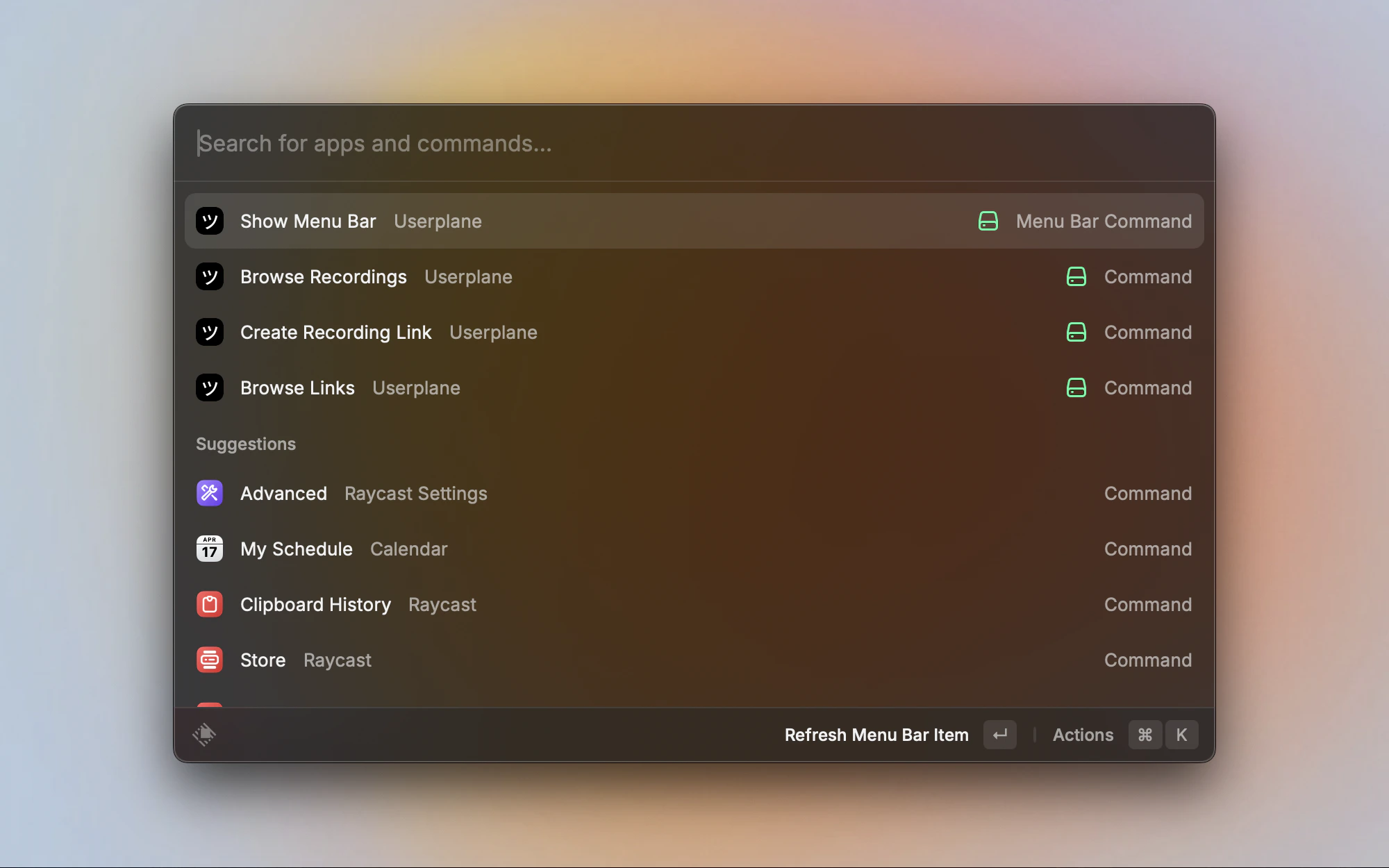
Userplane menu bar icon with quick actions
Configuration
The extension has three preferences, accessible from Raycast’s Extension Preferences panel (Cmd+Shift+A from any Userplane command).
The API Host and Dashboard Host fields accept a bare hostname (
api-dev.userplane.io) or a full URL (https://api-dev.userplane.io). These are only needed for self-hosted or staging environments.
Common actions
These actions are available in the action panel of every Userplane command:Requirements
- macOS with Raycast installed
- A Userplane workspace account
- An API key (create one here)
Related articles
- Raycast Create Recording Links — create and share recording links from Raycast.
- Raycast Browse Recordings — browse recordings with thumbnails, filters, and sorting.
- Raycast Browse Links — browse and manage recording links.
- Help Desk Setup — connect your help desk to Userplane.
- API Keys — manage API keys for the Raycast extension.