

Browsing recordings
Recordings are displayed in a four-column grid with 16:9 aspect ratio thumbnails. Each recording shows:- Thumbnail — a preview frame from the recording. If unavailable, a fallback icon is shown.
- Title — the link title, or “Untitled recording” if none exists.
- Creator — name of the person who submitted the recording.
- Duration — displayed as H:MM:SS.
- Created — relative time (“2 hours ago”, “yesterday”).
- Expiry badge — an orange clock icon appears if the recording expires within 7 days.
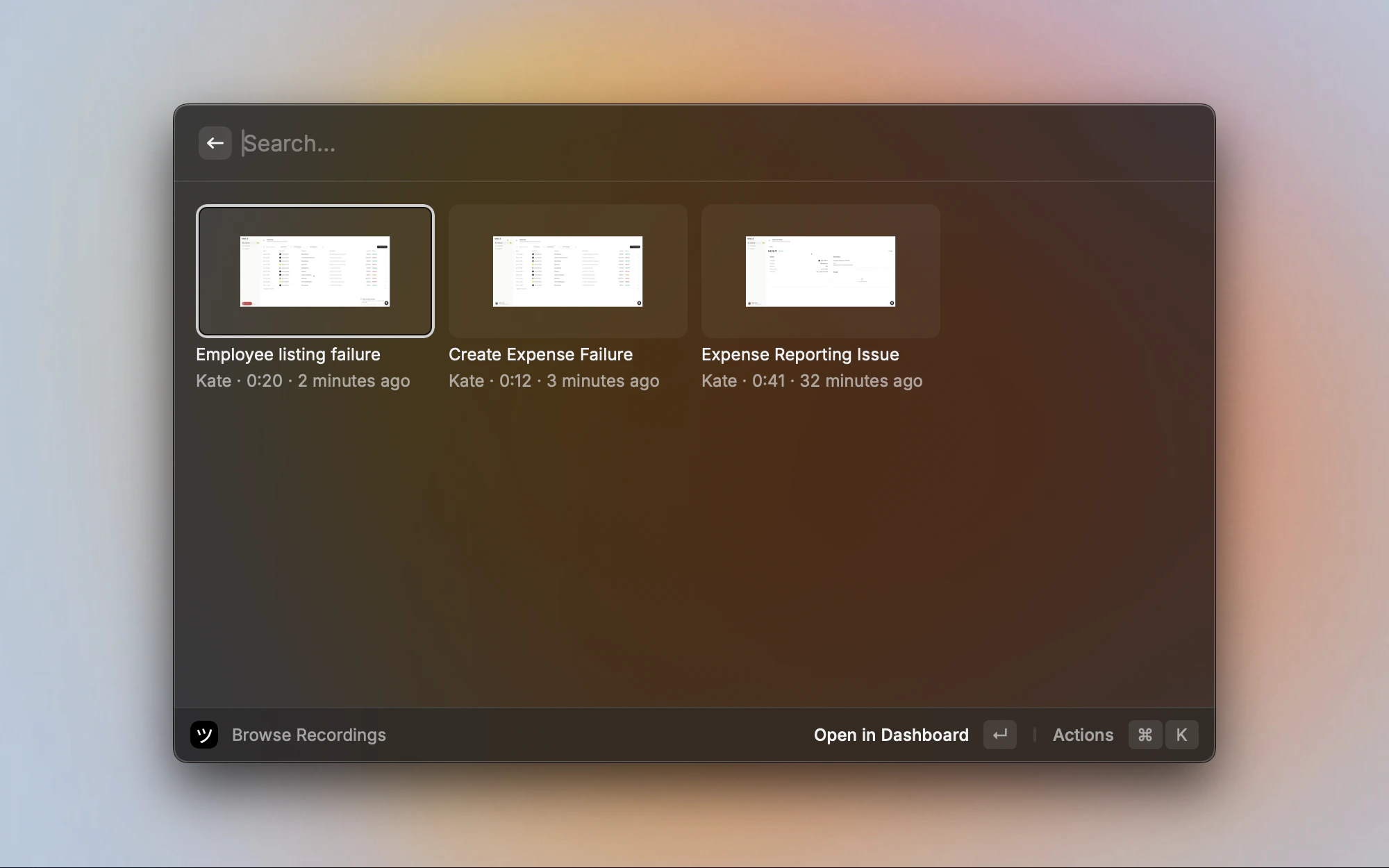
Browse Recordings grid with thumbnails and metadata
Filtering
Press Cmd+F to open the filter screen. Filters narrow the recordings list by one or more dimensions:- Creators — show recordings from specific team members.
- Projects — show recordings from one or more projects.
- Links — show recordings created from specific recording links.
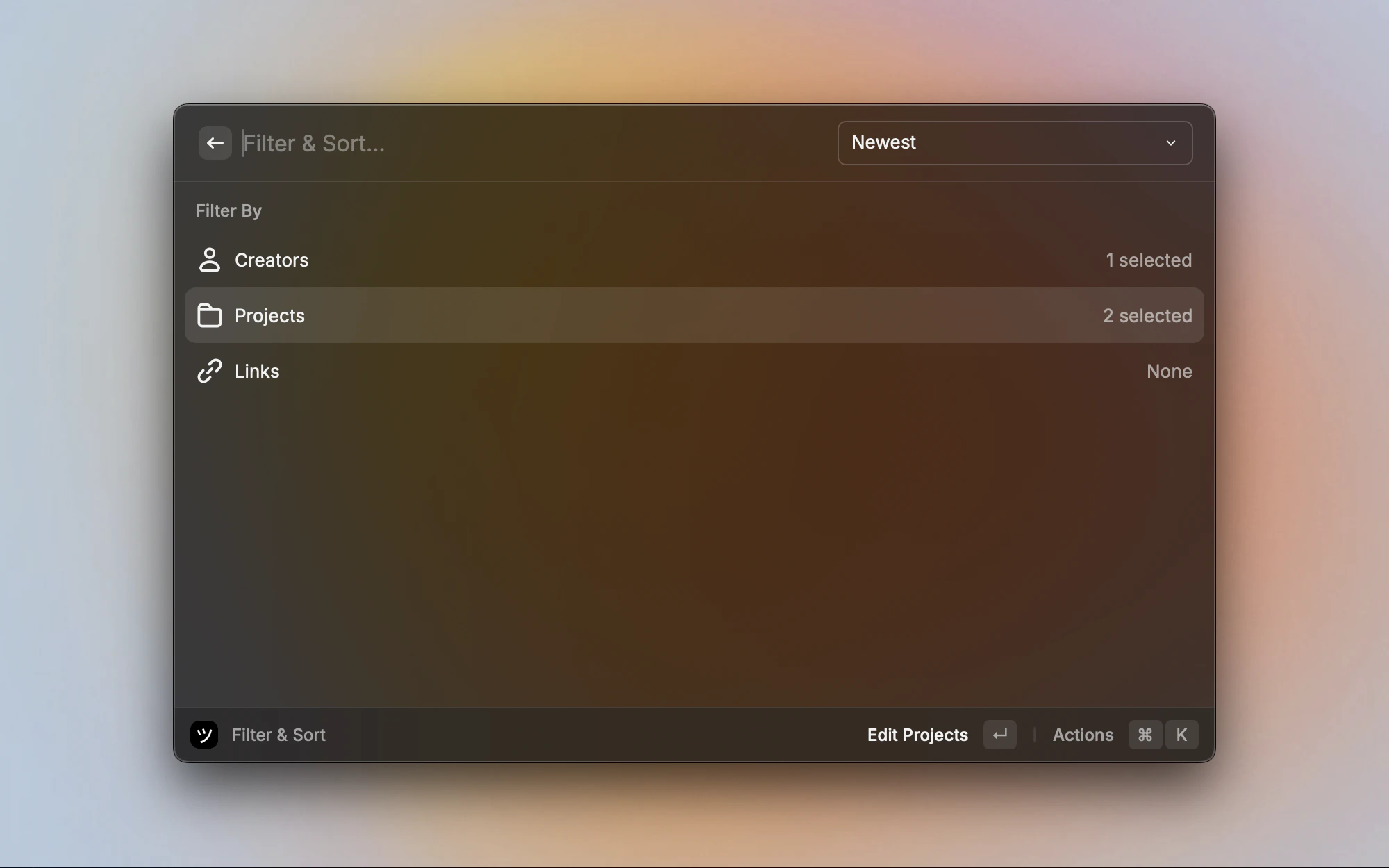
Filter and sort screen for recordings
Sorting
Sort recordings using the Sort section in the action panel:Recording actions
Select a recording and use the action panel:Workspace switching
If you belong to multiple workspaces, open the action panel and select Switch Workspace to change which workspace’s recordings are displayed. Your selection is remembered for next time.Pagination
The grid loads a limited set of recordings. When more recordings exist, a View all in Dashboard tile appears at the end of the grid. Clicking it opens the full recordings list in the Userplane dashboard.Related articles
- Raycast Extension — installation, setup, and menu bar.
- Raycast Create Recording Links — create links that generate recordings.
- Raycast Browse Links — browse and manage recording links.
- Reviewing Recordings — full guide to the dashboard recording detail view.
- Recording Playback — video player controls and timeline features.
- Issue Analyzer — automated root-cause analysis.