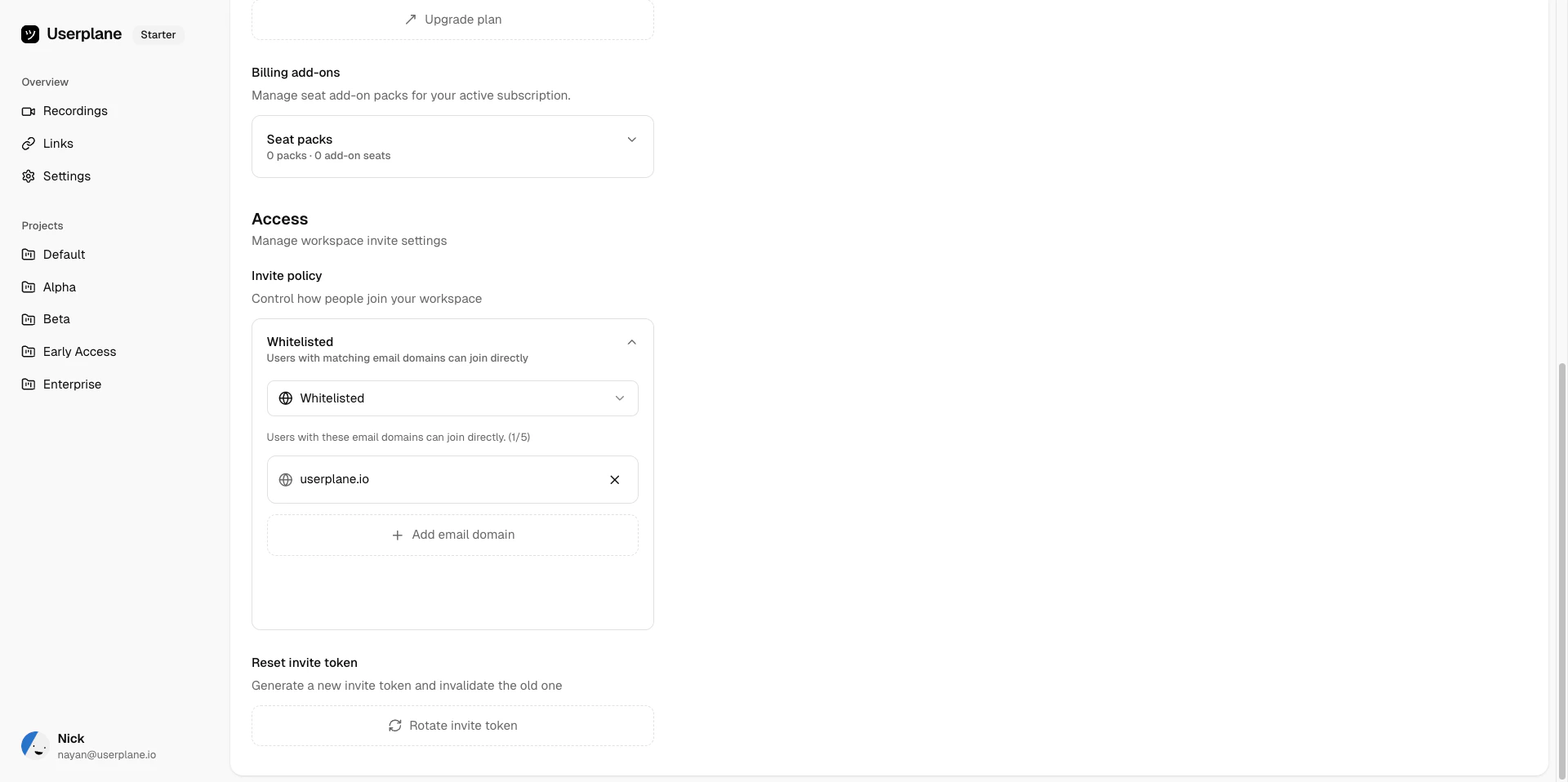
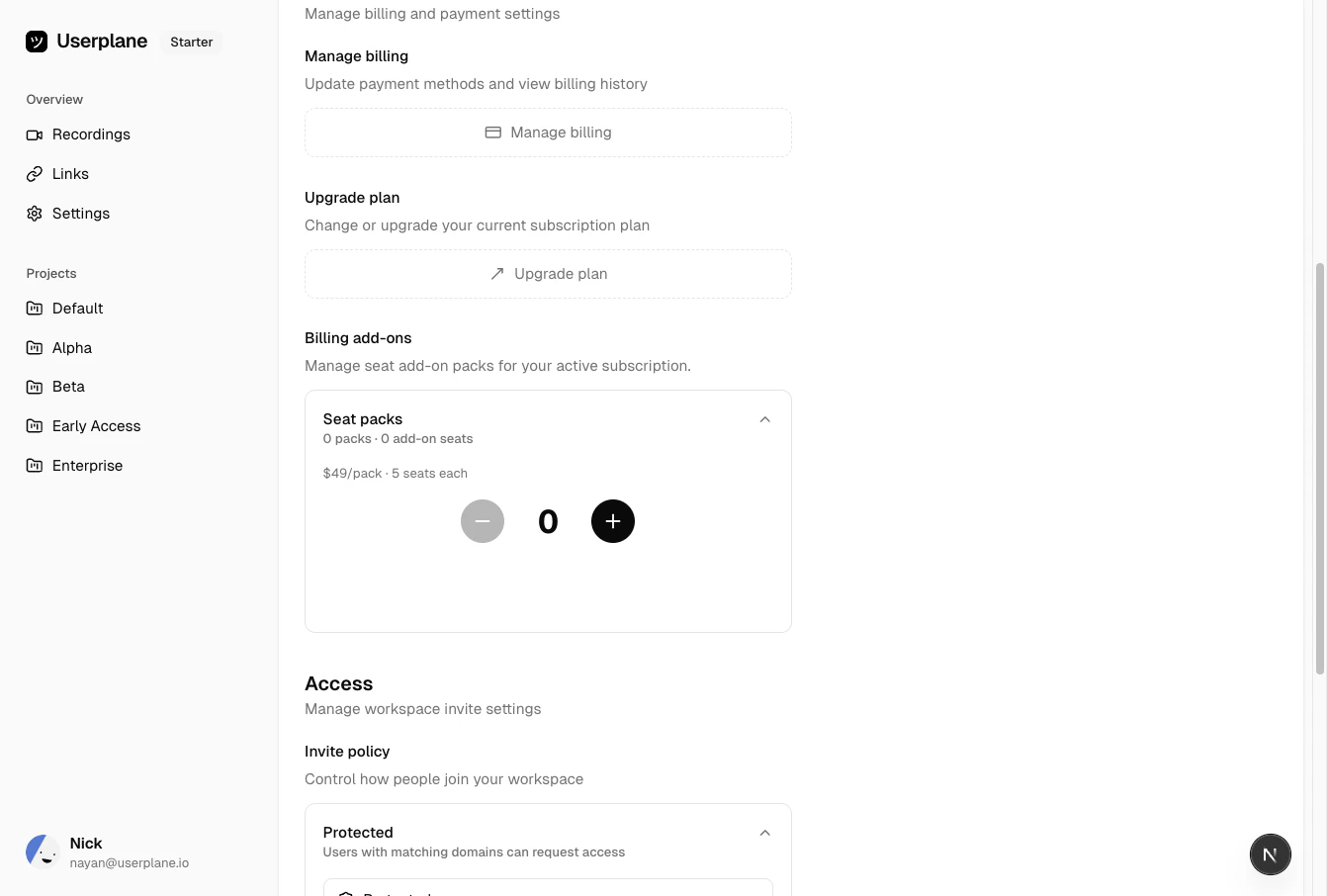
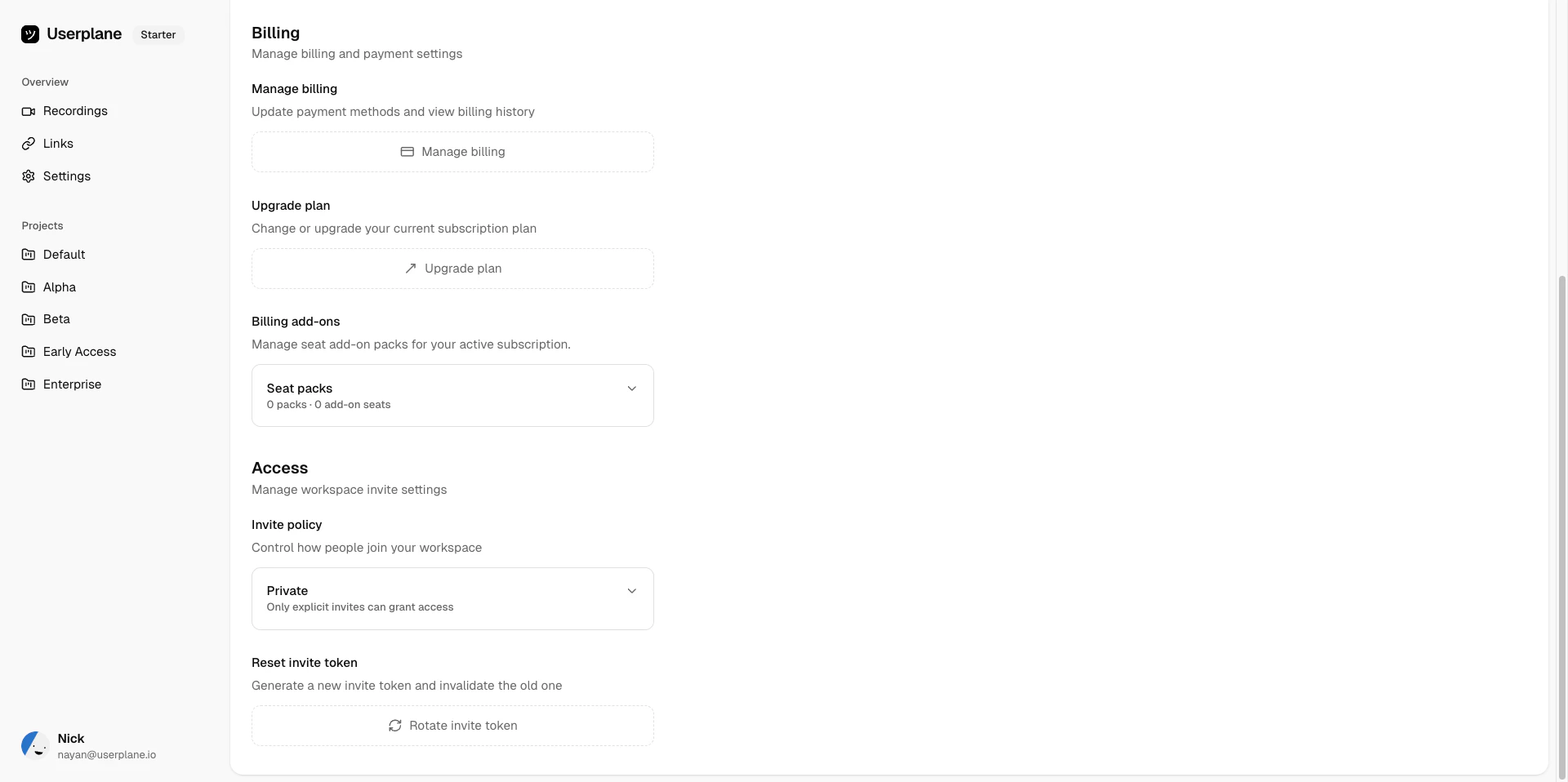
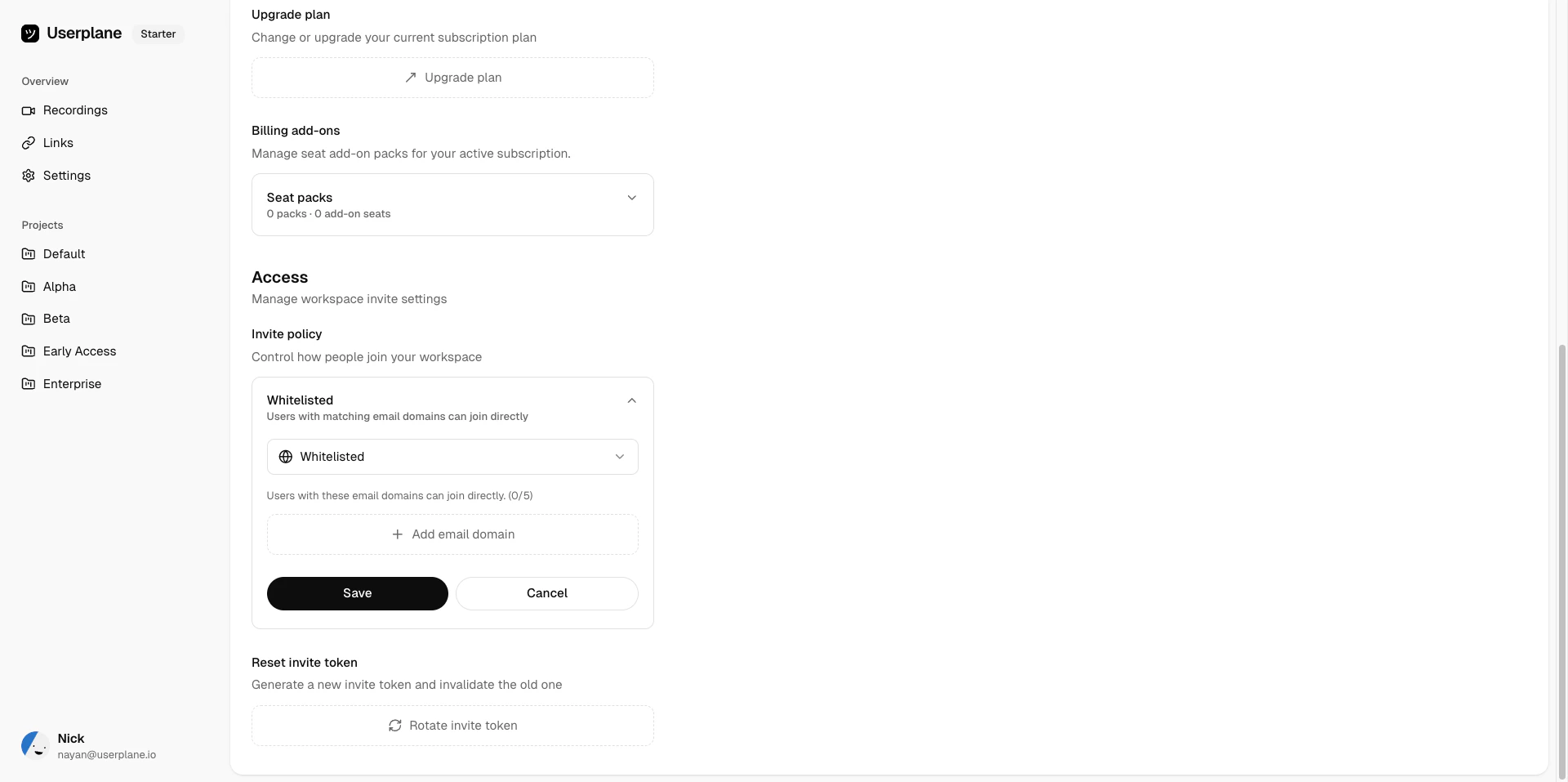
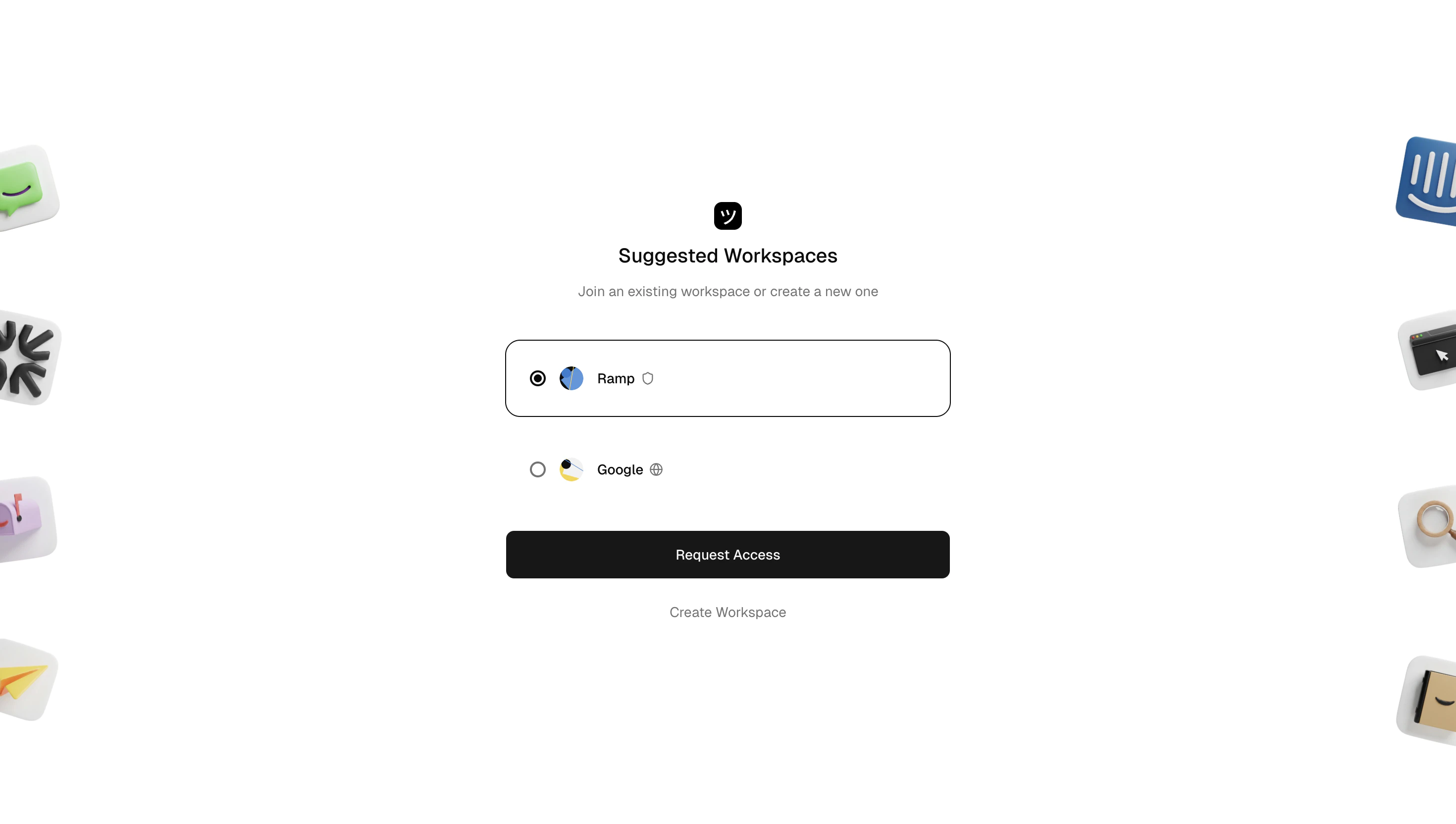
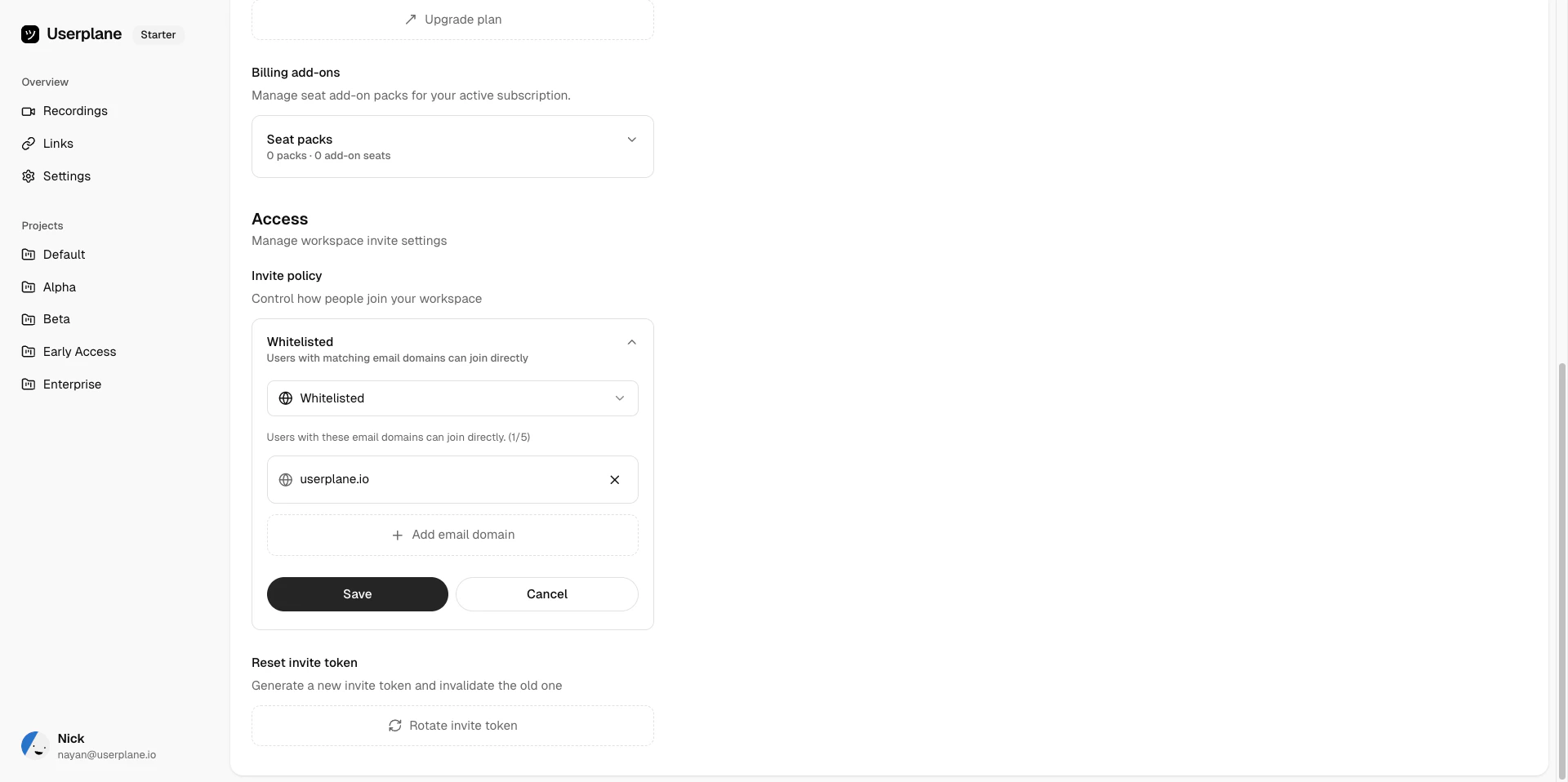
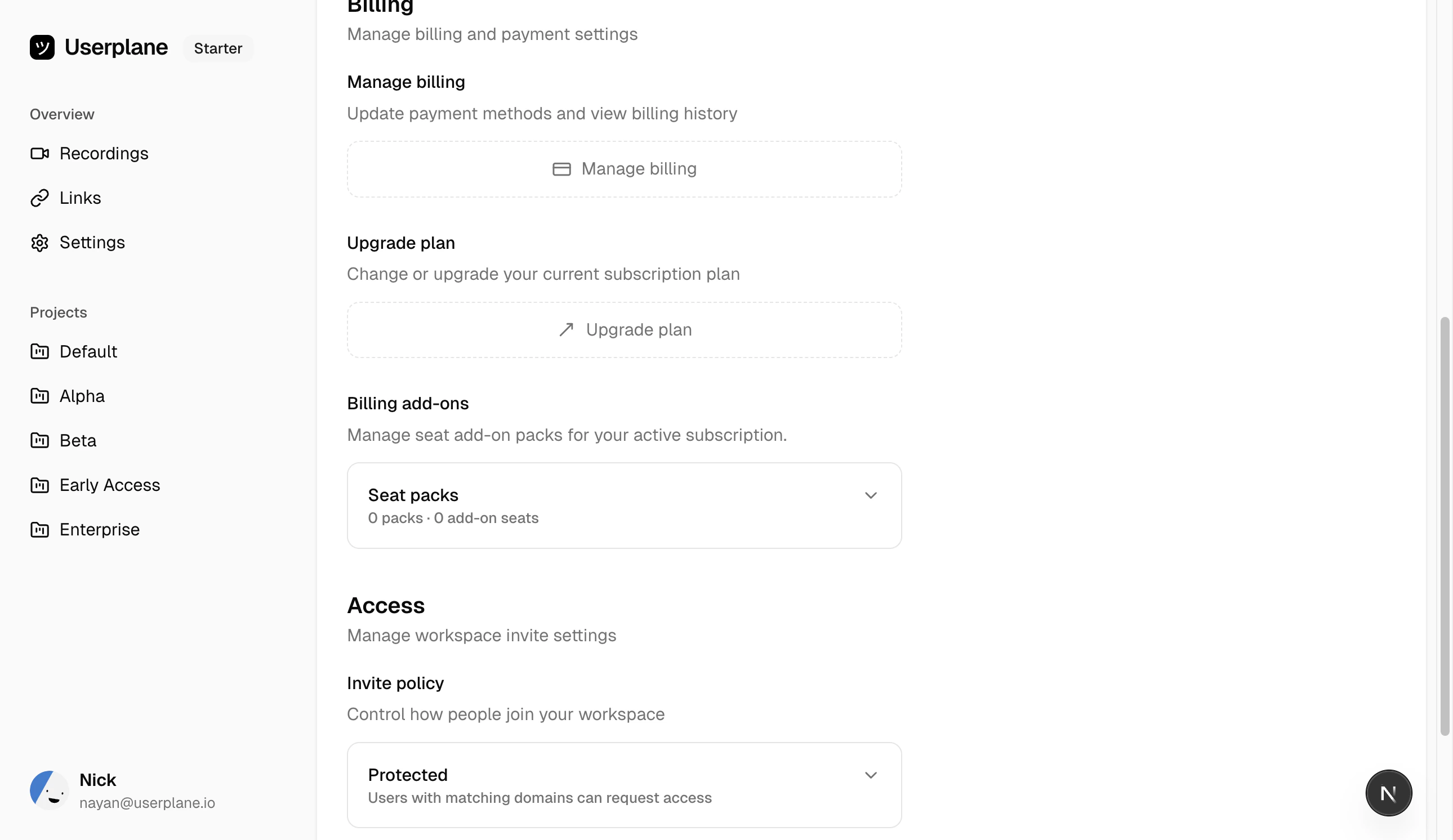
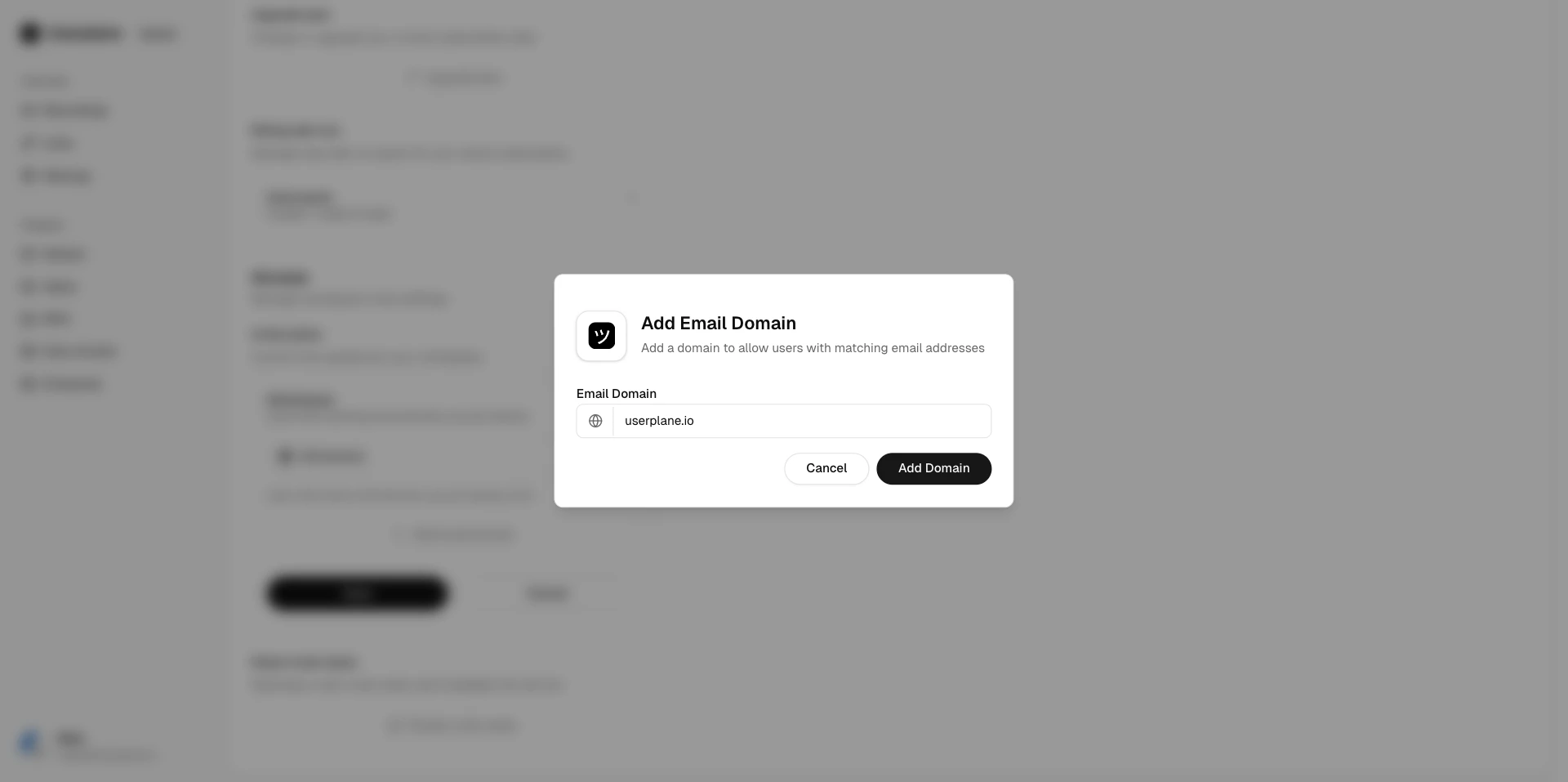
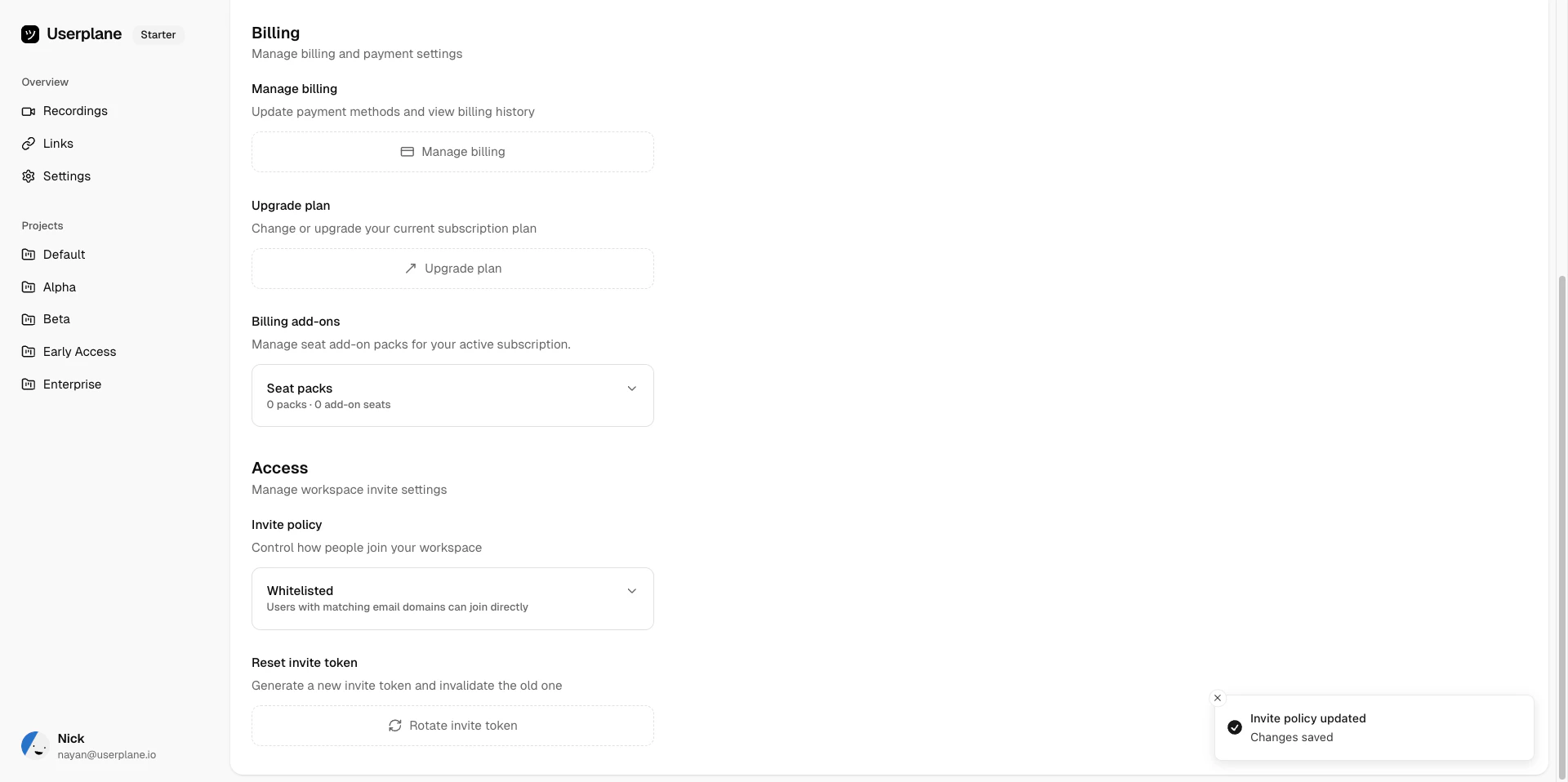
When using the Whitelisted or Protected policy, you configure a list of allowed email domains. Only people with email addresses matching one of these domains can auto-join (whitelisted) or request access (protected). Everyone else needs an explicit invitation.
Add or remove domains at any time from the invite policy settings. Enter a domain (e.g. acme.com) and save — anyone with an @acme.com email address can then join or request access depending on your policy. Changes take effect immediately.
You can whitelist up to 5 email domains per workspace. If you need to support more domains, consider using the Protected policy so an owner can manually approve requests from any email address.
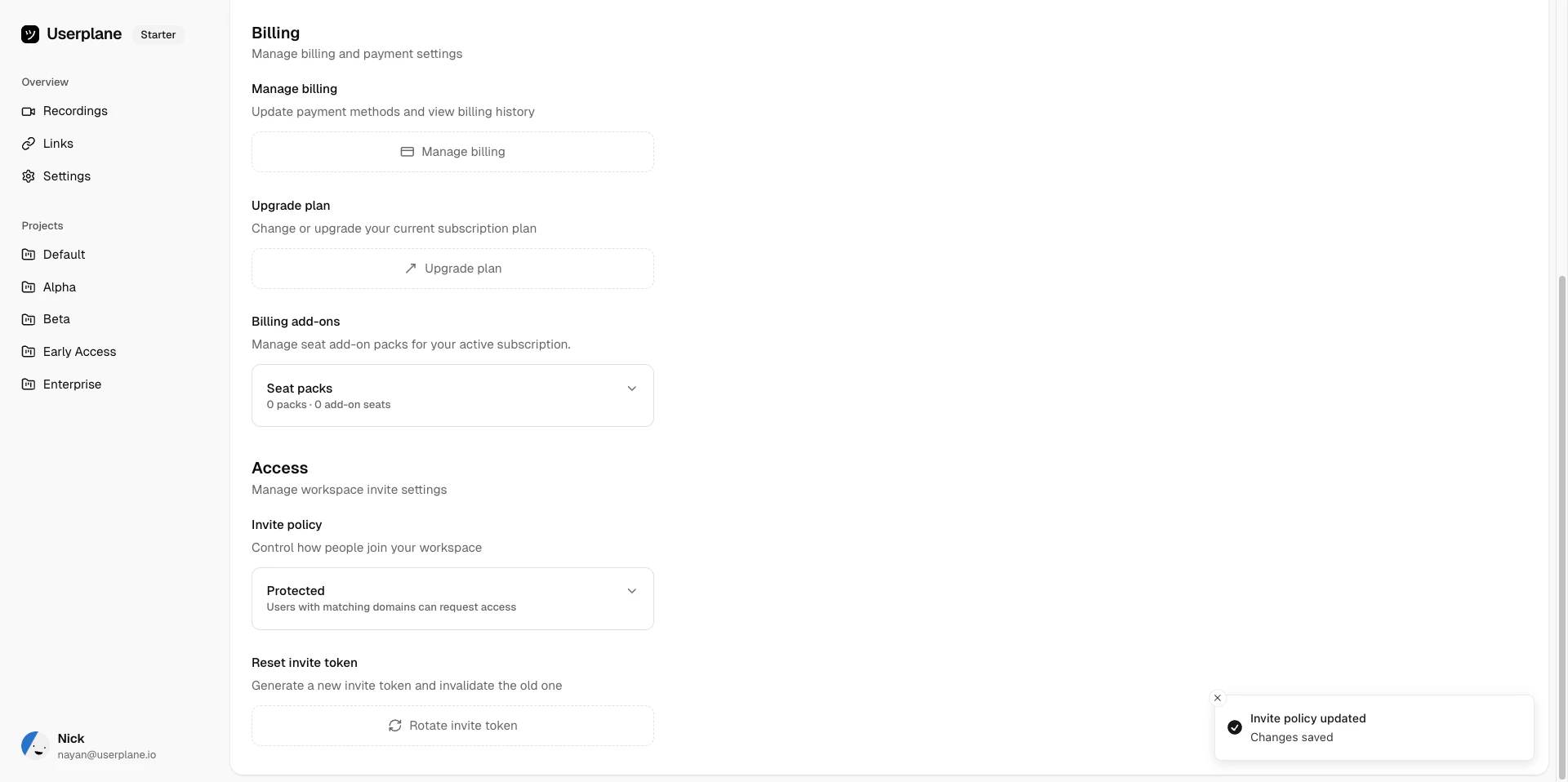
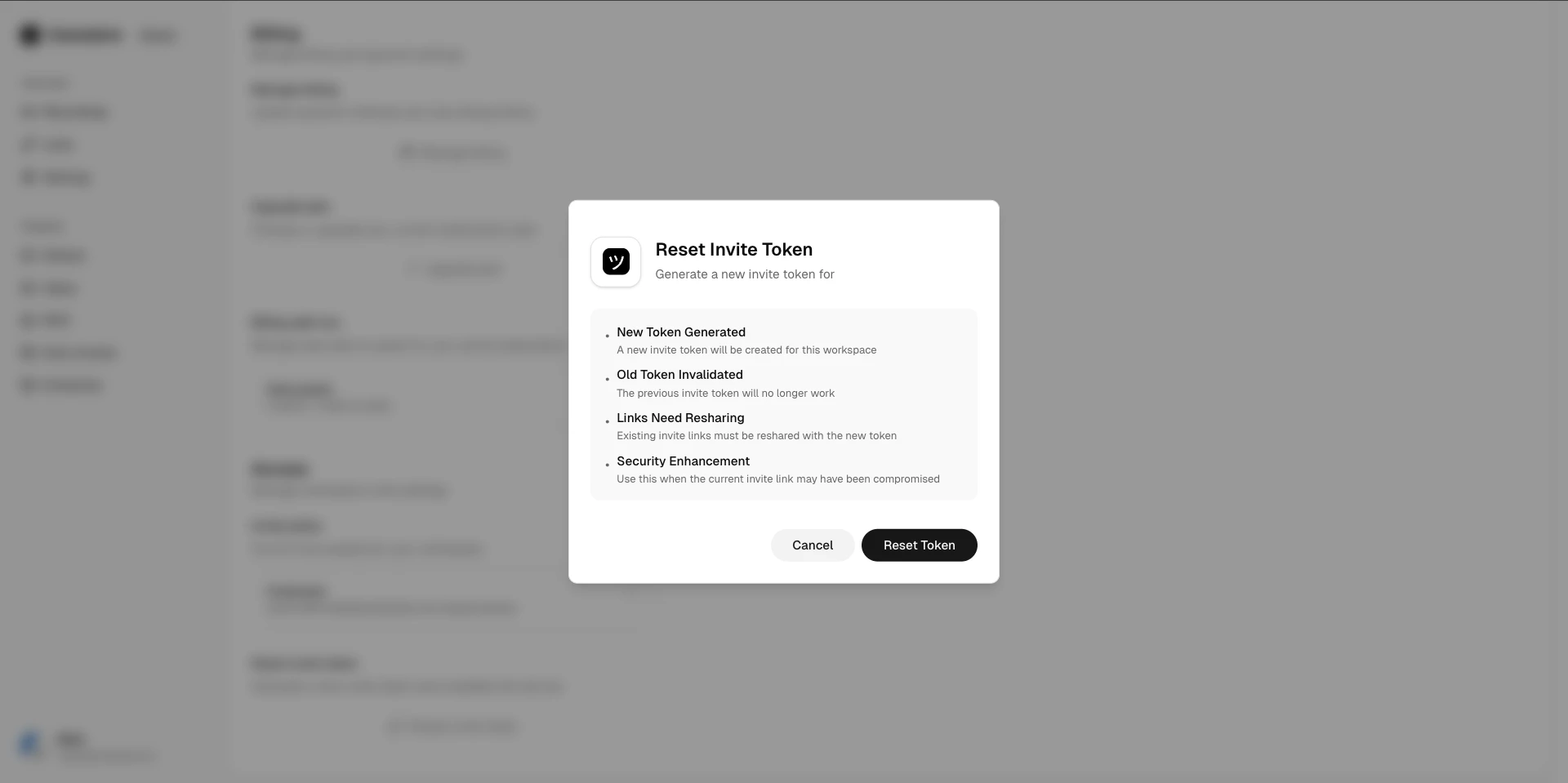
If you need to invalidate existing invitation links, you can rotate your workspace’s invite token. This invalidates all pending invitations and generates a new token.
{"docsConfig":{"theme":"aspen","$schema":"https://mintlify.com/docs.json","name":"Userplane Docs","colors":{"primary":"#000000","light":"#FAFAFA","dark":"#000000"},"logo":{"light":"https://mintcdn.com/userplane/e34bWffW8FdiqmQz/static/logo-light.svg?fit=max\u0026auto=format\u0026n=e34bWffW8FdiqmQz\u0026q=85\u0026s=b60f979b7800d446f3f5d5274c095cb2","dark":"https://mintcdn.com/userplane/e34bWffW8FdiqmQz/static/logo-dark.svg?fit=max\u0026auto=format\u0026n=e34bWffW8FdiqmQz\u0026q=85\u0026s=f638b932d019423317aaca6685f22ea6"},"favicon":"https://mintcdn.com/userplane/e34bWffW8FdiqmQz/static/favicon.svg?fit=max\u0026auto=format\u0026n=e34bWffW8FdiqmQz\u0026q=85\u0026s=fd9fbcc5e1783343c767381ce1744d03","api":{"playground":{"display":"interactive"}},"appearance":{"default":"light","strict":true},"navbar":{"primary":{"type":"button","label":"Dashboard","href":"https://dash.userplane.io"}},"styling":{"latex":true},"navigation":{"pages":[]}},"deployment":{"deploymentMetadataValue":{"subdomain":"userplane","hasAudioNarration":false,"actualSubdomain":"userplane","customDomains":["docs.userplane.io"],"gitSource":{"type":"github","owner":"0xnyn","repo":"userplane","deployBranch":"main","contentDirectory":"apps/docs","isPrivate":true,"mountPath":"","label":""},"chroma":{"liveDeploymentHistoryId":"6a21eb6f2fb2a99bab92da64","collectionId":"8e53ea74-03f5-4b56-ab3a-aff2a4fe9720","schemaVersion":"v2"},"entitlements":{},"buildId":"6a21eb6f2fb2a99bab92da64:success","clientVersion":"0.0.3908","searchFilterCounts":[{"language":"default","tag":"Integrations","count":62},{"language":"default","tag":"Guide","count":47},{"language":"default","tag":"Extensions \u0026 Plugins","count":34},{"language":"default","tag":"API","count":28},{"language":"default","tag":"Developer","count":24},{"language":"default","tag":"Recordings","count":21},{"language":"default","tag":"Help Desk","count":16},{"language":"default","tag":"Claude Code","count":14},{"language":"default","tag":"Framework Guides","count":13},{"language":"default","tag":"Getting Started","count":12}]},"assistantConfig":{"enableAskAiButton":false,"enableStarterQuestions":false,"enableAskAiSearchBar":true},"hasChatPermissions":false,"hasWebMcpPermissions":false,"toggles":[{"name":"kill-isr","enabled":true,"variant":{"name":"disabled","enabled":false,"feature_enabled":true},"impressionData":false},{"name":"agent-mintlify-slack","enabled":true,"variant":{"name":"disabled","enabled":false,"feature_enabled":true},"impressionData":false},{"name":"editor-v7-file-tree","enabled":true,"variant":{"name":"disabled","enabled":false,"feature_enabled":true},"impressionData":false},{"name":"agent-integrations-settings","enabled":true,"variant":{"name":"disabled","enabled":false,"feature_enabled":true},"impressionData":false},{"name":"automations-pr-grouping","enabled":true,"variant":{"name":"disabled","enabled":false,"feature_enabled":true},"impressionData":false},{"name":"custom-prefix","enabled":true,"variant":{"name":"disabled","enabled":false,"feature_enabled":true},"impressionData":false},{"name":"analytics-v7","enabled":true,"variant":{"name":"disabled","enabled":false,"feature_enabled":true},"impressionData":false},{"name":"user-flows-analytics","enabled":true,"variant":{"name":"disabled","enabled":false,"feature_enabled":true},"impressionData":false},{"name":"no-publish-flow","enabled":true,"variant":{"name":"disabled","enabled":false,"feature_enabled":true},"impressionData":false},{"name":"workos-onboarding","enabled":true,"variant":{"name":"disabled","enabled":false,"feature_enabled":true},"impressionData":false},{"name":"llms-txt-v2","enabled":true,"variant":{"name":"disabled","enabled":false,"feature_enabled":true},"impressionData":false},{"name":"pause-universal-search-reconcile","enabled":true,"variant":{"name":"disabled","enabled":false,"feature_enabled":true},"impressionData":false},{"name":"snapshot-serving-live","enabled":true,"variant":{"name":"disabled","enabled":false,"feature_enabled":true},"impressionData":false},{"name":"stripTemperatureMiddleware","enabled":true,"variant":{"name":"disabled","enabled":false,"feature_enabled":true},"impressionData":false},{"name":"per-site-search-delta","enabled":true,"variant":{"name":"disabled","enabled":false,"feature_enabled":true},"impressionData":false},{"name":"support-platform-pylon-zendesk","enabled":true,"variant":{"name":"disabled","enabled":false,"feature_enabled":true},"impressionData":false},{"name":"editor-branches-v2-autocommit","enabled":true,"variant":{"name":"disabled","enabled":false,"feature_enabled":true},"impressionData":false},{"name":"editor-branches-v2","enabled":true,"variant":{"name":"disabled","enabled":false,"feature_enabled":true},"impressionData":false},{"name":"snapshot-serving","enabled":true,"variant":{"name":"disabled","enabled":false,"feature_enabled":true},"impressionData":false},{"name":"instant-rollback","enabled":true,"variant":{"name":"disabled","enabled":false,"feature_enabled":true},"impressionData":false},{"name":"granular-notifications-server","enabled":true,"variant":{"name":"disabled","enabled":false,"feature_enabled":true},"impressionData":false},{"name":"granular-notifications","enabled":true,"variant":{"name":"disabled","enabled":false,"feature_enabled":true},"impressionData":false},{"name":"editor-private-page-search","enabled":true,"variant":{"name":"disabled","enabled":false,"feature_enabled":true},"impressionData":false},{"name":"automations-fable","enabled":true,"variant":{"name":"disabled","enabled":false,"feature_enabled":true},"impressionData":false},{"name":"fixed-ai-action-pricing","enabled":true,"variant":{"name":"disabled","enabled":false,"feature_enabled":true},"impressionData":false},{"name":"automation-resolve-merge-conflict","enabled":true,"variant":{"name":"disabled","enabled":false,"feature_enabled":true},"impressionData":false},{"name":"scoped-publishing","enabled":true,"variant":{"name":"disabled","enabled":false,"feature_enabled":true},"impressionData":false},{"name":"mintql","enabled":true,"variant":{"name":"disabled","enabled":false,"feature_enabled":true},"impressionData":false},{"name":"page-level-analytics","enabled":true,"variant":{"name":"disabled","enabled":false,"feature_enabled":true},"impressionData":false},{"name":"teamspace","enabled":true,"variant":{"name":"disabled","enabled":false,"feature_enabled":true},"impressionData":false},{"name":"editor-version-history-v2","enabled":true,"variant":{"name":"disabled","enabled":false,"feature_enabled":true},"impressionData":false},{"name":"vite-origin","enabled":true,"variant":{"name":"disabled","enabled":false,"feature_enabled":true},"impressionData":false},{"name":"editor-nav-generations","enabled":true,"variant":{"name":"disabled","enabled":false,"feature_enabled":true},"impressionData":false},{"name":"billing-page-v2","enabled":true,"variant":{"name":"disabled","enabled":false,"feature_enabled":true},"impressionData":false},{"name":"workspace-projects","enabled":true,"variant":{"name":"disabled","enabled":false,"feature_enabled":true},"impressionData":false},{"name":"assistant-v5","enabled":true,"variant":{"name":"disabled","enabled":false,"feature_enabled":true},"impressionData":false},{"name":"byok-sep-25","enabled":true,"variant":{"name":"disabled","enabled":false,"feature_enabled":true},"impressionData":false},{"name":"fork-pr-previews","enabled":true,"variant":{"name":"disabled","enabled":false,"feature_enabled":true},"impressionData":false},{"name":"revalidation-jwt","enabled":true,"variant":{"name":"disabled","enabled":false,"feature_enabled":true},"impressionData":false},{"name":"editor-agent-model-picker","enabled":true,"variant":{"name":"disabled","enabled":false,"feature_enabled":true},"impressionData":false},{"name":"client-snapshot-docs-config","enabled":true,"variant":{"name":"disabled","enabled":false,"feature_enabled":true},"impressionData":false},{"name":"hobby-abuse-scan","enabled":true,"variant":{"name":"disabled","enabled":false,"feature_enabled":true},"impressionData":false},{"name":"dashboard-inbox","enabled":true,"variant":{"name":"disabled","enabled":false,"feature_enabled":true},"impressionData":false}],"isAtlas":false,"googleFontsInlined":false},"customCss":[],"page":{"pagePath":"workspace/invite-policies","slug":"/workspace/invite-policies","pageMetadata":{"title":"Invite Policies","description":"Control how new members join your workspace — private, whitelisted, or protected","href":"/workspace/invite-policies"},"description":{"compiledSource":"\"use strict\";\nconst {jsx: _jsx} = arguments[0];\nconst {useMDXComponents: _provideComponents} = arguments[0];\nfunction _createMdxContent(props) {\n const _components = {\n p: \"p\",\n ..._provideComponents(),\n ...props.components\n };\n return _jsx(_components.p, {\n children: \"Control how new members join your workspace — private, whitelisted, or protected\"\n });\n}\nfunction MDXContent(props = {}) {\n const {wrapper: MDXLayout} = {\n ..._provideComponents(),\n ...props.components\n };\n return MDXLayout ? _jsx(MDXLayout, {\n ...props,\n children: _jsx(_createMdxContent, {\n ...props\n })\n }) : _createMdxContent(props);\n}\nreturn {\n default: MDXContent\n};\n","frontmatter":{},"scope":{}},"pageType":"default","mdx":{"mdxSource":{"compiledSource":"\"use strict\";const{Fragment:_Fragment,jsx:_jsx,jsxs:_jsxs}=arguments[0];const{useMDXComponents:_provideComponents}=arguments[0];function _createMdxContent(props){const _components={a:`a`,code:`code`,li:`li`,p:`p`,strong:`strong`,tbody:`tbody`,td:`td`,th:`th`,thead:`thead`,tr:`tr`,ul:`ul`,..._provideComponents(),...props.components},{Frame,Heading,Note,OptimizedImage,Step,Steps,Tab,Table,Tabs}=_components;if(!Frame)_missingMdxReference(`Frame`,true);if(!Heading)_missingMdxReference(`Heading`,true);if(!Note)_missingMdxReference(`Note`,true);if(!OptimizedImage)_missingMdxReference(`OptimizedImage`,true);if(!Step)_missingMdxReference(`Step`,true);if(!Steps)_missingMdxReference(`Steps`,true);if(!Tab)_missingMdxReference(`Tab`,true);if(!Table)_missingMdxReference(`Table`,true);if(!Tabs)_missingMdxReference(`Tabs`,true);return _jsxs(_Fragment,{children:[_jsx(_components.p,{children:`Your workspace’s invite policy determines how new people can discover and join your workspace.`}),`\n`,_jsx(Heading,{level:`2`,id:`policy-types`,children:`Policy types`}),`\n`,_jsxs(Table,{children:[_jsx(_components.thead,{children:_jsxs(_components.tr,{children:[_jsx(_components.th,{children:`Policy`}),_jsx(_components.th,{children:`Discoverable`}),_jsx(_components.th,{children:`How people join`})]})}),_jsxs(_components.tbody,{children:[_jsxs(_components.tr,{children:[_jsx(_components.td,{children:_jsx(_components.strong,{children:`Private`})}),_jsx(_components.td,{children:`No`}),_jsx(_components.td,{children:`Only explicit invitations. The workspace does not appear in search or suggestions.`})]}),_jsxs(_components.tr,{children:[_jsx(_components.td,{children:_jsx(_components.strong,{children:`Whitelisted`})}),_jsx(_components.td,{children:`Yes`}),_jsx(_components.td,{children:`People with an email address matching a whitelisted domain can join directly. Others need an explicit invitation.`})]}),_jsxs(_components.tr,{children:[_jsx(_components.td,{children:_jsx(_components.strong,{children:`Protected`})}),_jsx(_components.td,{children:`Yes`}),_jsxs(_components.td,{children:[`People with a matching email domain can `,_jsx(_components.strong,{children:`request access`}),`. An owner must approve the request. Others need an explicit invitation.`]})]})]})]}),`\n`,_jsx(Heading,{level:`2`,id:`setting-your-invite-policy`,children:`Setting your invite policy`}),`\n`,_jsxs(Steps,{children:[_jsxs(Step,{title:`Open General settings`,children:[_jsxs(_components.p,{children:[`Go to `,_jsx(_components.a,{href:`https://dash.userplane.io/_/settings?tab=workspace`,children:`Workspace Settings > General`}),`.`]}),_jsx(Frame,{caption:`Invite policy settings`,children:_jsx(OptimizedImage,{src:`https://mintcdn.com/userplane/IKCB4f_KBaL0xsjW/media/workspace/invite-policy/invite-policy-settings.png?fit=max\u0026auto=format\u0026n=IKCB4f_KBaL0xsjW\u0026q=85\u0026s=845a0c102720cdfdbf0d30df1d9c4610`,\"data-og-width\":`1920`,width:`1920`,\"data-og-height\":`958`,height:`958`,\"data-path\":`media/workspace/invite-policy/invite-policy-settings.png`,\"data-optimize\":`true`,\"data-opv\":`3`,srcset:`https://mintcdn.com/userplane/IKCB4f_KBaL0xsjW/media/workspace/invite-policy/invite-policy-settings.png?w=280\u0026fit=max\u0026auto=format\u0026n=IKCB4f_KBaL0xsjW\u0026q=85\u0026s=cb3855211e104b93c4683f232873d741 280w, https://mintcdn.com/userplane/IKCB4f_KBaL0xsjW/media/workspace/invite-policy/invite-policy-settings.png?w=560\u0026fit=max\u0026auto=format\u0026n=IKCB4f_KBaL0xsjW\u0026q=85\u0026s=7b3bec8a2902e85177c8381f389b0ade 560w, https://mintcdn.com/userplane/IKCB4f_KBaL0xsjW/media/workspace/invite-policy/invite-policy-settings.png?w=840\u0026fit=max\u0026auto=format\u0026n=IKCB4f_KBaL0xsjW\u0026q=85\u0026s=48c0f26d53d2d85441068bb5ef328d71 840w, https://mintcdn.com/userplane/IKCB4f_KBaL0xsjW/media/workspace/invite-policy/invite-policy-settings.png?w=1100\u0026fit=max\u0026auto=format\u0026n=IKCB4f_KBaL0xsjW\u0026q=85\u0026s=a8f5f85afd2ab3adcb341e8dc8c1a199 1100w, https://mintcdn.com/userplane/IKCB4f_KBaL0xsjW/media/workspace/invite-policy/invite-policy-settings.png?w=1650\u0026fit=max\u0026auto=format\u0026n=IKCB4f_KBaL0xsjW\u0026q=85\u0026s=630b4640afd19a17d690d0e445f7291d 1650w, https://mintcdn.com/userplane/IKCB4f_KBaL0xsjW/media/workspace/invite-policy/invite-policy-settings.png?w=2500\u0026fit=max\u0026auto=format\u0026n=IKCB4f_KBaL0xsjW\u0026q=85\u0026s=ced7c51b1a3815975e53875bc299ad14 2500w`})}),_jsx(Frame,{caption:`Access policy`,children:_jsx(OptimizedImage,{src:`https://mintcdn.com/userplane/IKCB4f_KBaL0xsjW/media/workspace/invite-policy/access-policy-expanded.png?fit=max\u0026auto=format\u0026n=IKCB4f_KBaL0xsjW\u0026q=85\u0026s=b75196b71d38902b114d5eda8ed3cc35`,\"data-og-width\":`1342`,width:`1342`,\"data-og-height\":`906`,height:`906`,\"data-path\":`media/workspace/invite-policy/access-policy-expanded.png`,\"data-optimize\":`true`,\"data-opv\":`3`,srcset:`https://mintcdn.com/userplane/IKCB4f_KBaL0xsjW/media/workspace/invite-policy/access-policy-expanded.png?w=280\u0026fit=max\u0026auto=format\u0026n=IKCB4f_KBaL0xsjW\u0026q=85\u0026s=53cf91675fcb71d85955b905bcb94da0 280w, https://mintcdn.com/userplane/IKCB4f_KBaL0xsjW/media/workspace/invite-policy/access-policy-expanded.png?w=560\u0026fit=max\u0026auto=format\u0026n=IKCB4f_KBaL0xsjW\u0026q=85\u0026s=9d1884ebabafc4910605122f8fec73a0 560w, https://mintcdn.com/userplane/IKCB4f_KBaL0xsjW/media/workspace/invite-policy/access-policy-expanded.png?w=840\u0026fit=max\u0026auto=format\u0026n=IKCB4f_KBaL0xsjW\u0026q=85\u0026s=467061aa352e5177e27fa19471ce9624 840w, https://mintcdn.com/userplane/IKCB4f_KBaL0xsjW/media/workspace/invite-policy/access-policy-expanded.png?w=1100\u0026fit=max\u0026auto=format\u0026n=IKCB4f_KBaL0xsjW\u0026q=85\u0026s=a5064018c4c91a28e808f92b8c684187 1100w, https://mintcdn.com/userplane/IKCB4f_KBaL0xsjW/media/workspace/invite-policy/access-policy-expanded.png?w=1650\u0026fit=max\u0026auto=format\u0026n=IKCB4f_KBaL0xsjW\u0026q=85\u0026s=c93362c1d36b35d86ef65f18850c35e1 1650w, https://mintcdn.com/userplane/IKCB4f_KBaL0xsjW/media/workspace/invite-policy/access-policy-expanded.png?w=2500\u0026fit=max\u0026auto=format\u0026n=IKCB4f_KBaL0xsjW\u0026q=85\u0026s=4e30c1f5ec9e6f8a6862c0a6d49ad7f5 2500w`})})]}),_jsxs(Step,{title:`Select a policy`,children:[_jsx(_components.p,{children:`Choose a policy that matches how you want people to join your workspace.`}),_jsxs(Tabs,{children:[_jsxs(Tab,{title:`Private`,id:`private`,children:[_jsx(_components.p,{children:`Only explicit invitations. The workspace does not appear in search or suggestions.`}),_jsx(Frame,{caption:`Private invite policy`,children:_jsx(OptimizedImage,{src:`https://mintcdn.com/userplane/IKCB4f_KBaL0xsjW/media/workspace/invite-policy/invite-policy-private.png?fit=max\u0026auto=format\u0026n=IKCB4f_KBaL0xsjW\u0026q=85\u0026s=ba6dc7cedd3bcbc03411791d8b0e4891`,\"data-og-width\":`1920`,width:`1920`,\"data-og-height\":`958`,height:`958`,\"data-path\":`media/workspace/invite-policy/invite-policy-private.png`,\"data-optimize\":`true`,\"data-opv\":`3`,srcset:`https://mintcdn.com/userplane/IKCB4f_KBaL0xsjW/media/workspace/invite-policy/invite-policy-private.png?w=280\u0026fit=max\u0026auto=format\u0026n=IKCB4f_KBaL0xsjW\u0026q=85\u0026s=3be5d6fcdc00dec1f99b4f112229b9fd 280w, https://mintcdn.com/userplane/IKCB4f_KBaL0xsjW/media/workspace/invite-policy/invite-policy-private.png?w=560\u0026fit=max\u0026auto=format\u0026n=IKCB4f_KBaL0xsjW\u0026q=85\u0026s=63df107aefdadb57860b8625c040394c 560w, https://mintcdn.com/userplane/IKCB4f_KBaL0xsjW/media/workspace/invite-policy/invite-policy-private.png?w=840\u0026fit=max\u0026auto=format\u0026n=IKCB4f_KBaL0xsjW\u0026q=85\u0026s=0555f467a5ad9f6e853cbe58a78471ad 840w, https://mintcdn.com/userplane/IKCB4f_KBaL0xsjW/media/workspace/invite-policy/invite-policy-private.png?w=1100\u0026fit=max\u0026auto=format\u0026n=IKCB4f_KBaL0xsjW\u0026q=85\u0026s=b3a3e3e8bf26d7490e64a38ef52a5cea 1100w, https://mintcdn.com/userplane/IKCB4f_KBaL0xsjW/media/workspace/invite-policy/invite-policy-private.png?w=1650\u0026fit=max\u0026auto=format\u0026n=IKCB4f_KBaL0xsjW\u0026q=85\u0026s=a8f3c970b0ffc614a3fd61f6cada797d 1650w, https://mintcdn.com/userplane/IKCB4f_KBaL0xsjW/media/workspace/invite-policy/invite-policy-private.png?w=2500\u0026fit=max\u0026auto=format\u0026n=IKCB4f_KBaL0xsjW\u0026q=85\u0026s=f0ddfec0cb51dd0168e3f8d0184bc285 2500w`})})]}),_jsxs(Tab,{title:`Whitelisted`,id:`whitelisted`,children:[_jsx(_components.p,{children:`People with an email address matching a whitelisted domain can join directly. Others need an explicit invitation.`}),_jsx(Frame,{caption:`Whitelisted invite policy`,children:_jsx(OptimizedImage,{src:`https://mintcdn.com/userplane/IKCB4f_KBaL0xsjW/media/workspace/invite-policy/invite-policy-whitelisted.png?fit=max\u0026auto=format\u0026n=IKCB4f_KBaL0xsjW\u0026q=85\u0026s=28ce83d72b2ca7d403d9e0e08798d416`,\"data-og-width\":`1920`,width:`1920`,\"data-og-height\":`957`,height:`957`,\"data-path\":`media/workspace/invite-policy/invite-policy-whitelisted.png`,\"data-optimize\":`true`,\"data-opv\":`3`,srcset:`https://mintcdn.com/userplane/IKCB4f_KBaL0xsjW/media/workspace/invite-policy/invite-policy-whitelisted.png?w=280\u0026fit=max\u0026auto=format\u0026n=IKCB4f_KBaL0xsjW\u0026q=85\u0026s=08284f72625d85b04029e99b903dfb24 280w, https://mintcdn.com/userplane/IKCB4f_KBaL0xsjW/media/workspace/invite-policy/invite-policy-whitelisted.png?w=560\u0026fit=max\u0026auto=format\u0026n=IKCB4f_KBaL0xsjW\u0026q=85\u0026s=222419740e660d042c51772e39a5080a 560w, https://mintcdn.com/userplane/IKCB4f_KBaL0xsjW/media/workspace/invite-policy/invite-policy-whitelisted.png?w=840\u0026fit=max\u0026auto=format\u0026n=IKCB4f_KBaL0xsjW\u0026q=85\u0026s=65c08025079bdace0cb32781ceb11fc4 840w, https://mintcdn.com/userplane/IKCB4f_KBaL0xsjW/media/workspace/invite-policy/invite-policy-whitelisted.png?w=1100\u0026fit=max\u0026auto=format\u0026n=IKCB4f_KBaL0xsjW\u0026q=85\u0026s=32c85b98460a2667f97c7a452253c752 1100w, https://mintcdn.com/userplane/IKCB4f_KBaL0xsjW/media/workspace/invite-policy/invite-policy-whitelisted.png?w=1650\u0026fit=max\u0026auto=format\u0026n=IKCB4f_KBaL0xsjW\u0026q=85\u0026s=e89edfb7674063b661945e11663c94c8 1650w, https://mintcdn.com/userplane/IKCB4f_KBaL0xsjW/media/workspace/invite-policy/invite-policy-whitelisted.png?w=2500\u0026fit=max\u0026auto=format\u0026n=IKCB4f_KBaL0xsjW\u0026q=85\u0026s=33475f21e7b007682a5a6143e9d0b9e8 2500w`})})]}),_jsxs(Tab,{title:`Protected`,id:`protected`,children:[_jsxs(_components.p,{children:[`People with a matching email domain can `,_jsx(_components.strong,{children:`request access`}),`. An owner must approve the request. Others need an explicit invitation.`]}),_jsx(Frame,{caption:`Protected invite policy`,children:_jsx(OptimizedImage,{src:`https://mintcdn.com/userplane/IKCB4f_KBaL0xsjW/media/workspace/invite-policy/invite-policy-protected.png?fit=max\u0026auto=format\u0026n=IKCB4f_KBaL0xsjW\u0026q=85\u0026s=e4fe310a41b06024487dbdce0c684467`,\"data-og-width\":`1920`,width:`1920`,\"data-og-height\":`958`,height:`958`,\"data-path\":`media/workspace/invite-policy/invite-policy-protected.png`,\"data-optimize\":`true`,\"data-opv\":`3`,srcset:`https://mintcdn.com/userplane/IKCB4f_KBaL0xsjW/media/workspace/invite-policy/invite-policy-protected.png?w=280\u0026fit=max\u0026auto=format\u0026n=IKCB4f_KBaL0xsjW\u0026q=85\u0026s=a5a2f8cf7415e6132eaaf9991bd1cc81 280w, https://mintcdn.com/userplane/IKCB4f_KBaL0xsjW/media/workspace/invite-policy/invite-policy-protected.png?w=560\u0026fit=max\u0026auto=format\u0026n=IKCB4f_KBaL0xsjW\u0026q=85\u0026s=8fa565598582c2d35d9c9e82161a83e7 560w, https://mintcdn.com/userplane/IKCB4f_KBaL0xsjW/media/workspace/invite-policy/invite-policy-protected.png?w=840\u0026fit=max\u0026auto=format\u0026n=IKCB4f_KBaL0xsjW\u0026q=85\u0026s=3426114b46a5226451edb16ecca98a1c 840w, https://mintcdn.com/userplane/IKCB4f_KBaL0xsjW/media/workspace/invite-policy/invite-policy-protected.png?w=1100\u0026fit=max\u0026auto=format\u0026n=IKCB4f_KBaL0xsjW\u0026q=85\u0026s=87f884834a505e90cc4025de0e42bf45 1100w, https://mintcdn.com/userplane/IKCB4f_KBaL0xsjW/media/workspace/invite-policy/invite-policy-protected.png?w=1650\u0026fit=max\u0026auto=format\u0026n=IKCB4f_KBaL0xsjW\u0026q=85\u0026s=40fe1056051f8e7ec174bf2b99c98e5c 1650w, https://mintcdn.com/userplane/IKCB4f_KBaL0xsjW/media/workspace/invite-policy/invite-policy-protected.png?w=2500\u0026fit=max\u0026auto=format\u0026n=IKCB4f_KBaL0xsjW\u0026q=85\u0026s=b14fbf23cc288329cd806be4d47f1eac 2500w`})}),_jsx(Frame,{caption:`Request workspace access`,children:_jsx(OptimizedImage,{src:`https://mintcdn.com/userplane/8_FOZno9A0XwGdNH/media/intercom/workspace-settings/request-workspace-access.png?fit=max\u0026auto=format\u0026n=8_FOZno9A0XwGdNH\u0026q=85\u0026s=272a463c7fe5c581f5b2fc3b3e438860`,\"data-og-width\":`2940`,width:`2940`,\"data-og-height\":`1664`,height:`1664`,\"data-path\":`media/intercom/workspace-settings/request-workspace-access.png`,\"data-optimize\":`true`,\"data-opv\":`3`,srcset:`https://mintcdn.com/userplane/8_FOZno9A0XwGdNH/media/intercom/workspace-settings/request-workspace-access.png?w=280\u0026fit=max\u0026auto=format\u0026n=8_FOZno9A0XwGdNH\u0026q=85\u0026s=4bff8ffbd60131ab5a4c95137d74ace7 280w, https://mintcdn.com/userplane/8_FOZno9A0XwGdNH/media/intercom/workspace-settings/request-workspace-access.png?w=560\u0026fit=max\u0026auto=format\u0026n=8_FOZno9A0XwGdNH\u0026q=85\u0026s=a9e40d743e776b0c44a9d76052ef81d0 560w, https://mintcdn.com/userplane/8_FOZno9A0XwGdNH/media/intercom/workspace-settings/request-workspace-access.png?w=840\u0026fit=max\u0026auto=format\u0026n=8_FOZno9A0XwGdNH\u0026q=85\u0026s=e78aa75bc83f080ddc0c3a1a744aa83b 840w, https://mintcdn.com/userplane/8_FOZno9A0XwGdNH/media/intercom/workspace-settings/request-workspace-access.png?w=1100\u0026fit=max\u0026auto=format\u0026n=8_FOZno9A0XwGdNH\u0026q=85\u0026s=6823b7ca79638944977926228bd310e0 1100w, https://mintcdn.com/userplane/8_FOZno9A0XwGdNH/media/intercom/workspace-settings/request-workspace-access.png?w=1650\u0026fit=max\u0026auto=format\u0026n=8_FOZno9A0XwGdNH\u0026q=85\u0026s=411461ff400d5272471fda34b4994425 1650w, https://mintcdn.com/userplane/8_FOZno9A0XwGdNH/media/intercom/workspace-settings/request-workspace-access.png?w=2500\u0026fit=max\u0026auto=format\u0026n=8_FOZno9A0XwGdNH\u0026q=85\u0026s=236668ca4c44c3924805d82f3995cd8f 2500w`})}),_jsx(Frame,{caption:`Protected policy settings`,children:_jsx(OptimizedImage,{src:`https://mintcdn.com/userplane/IKCB4f_KBaL0xsjW/media/workspace/invite-policy/protected-policy.png?fit=max\u0026auto=format\u0026n=IKCB4f_KBaL0xsjW\u0026q=85\u0026s=d53904835be9dad6f29a93b730ca2668`,\"data-og-width\":`2580`,width:`2580`,\"data-og-height\":`1492`,height:`1492`,\"data-path\":`media/workspace/invite-policy/protected-policy.png`,\"data-optimize\":`true`,\"data-opv\":`3`,srcset:`https://mintcdn.com/userplane/IKCB4f_KBaL0xsjW/media/workspace/invite-policy/protected-policy.png?w=280\u0026fit=max\u0026auto=format\u0026n=IKCB4f_KBaL0xsjW\u0026q=85\u0026s=6ea894e9a0508986144eef1379441d2c 280w, https://mintcdn.com/userplane/IKCB4f_KBaL0xsjW/media/workspace/invite-policy/protected-policy.png?w=560\u0026fit=max\u0026auto=format\u0026n=IKCB4f_KBaL0xsjW\u0026q=85\u0026s=c7fad63756b89862004d2b169ee1798a 560w, https://mintcdn.com/userplane/IKCB4f_KBaL0xsjW/media/workspace/invite-policy/protected-policy.png?w=840\u0026fit=max\u0026auto=format\u0026n=IKCB4f_KBaL0xsjW\u0026q=85\u0026s=85496a8926c955e918b885479a1da18a 840w, https://mintcdn.com/userplane/IKCB4f_KBaL0xsjW/media/workspace/invite-policy/protected-policy.png?w=1100\u0026fit=max\u0026auto=format\u0026n=IKCB4f_KBaL0xsjW\u0026q=85\u0026s=ec824d55cab79e5d0c916b6e570ffd0b 1100w, https://mintcdn.com/userplane/IKCB4f_KBaL0xsjW/media/workspace/invite-policy/protected-policy.png?w=1650\u0026fit=max\u0026auto=format\u0026n=IKCB4f_KBaL0xsjW\u0026q=85\u0026s=a4a511260c871c801b724fbbba147b6c 1650w, https://mintcdn.com/userplane/IKCB4f_KBaL0xsjW/media/workspace/invite-policy/protected-policy.png?w=2500\u0026fit=max\u0026auto=format\u0026n=IKCB4f_KBaL0xsjW\u0026q=85\u0026s=b0a9a4a82781aae82aa1166b9f9684c3 2500w`})})]})]})]}),_jsx(Step,{title:`Add email domains (optional)`,children:_jsxs(_components.p,{children:[`If using `,_jsx(_components.strong,{children:`Whitelisted`}),` or `,_jsx(_components.strong,{children:`Protected`}),`, add email domains to control who can join. See `,_jsx(_components.a,{href:`#email-domains`,children:`Email domains`}),` below for details.`]})})]}),`\n`,_jsxs(Note,{children:[`Only workspace `,_jsx(_components.strong,{children:`owners`}),` can change the invite policy.`]}),`\n`,_jsx(Heading,{level:`2`,id:`email-domains`,children:`Email domains`}),`\n`,_jsxs(_components.p,{children:[`When using the `,_jsx(_components.strong,{children:`Whitelisted`}),` or `,_jsx(_components.strong,{children:`Protected`}),` policy, you configure a list of allowed email domains. Only people with email addresses matching one of these domains can auto-join (whitelisted) or request access (protected). Everyone else needs an explicit invitation.`]}),`\n`,_jsx(Heading,{level:`3`,id:`managing-domains`,children:`Managing domains`}),`\n`,_jsxs(_components.p,{children:[`Add or remove domains at any time from the invite policy settings. Enter a domain (e.g. `,_jsx(_components.code,{children:`acme.com`}),`) and save — anyone with an `,_jsx(_components.code,{children:`@acme.com`}),` email address can then join or request access depending on your policy. Changes take effect immediately.`]}),`\n`,_jsx(Frame,{caption:`Whitelist configuration`,children:_jsx(OptimizedImage,{src:`https://mintcdn.com/userplane/IKCB4f_KBaL0xsjW/media/workspace/invite-policy/invite-policy-whitelist.png?fit=max\u0026auto=format\u0026n=IKCB4f_KBaL0xsjW\u0026q=85\u0026s=67c18e34790ee5d09d771e9b0035b789`,\"data-og-width\":`1920`,width:`1920`,\"data-og-height\":`958`,height:`958`,\"data-path\":`media/workspace/invite-policy/invite-policy-whitelist.png`,\"data-optimize\":`true`,\"data-opv\":`3`,srcset:`https://mintcdn.com/userplane/IKCB4f_KBaL0xsjW/media/workspace/invite-policy/invite-policy-whitelist.png?w=280\u0026fit=max\u0026auto=format\u0026n=IKCB4f_KBaL0xsjW\u0026q=85\u0026s=ec930a25bbcebcb2c6553c1f77c55d66 280w, https://mintcdn.com/userplane/IKCB4f_KBaL0xsjW/media/workspace/invite-policy/invite-policy-whitelist.png?w=560\u0026fit=max\u0026auto=format\u0026n=IKCB4f_KBaL0xsjW\u0026q=85\u0026s=0e3b089f8e6428e3263ec0b2c0c19476 560w, https://mintcdn.com/userplane/IKCB4f_KBaL0xsjW/media/workspace/invite-policy/invite-policy-whitelist.png?w=840\u0026fit=max\u0026auto=format\u0026n=IKCB4f_KBaL0xsjW\u0026q=85\u0026s=58c756bd98cf62103f8a35ab20625494 840w, https://mintcdn.com/userplane/IKCB4f_KBaL0xsjW/media/workspace/invite-policy/invite-policy-whitelist.png?w=1100\u0026fit=max\u0026auto=format\u0026n=IKCB4f_KBaL0xsjW\u0026q=85\u0026s=a981f1d48e3d2531023dbc9b1665051f 1100w, https://mintcdn.com/userplane/IKCB4f_KBaL0xsjW/media/workspace/invite-policy/invite-policy-whitelist.png?w=1650\u0026fit=max\u0026auto=format\u0026n=IKCB4f_KBaL0xsjW\u0026q=85\u0026s=5f978d127a0a093b560f4429ff525060 1650w, https://mintcdn.com/userplane/IKCB4f_KBaL0xsjW/media/workspace/invite-policy/invite-policy-whitelist.png?w=2500\u0026fit=max\u0026auto=format\u0026n=IKCB4f_KBaL0xsjW\u0026q=85\u0026s=42d64646eda60091045bae8c83e5332f 2500w`})}),`\n`,_jsx(Frame,{caption:`Domain whitelist`,children:_jsx(OptimizedImage,{src:`https://mintcdn.com/userplane/IKCB4f_KBaL0xsjW/media/workspace/invite-policy/domain-whitelist.png?fit=max\u0026auto=format\u0026n=IKCB4f_KBaL0xsjW\u0026q=85\u0026s=c00a7c8c09678fe3f926bc997cc24e9a`,\"data-og-width\":`2580`,width:`2580`,\"data-og-height\":`1492`,height:`1492`,\"data-path\":`media/workspace/invite-policy/domain-whitelist.png`,\"data-optimize\":`true`,\"data-opv\":`3`,srcset:`https://mintcdn.com/userplane/IKCB4f_KBaL0xsjW/media/workspace/invite-policy/domain-whitelist.png?w=280\u0026fit=max\u0026auto=format\u0026n=IKCB4f_KBaL0xsjW\u0026q=85\u0026s=25b8ffa61daa31ed58272711c656e508 280w, https://mintcdn.com/userplane/IKCB4f_KBaL0xsjW/media/workspace/invite-policy/domain-whitelist.png?w=560\u0026fit=max\u0026auto=format\u0026n=IKCB4f_KBaL0xsjW\u0026q=85\u0026s=e55f9767aa0cd073deb7dd45a3974dcf 560w, https://mintcdn.com/userplane/IKCB4f_KBaL0xsjW/media/workspace/invite-policy/domain-whitelist.png?w=840\u0026fit=max\u0026auto=format\u0026n=IKCB4f_KBaL0xsjW\u0026q=85\u0026s=c25c68b1fe5bf75e69574f4232c4540d 840w, https://mintcdn.com/userplane/IKCB4f_KBaL0xsjW/media/workspace/invite-policy/domain-whitelist.png?w=1100\u0026fit=max\u0026auto=format\u0026n=IKCB4f_KBaL0xsjW\u0026q=85\u0026s=819421f5f9f497ec206b80bf3eca7079 1100w, https://mintcdn.com/userplane/IKCB4f_KBaL0xsjW/media/workspace/invite-policy/domain-whitelist.png?w=1650\u0026fit=max\u0026auto=format\u0026n=IKCB4f_KBaL0xsjW\u0026q=85\u0026s=b57cabd5c2353dc97d47b81c723d9d0b 1650w, https://mintcdn.com/userplane/IKCB4f_KBaL0xsjW/media/workspace/invite-policy/domain-whitelist.png?w=2500\u0026fit=max\u0026auto=format\u0026n=IKCB4f_KBaL0xsjW\u0026q=85\u0026s=bb87b0fec928c6b26df4670ac4ca5faf 2500w`})}),`\n`,_jsx(Frame,{caption:`Updating allowed email domains`,children:_jsx(OptimizedImage,{src:`https://mintcdn.com/userplane/IKCB4f_KBaL0xsjW/media/workspace/invite-policy/invite-policy-update-allowed-emails.png?fit=max\u0026auto=format\u0026n=IKCB4f_KBaL0xsjW\u0026q=85\u0026s=4ff7bb04b0bf2e52120fd7de121ceb2d`,\"data-og-width\":`1920`,width:`1920`,\"data-og-height\":`957`,height:`957`,\"data-path\":`media/workspace/invite-policy/invite-policy-update-allowed-emails.png`,\"data-optimize\":`true`,\"data-opv\":`3`,srcset:`https://mintcdn.com/userplane/IKCB4f_KBaL0xsjW/media/workspace/invite-policy/invite-policy-update-allowed-emails.png?w=280\u0026fit=max\u0026auto=format\u0026n=IKCB4f_KBaL0xsjW\u0026q=85\u0026s=b305f4cf0b0b9a841ba11d3135acd942 280w, https://mintcdn.com/userplane/IKCB4f_KBaL0xsjW/media/workspace/invite-policy/invite-policy-update-allowed-emails.png?w=560\u0026fit=max\u0026auto=format\u0026n=IKCB4f_KBaL0xsjW\u0026q=85\u0026s=026d709cd9e6d7b6675e866b8b9523a5 560w, https://mintcdn.com/userplane/IKCB4f_KBaL0xsjW/media/workspace/invite-policy/invite-policy-update-allowed-emails.png?w=840\u0026fit=max\u0026auto=format\u0026n=IKCB4f_KBaL0xsjW\u0026q=85\u0026s=7004e97d980ea312da3fe7da007f6a4b 840w, https://mintcdn.com/userplane/IKCB4f_KBaL0xsjW/media/workspace/invite-policy/invite-policy-update-allowed-emails.png?w=1100\u0026fit=max\u0026auto=format\u0026n=IKCB4f_KBaL0xsjW\u0026q=85\u0026s=97bd72d7ca4a1e81d5f6b02d2765fe24 1100w, https://mintcdn.com/userplane/IKCB4f_KBaL0xsjW/media/workspace/invite-policy/invite-policy-update-allowed-emails.png?w=1650\u0026fit=max\u0026auto=format\u0026n=IKCB4f_KBaL0xsjW\u0026q=85\u0026s=7128d22de2c76e76da1c304bbbfc8241 1650w, https://mintcdn.com/userplane/IKCB4f_KBaL0xsjW/media/workspace/invite-policy/invite-policy-update-allowed-emails.png?w=2500\u0026fit=max\u0026auto=format\u0026n=IKCB4f_KBaL0xsjW\u0026q=85\u0026s=7dbdf8e6440611d978efa1fa39aed27a 2500w`})}),`\n`,_jsx(Heading,{level:`3`,id:`limits`,children:`Limits`}),`\n`,_jsxs(_components.p,{children:[`You can whitelist up to `,_jsx(_components.strong,{children:`5 email domains`}),` per workspace. If you need to support more domains, consider using the `,_jsx(_components.strong,{children:`Protected`}),` policy so an owner can manually approve requests from any email address.`]}),`\n`,_jsx(Heading,{level:`2`,id:`rotating-the-invite-token`,children:`Rotating the invite token`}),`\n`,_jsx(_components.p,{children:`If you need to invalidate existing invitation links, you can rotate your workspace’s invite token. This invalidates all pending invitations and generates a new token.`}),`\n`,_jsxs(Steps,{children:[_jsxs(Step,{title:`Open General settings`,children:[_jsxs(_components.p,{children:[`Go to `,_jsx(_components.a,{href:`https://dash.userplane.io/_/settings?tab=workspace`,children:`Workspace Settings > General`}),` and find the invite token section.`]}),_jsx(Frame,{caption:`Rotate invite token`,children:_jsx(OptimizedImage,{src:`https://mintcdn.com/userplane/IKCB4f_KBaL0xsjW/media/workspace/invites/invite-token-reset.png?fit=max\u0026auto=format\u0026n=IKCB4f_KBaL0xsjW\u0026q=85\u0026s=53e1754e319570a67dc4c561e1f996cd`,\"data-og-width\":`1920`,width:`1920`,\"data-og-height\":`958`,height:`958`,\"data-path\":`media/workspace/invites/invite-token-reset.png`,\"data-optimize\":`true`,\"data-opv\":`3`,srcset:`https://mintcdn.com/userplane/IKCB4f_KBaL0xsjW/media/workspace/invites/invite-token-reset.png?w=280\u0026fit=max\u0026auto=format\u0026n=IKCB4f_KBaL0xsjW\u0026q=85\u0026s=71b573fb80829fcb2f9eb1fa75e4b8b5 280w, https://mintcdn.com/userplane/IKCB4f_KBaL0xsjW/media/workspace/invites/invite-token-reset.png?w=560\u0026fit=max\u0026auto=format\u0026n=IKCB4f_KBaL0xsjW\u0026q=85\u0026s=225d6cc74762f0a92c53da2ab346430b 560w, https://mintcdn.com/userplane/IKCB4f_KBaL0xsjW/media/workspace/invites/invite-token-reset.png?w=840\u0026fit=max\u0026auto=format\u0026n=IKCB4f_KBaL0xsjW\u0026q=85\u0026s=9fbe540326f796d63ed86c44f1e7b762 840w, https://mintcdn.com/userplane/IKCB4f_KBaL0xsjW/media/workspace/invites/invite-token-reset.png?w=1100\u0026fit=max\u0026auto=format\u0026n=IKCB4f_KBaL0xsjW\u0026q=85\u0026s=ab303f12068df8308082ae703540696a 1100w, https://mintcdn.com/userplane/IKCB4f_KBaL0xsjW/media/workspace/invites/invite-token-reset.png?w=1650\u0026fit=max\u0026auto=format\u0026n=IKCB4f_KBaL0xsjW\u0026q=85\u0026s=0ae5506daaf8d83622465d861b14c34b 1650w, https://mintcdn.com/userplane/IKCB4f_KBaL0xsjW/media/workspace/invites/invite-token-reset.png?w=2500\u0026fit=max\u0026auto=format\u0026n=IKCB4f_KBaL0xsjW\u0026q=85\u0026s=23844e078d5d9d02df4c1d163ab68c9e 2500w`})})]}),_jsxs(Step,{title:`Rotate the token`,children:[_jsxs(_components.p,{children:[`Click `,_jsx(_components.strong,{children:`Rotate Token`}),` and confirm. All pending invitations are invalidated immediately.`]}),_jsx(Frame,{caption:`Token reset confirmation`,children:_jsx(OptimizedImage,{src:`https://mintcdn.com/userplane/IKCB4f_KBaL0xsjW/media/workspace/invites/invite-token-reset-confirmation.png?fit=max\u0026auto=format\u0026n=IKCB4f_KBaL0xsjW\u0026q=85\u0026s=6be0df60ce4c6c5ef14085a459405f8f`,\"data-og-width\":`1920`,width:`1920`,\"data-og-height\":`959`,height:`959`,\"data-path\":`media/workspace/invites/invite-token-reset-confirmation.png`,\"data-optimize\":`true`,\"data-opv\":`3`,srcset:`https://mintcdn.com/userplane/IKCB4f_KBaL0xsjW/media/workspace/invites/invite-token-reset-confirmation.png?w=280\u0026fit=max\u0026auto=format\u0026n=IKCB4f_KBaL0xsjW\u0026q=85\u0026s=8278f08bed51ffcf48030fa58392dc68 280w, https://mintcdn.com/userplane/IKCB4f_KBaL0xsjW/media/workspace/invites/invite-token-reset-confirmation.png?w=560\u0026fit=max\u0026auto=format\u0026n=IKCB4f_KBaL0xsjW\u0026q=85\u0026s=bbd08e1a639ae28966076ff5fa437000 560w, https://mintcdn.com/userplane/IKCB4f_KBaL0xsjW/media/workspace/invites/invite-token-reset-confirmation.png?w=840\u0026fit=max\u0026auto=format\u0026n=IKCB4f_KBaL0xsjW\u0026q=85\u0026s=f66eb5f6088d4270cf8401dbb1c0ca64 840w, https://mintcdn.com/userplane/IKCB4f_KBaL0xsjW/media/workspace/invites/invite-token-reset-confirmation.png?w=1100\u0026fit=max\u0026auto=format\u0026n=IKCB4f_KBaL0xsjW\u0026q=85\u0026s=9f77f90797141e50f2df7e326670b9df 1100w, https://mintcdn.com/userplane/IKCB4f_KBaL0xsjW/media/workspace/invites/invite-token-reset-confirmation.png?w=1650\u0026fit=max\u0026auto=format\u0026n=IKCB4f_KBaL0xsjW\u0026q=85\u0026s=93c406f8a9cb3051055804ebbe1bd2bb 1650w, https://mintcdn.com/userplane/IKCB4f_KBaL0xsjW/media/workspace/invites/invite-token-reset-confirmation.png?w=2500\u0026fit=max\u0026auto=format\u0026n=IKCB4f_KBaL0xsjW\u0026q=85\u0026s=ceb7eea556fccfece2b9798533bd5c37 2500w`})})]})]}),`\n`,_jsx(Heading,{level:`2`,id:`related-articles`,children:`Related articles`}),`\n`,_jsxs(_components.ul,{children:[`\n`,_jsxs(_components.li,{children:[_jsx(_components.a,{href:`/workspace/team-management`,children:`Team Management`}),` — invite and manage members.`]}),`\n`,_jsxs(_components.li,{children:[_jsx(_components.a,{href:`/workspace/access-management`,children:`Access Management`}),` — approve or decline access requests (protected policy).`]}),`\n`,_jsxs(_components.li,{children:[_jsx(_components.a,{href:`/workspace/roles-permissions`,children:`Roles \u0026 Permissions`}),` — what each role can do.`]}),`\n`]})]})}function MDXContent(props={}){const{wrapper:MDXLayout}={..._provideComponents(),...props.components};return MDXLayout?_jsx(MDXLayout,{...props,children:_jsx(_createMdxContent,{...props})}):_createMdxContent(props)}return{default:MDXContent};function _missingMdxReference(id,component){throw new Error(`Expected `+(component?`component`:`object`)+\" `\"+id+\"` to be defined: you likely forgot to import, pass, or provide it.\")}","frontmatter":{},"scope":{"config":{},"pageMetadata":{"title":"Invite Policies","description":"Control how new members join your workspace — private, whitelisted, or protected","href":"/workspace/invite-policies"}}},"mdxSourceWithNoJs":null},"mdxExtracts":{"tableOfContents":[{"title":"Policy types","slug":"policy-types","depth":2,"children":[]},{"title":"Setting your invite policy","slug":"setting-your-invite-policy","depth":2,"children":[]},{"title":"Email domains","slug":"email-domains","depth":2,"children":[{"title":"Managing domains","slug":"managing-domains","depth":3,"children":[]},{"title":"Limits","slug":"limits","depth":3,"children":[]}]},{"title":"Rotating the invite token","slug":"rotating-the-invite-token","depth":2,"children":[]},{"title":"Related articles","slug":"related-articles","depth":2,"children":[]}],"codeExamples":{}},"jsLinks":["/_mintlify/custom/userplane/95cb985acf23057a/eslint.config.js"],"subdomain":"userplane","siteName":"Userplane Docs","title":"Invite Policies - Userplane Docs","navMaps":{"firstHrefInVersion":{},"firstHrefInLanguage":{}},"lastModified":"2026-03-26T10:08:38.827Z","originalFileLocation":"workspace/invite-policies.mdx"},"headHtml":"\u003cscript data-mint-head>(function(){var d=document.documentElement,p=\"light\";if(!p){try{p=localStorage.getItem(\"isDarkMode\")}catch(e){}if(p==='true')p='dark';else if(p==='false')p='light';if(p!=='light'\u0026\u0026p!=='dark'\u0026\u0026p!=='system')p=\"light\"}var r=p==='system'?(matchMedia(\"(prefers-color-scheme: dark)\").matches?'dark':'light'):p;d.classList.remove(r==='dark'?'light':'dark');d.classList.add(r);d.setAttribute(\"data-theme-preference\",p)})();\u003c/script>\u003cmeta data-mint-head name=\"description\" content=\"Control how new members join your workspace — private, whitelisted, or protected\">\u003cmeta data-mint-head name=\"application-name\" content=\"Userplane Docs\">\u003cmeta data-mint-head name=\"generator\" content=\"Mintlify\">\u003clink data-mint-head rel=\"icon\" type=\"image/png\" sizes=\"192x192\" href=\"/mintlify-assets/_mintlify/favicons/userplane/fDBjjV0nXQ3P7r2U/_generated/favicon/android-chrome-192x192.png\" media=\"(prefers-color-scheme: light)\">\u003clink data-mint-head rel=\"apple-touch-icon\" type=\"image/png\" sizes=\"180x180\" href=\"/mintlify-assets/_mintlify/favicons/userplane/fDBjjV0nXQ3P7r2U/_generated/favicon/apple-touch-icon.png\">\u003clink data-mint-head rel=\"icon\" type=\"image/png\" sizes=\"16x16\" href=\"/mintlify-assets/_mintlify/favicons/userplane/fDBjjV0nXQ3P7r2U/_generated/favicon/favicon-16x16.png\" media=\"(prefers-color-scheme: light)\">\u003clink data-mint-head rel=\"icon\" type=\"image/png\" sizes=\"32x32\" href=\"/mintlify-assets/_mintlify/favicons/userplane/fDBjjV0nXQ3P7r2U/_generated/favicon/favicon-32x32.png\" media=\"(prefers-color-scheme: light)\">\u003clink data-mint-head rel=\"shortcut icon\" type=\"image/x-icon\" href=\"/mintlify-assets/_mintlify/favicons/userplane/fDBjjV0nXQ3P7r2U/_generated/favicon/favicon.ico\" media=\"(prefers-color-scheme: light)\">\u003clink data-mint-head rel=\"icon\" type=\"image/png\" sizes=\"192x192\" href=\"/mintlify-assets/_mintlify/favicons/userplane/fDBjjV0nXQ3P7r2U/_generated/favicon-dark/android-chrome-192x192.png\" media=\"(prefers-color-scheme: dark)\">\u003clink data-mint-head rel=\"icon\" type=\"image/png\" sizes=\"16x16\" href=\"/mintlify-assets/_mintlify/favicons/userplane/fDBjjV0nXQ3P7r2U/_generated/favicon-dark/favicon-16x16.png\" media=\"(prefers-color-scheme: dark)\">\u003clink data-mint-head rel=\"icon\" type=\"image/png\" sizes=\"32x32\" href=\"/mintlify-assets/_mintlify/favicons/userplane/fDBjjV0nXQ3P7r2U/_generated/favicon-dark/favicon-32x32.png\" media=\"(prefers-color-scheme: dark)\">\u003clink data-mint-head rel=\"shortcut icon\" type=\"image/x-icon\" href=\"/mintlify-assets/_mintlify/favicons/userplane/fDBjjV0nXQ3P7r2U/_generated/favicon-dark/favicon.ico\" media=\"(prefers-color-scheme: dark)\">\u003cmeta data-mint-head property=\"og:title\" content=\"Invite Policies - Userplane Docs\">\u003cmeta data-mint-head property=\"og:description\" content=\"Control how new members join your workspace — private, whitelisted, or protected\">\u003cmeta data-mint-head property=\"og:site_name\" content=\"Userplane Docs\">\u003cmeta data-mint-head property=\"og:url\" content=\"https://docs.userplane.io/workspace/invite-policies\">\u003cmeta data-mint-head property=\"og:type\" content=\"website\">\u003cmeta data-mint-head name=\"twitter:card\" content=\"summary_large_image\">\u003cmeta data-mint-head name=\"twitter:title\" content=\"Invite Policies - Userplane Docs\">\u003cmeta data-mint-head name=\"twitter:description\" content=\"Control how new members join your workspace — private, whitelisted, or protected\">\u003cmeta data-mint-head name=\"msapplication-config\" content=\"/mintlify-assets/_mintlify/favicons/userplane/fDBjjV0nXQ3P7r2U/_generated/favicon/browserconfig.xml\">\u003cmeta data-mint-head name=\"apple-mobile-web-app-title\" content=\"Userplane Docs\">\u003cmeta data-mint-head name=\"msapplication-TileColor\" content=\"#000000\">\u003clink data-mint-head rel=\"canonical\" href=\"https://docs.userplane.io/workspace/invite-policies\">\u003clink data-mint-head rel=\"alternate\" type=\"application/xml\" href=\"/sitemap.xml\">\u003clink data-mint-head rel=\"alternate\" type=\"text/markdown\" href=\"/workspace/invite-policies.md\">\u003cscript data-mint-head type=\"application/ld+json\">{\"@context\":\"https://schema.org\",\"@graph\":[{\"@type\":\"Organization\",\"@id\":\"https://docs.userplane.io/#organization\",\"name\":\"Userplane Docs\",\"url\":\"https://docs.userplane.io\",\"logo\":{\"@type\":\"ImageObject\",\"url\":\"https://mintcdn.com/userplane/e34bWffW8FdiqmQz/static/logo-light.svg?fit=max\u0026auto=format\u0026n=e34bWffW8FdiqmQz\u0026q=85\u0026s=b60f979b7800d446f3f5d5274c095cb2\"}},{\"@type\":\"WebSite\",\"@id\":\"https://docs.userplane.io#website\",\"name\":\"Userplane Docs\",\"url\":\"https://docs.userplane.io\",\"publisher\":{\"@id\":\"https://docs.userplane.io/#organization\"}},{\"@type\":\"WebPage\",\"@id\":\"https://docs.userplane.io/workspace/invite-policies#webpage\",\"url\":\"https://docs.userplane.io/workspace/invite-policies\",\"name\":\"Invite Policies\",\"description\":\"Control how new members join your workspace — private, whitelisted, or protected\",\"dateModified\":\"2026-03-26T10:08:38.827Z\",\"isPartOf\":{\"@id\":\"https://docs.userplane.io#website\"},\"breadcrumb\":{\"@id\":\"https://docs.userplane.io/workspace/invite-policies#breadcrumb\"}},{\"@type\":\"BreadcrumbList\",\"@id\":\"https://docs.userplane.io/workspace/invite-policies#breadcrumb\",\"itemListElement\":[{\"@type\":\"ListItem\",\"position\":1,\"name\":\"Workspace\",\"item\":\"https://docs.userplane.io/workspace/team-management\"},{\"@type\":\"ListItem\",\"position\":2,\"name\":\"Team \u0026 Access\",\"item\":\"https://docs.userplane.io/workspace/team-management\"},{\"@type\":\"ListItem\",\"position\":3,\"name\":\"Invite Policies\",\"item\":\"https://docs.userplane.io/workspace/invite-policies\"}]},{\"@type\":[\"Article\",\"TechArticle\"],\"@id\":\"https://docs.userplane.io/workspace/invite-policies#article\",\"headline\":\"Invite Policies\",\"name\":\"Invite Policies\",\"description\":\"Control how new members join your workspace — private, whitelisted, or protected\",\"url\":\"https://docs.userplane.io/workspace/invite-policies\",\"mainEntityOfPage\":{\"@id\":\"https://docs.userplane.io/workspace/invite-policies#webpage\"},\"dateModified\":\"2026-03-26T10:08:38.827Z\",\"publisher\":{\"@id\":\"https://docs.userplane.io/#organization\"},\"isPartOf\":{\"@id\":\"https://docs.userplane.io#website\"}}]}\u003c/script>\u003cscript data-mint-head type=\"application/ld+json\">{\"@context\":\"https://schema.org\",\"@type\":\"WebSite\",\"name\":\"Userplane Docs\",\"creator\":{\"@type\":\"Organization\",\"name\":\"Mintlify\",\"url\":\"https://mintlify.com\"}}\u003c/script>","siteName":"Userplane Docs","nav":{"global":null,"tabs":[{"tab":"Guide","groups":[{"group":"Getting Started","icon":"rocket","pages":[{"title":"Introduction","href":"/introduction"},{"title":"Quickstart","href":"/quickstart"}]},{"group":"Setup \u0026 Onboarding","icon":"wrench","pages":[{"title":"Workspace Setup","href":"/getting-started/workspace-setup"},{"title":"Help Desk Setup","href":"/getting-started/helpdesk-setup"},{"title":"Support Agent Onboarding","href":"/getting-started/for-support-agents"},{"title":"Support Engineer Onboarding","href":"/getting-started/for-support-engineers"},{"title":"Developer Onboarding","href":"/getting-started/for-developers"}]},{"group":"Recordings","icon":"video","pages":[{"group":"Capture","pages":[{"title":"Requesting a Recording","href":"/recording/requesting"},{"title":"Reusable Recording Links","href":"/recording-links/reusable"},{"title":"Link Reference","href":"/recording/link-reference"},{"title":"Recording Domains","href":"/recording/domains"}]},{"group":"Review","pages":[{"title":"Reviewing Recordings","href":"/recording/reviewing"},{"title":"Recording Playback","href":"/recording/playback"},{"title":"Issue Analyzer","href":"/recording/issue-analyzer"},{"title":"Sharing Recordings","href":"/recording/sharing"},{"title":"Recording Expiry","href":"/recording/expiry"},{"title":"Recording Projects","href":"/recording/projects"}]},{"group":"Link Settings","pages":[{"title":"Managing Recording Links","href":"/recording-links/managing"},{"title":"Customizing Recording Links","href":"/recording-links/overview"},{"title":"Branding Your Links","href":"/recording-links/branding"},{"title":"Domain Recording Preferences","href":"/recording-links/domain-preferences"},{"title":"Recording Limits \u0026 Duration","href":"/recording-links/limits"},{"title":"Sensitive Data Redaction","href":"/recording-links/sensitive-data-redaction"},{"title":"Recording Link Metadata","href":"/recording-links/link-metadata"}]}]},{"group":"Workspace","icon":"building","pages":[{"group":"Team \u0026 Access","pages":[{"title":"Team Management","href":"/workspace/team-management"},{"title":"Roles \u0026 Permissions","description":"Understand what owners, admins, and members can do in a workspace","href":"/workspace/roles-permissions"},{"title":"Invite Policies","href":"/workspace/invite-policies"},{"title":"Access Management","description":"Approve or decline access requests and manage domain whitelisting","href":"/workspace/access-management"}]},{"group":"Projects","pages":[{"title":"Projects","href":"/workspace/projects"},{"title":"Project Lifecycle","href":"/workspace/project-lifecycle"}]},{"group":"Domains","pages":[{"title":"Domains","href":"/workspace/domains"},{"title":"Managing Domains","href":"/workspace/domain-management"},{"title":"Domain Verification","href":"/workspace/domain-verification"}]},{"title":"Workspace Lifecycle","href":"/workspace/workspace-lifecycle"}]},{"group":"Account","icon":"circle-user","pages":[{"title":"Updating Your Profile","href":"/account/profile"},{"title":"Notification Channels \u0026 Preferences","href":"/account/notifications"},{"title":"Connected Apps","href":"/account/connections"},{"title":"Leaving a Workspace","href":"/account/leaving-workspace"}]},{"group":"Billing","icon":"credit-card","pages":[{"title":"Subscription Overview","href":"/billing/overview"},{"title":"Trial Plans","href":"/billing/trial"},{"group":"Plans \u0026 Usage","pages":[{"title":"Understanding Usage Limits","href":"/billing/usage-limits"},{"title":"Monitoring Your Usage","href":"/billing/monitoring-usage"},{"title":"Upgrading Your Plan","href":"/billing/upgrading"},{"title":"Downgrading Your Plan","href":"/billing/downgrading"},{"title":"Seat Add-Ons","href":"/billing/seat-add-ons"}]}]},{"group":"Support","icon":"life-ring","pages":[{"title":"Contact Us","href":"/support/contact"},{"title":"Data \u0026 Governance","href":"/support/data-governance"}]}]},{"tab":"Developer","pages":[{"title":"Developer","href":"/developer/installation"}]},{"tab":"API","pages":[{"title":"API","href":"/api/introduction"}]},{"tab":"Integrations","pages":[{"title":"Integrations","href":"/integrations/intercom"}]}]},"title":"Invite Policies - Userplane Docs","buildId":"dpl_CUnGQP1HgFUzoxatVC37y4zP83Vx","deploymentId":"dpl_CUnGQP1HgFUzoxatVC37y4zP83Vx","dynamics":["07c022d89b","a74be98ba7"],"chunks":["Frame-BCFzRGe_.js","DynamicMarkdown-BUuAYxJE.js","zoom-image-lightbox-DQ5W4Q2v.js","PlusIcon-jZ8vgk6R.js","lightbox-handle-r17bVUz3.js"]}