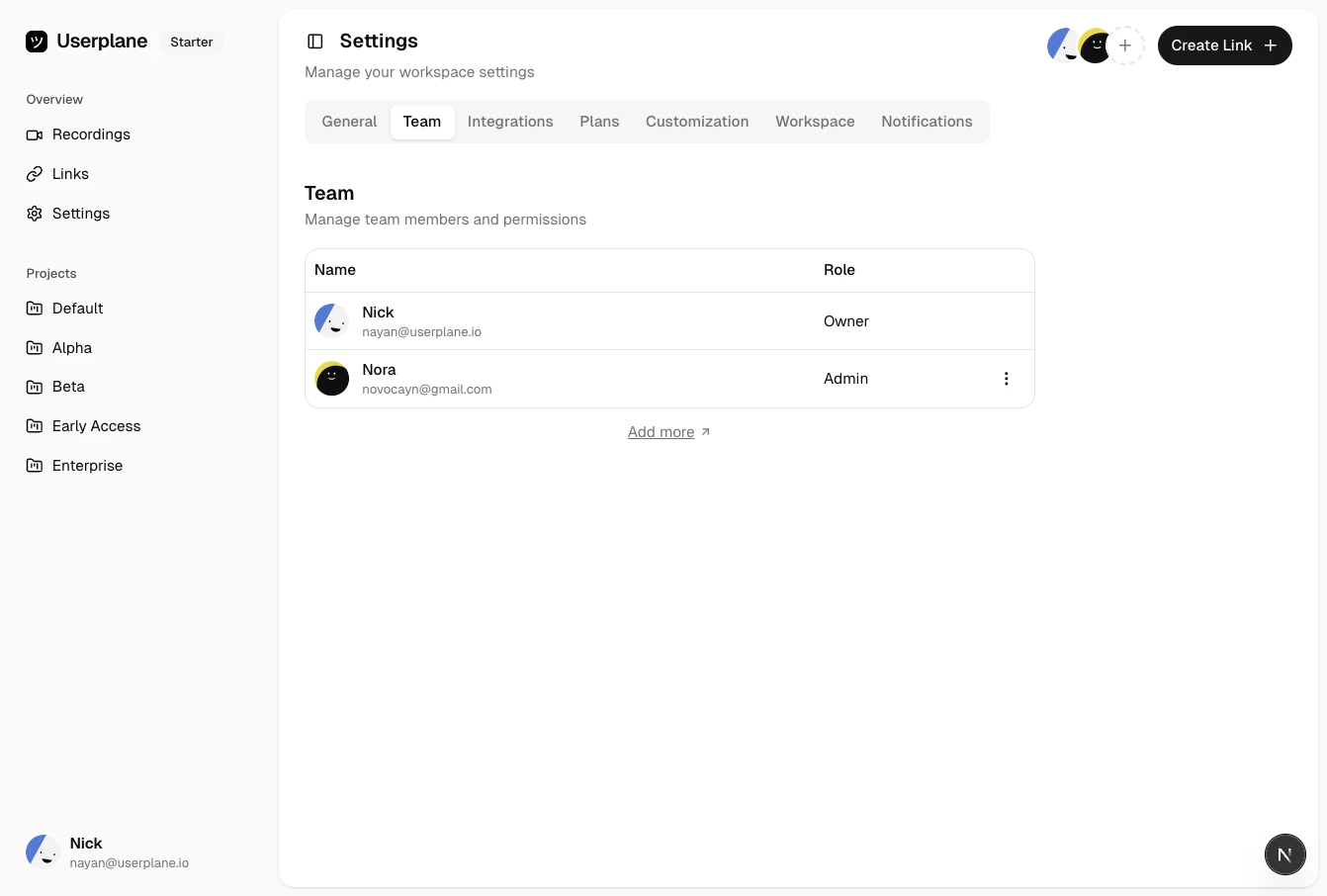
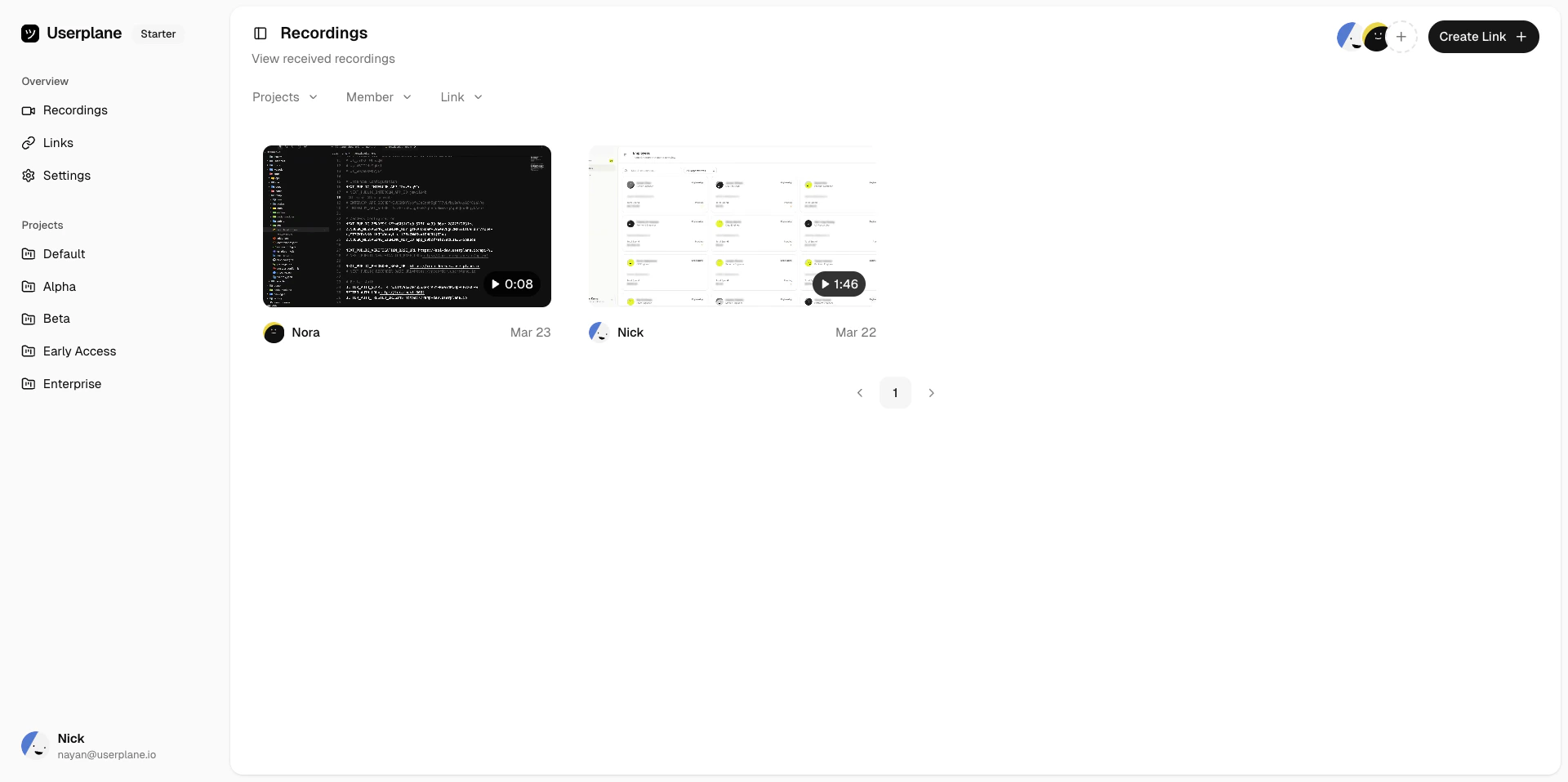
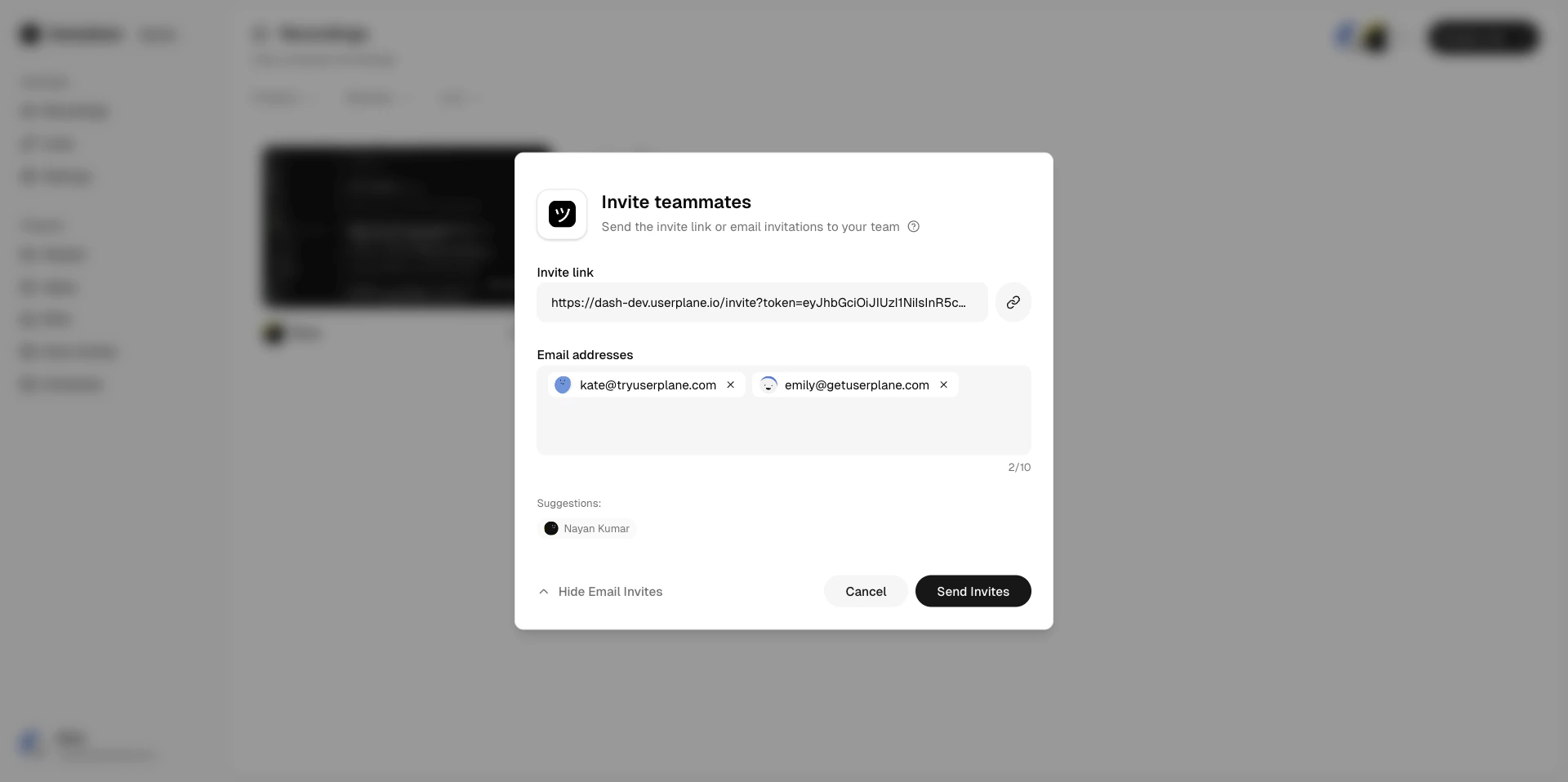
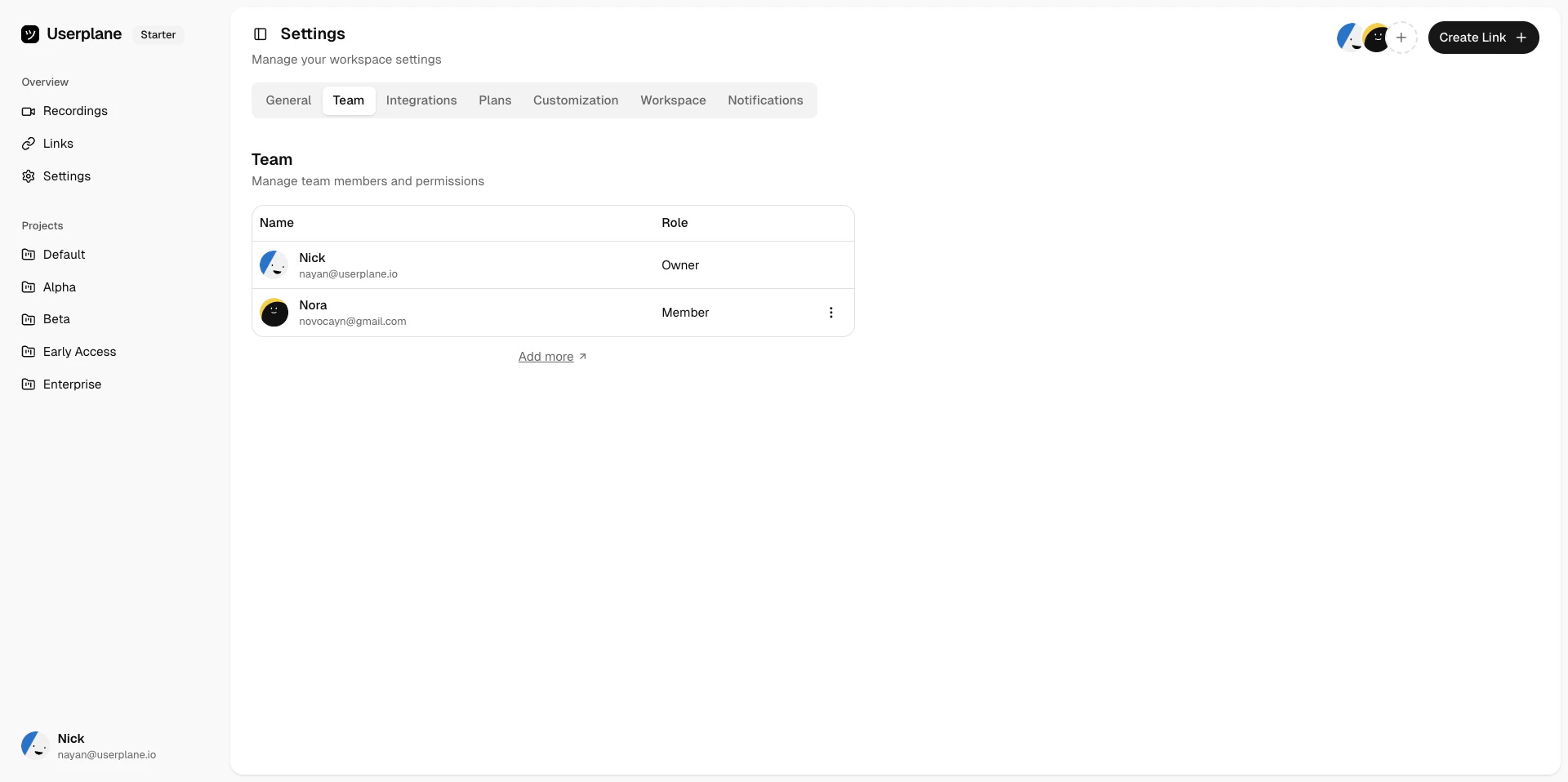
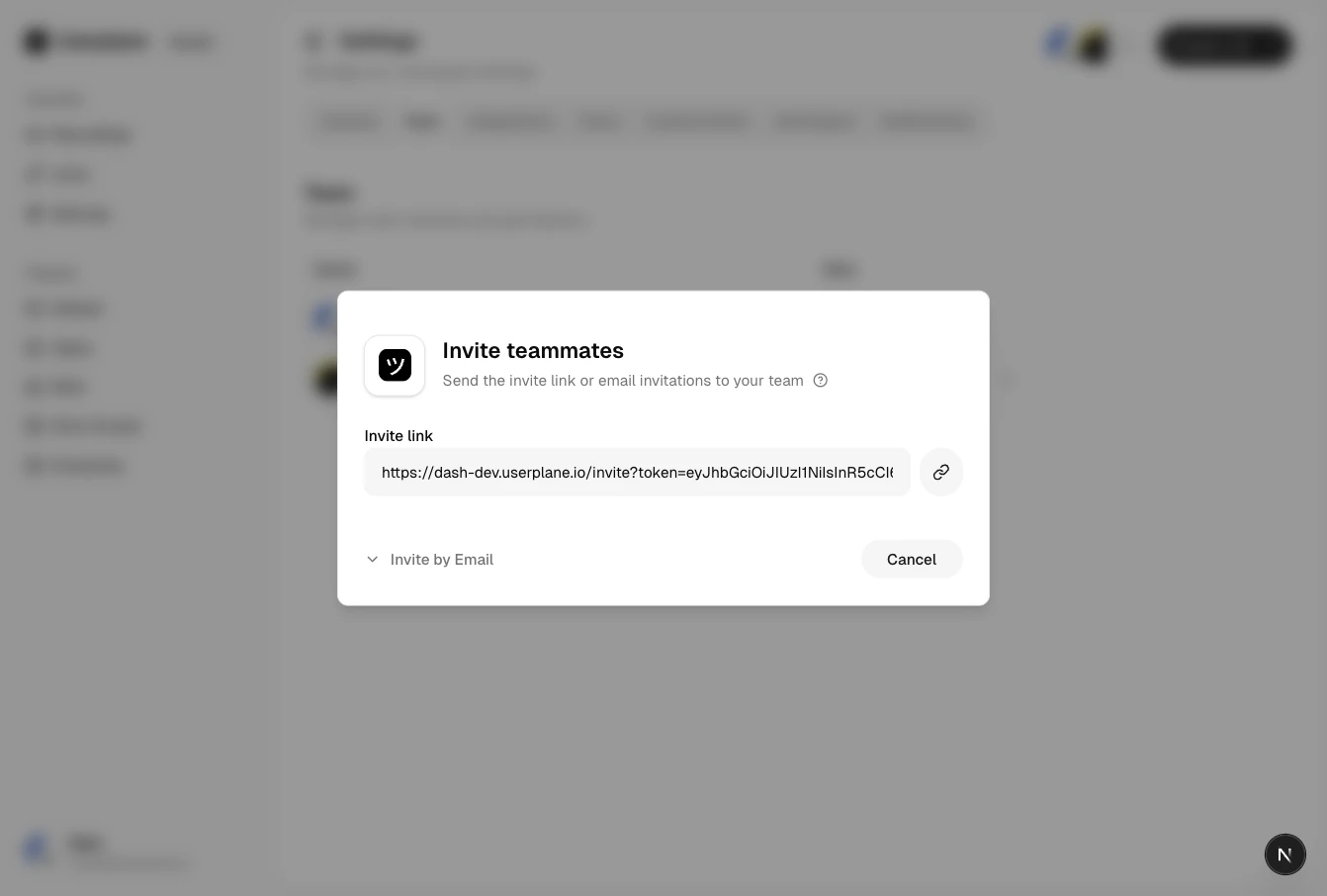
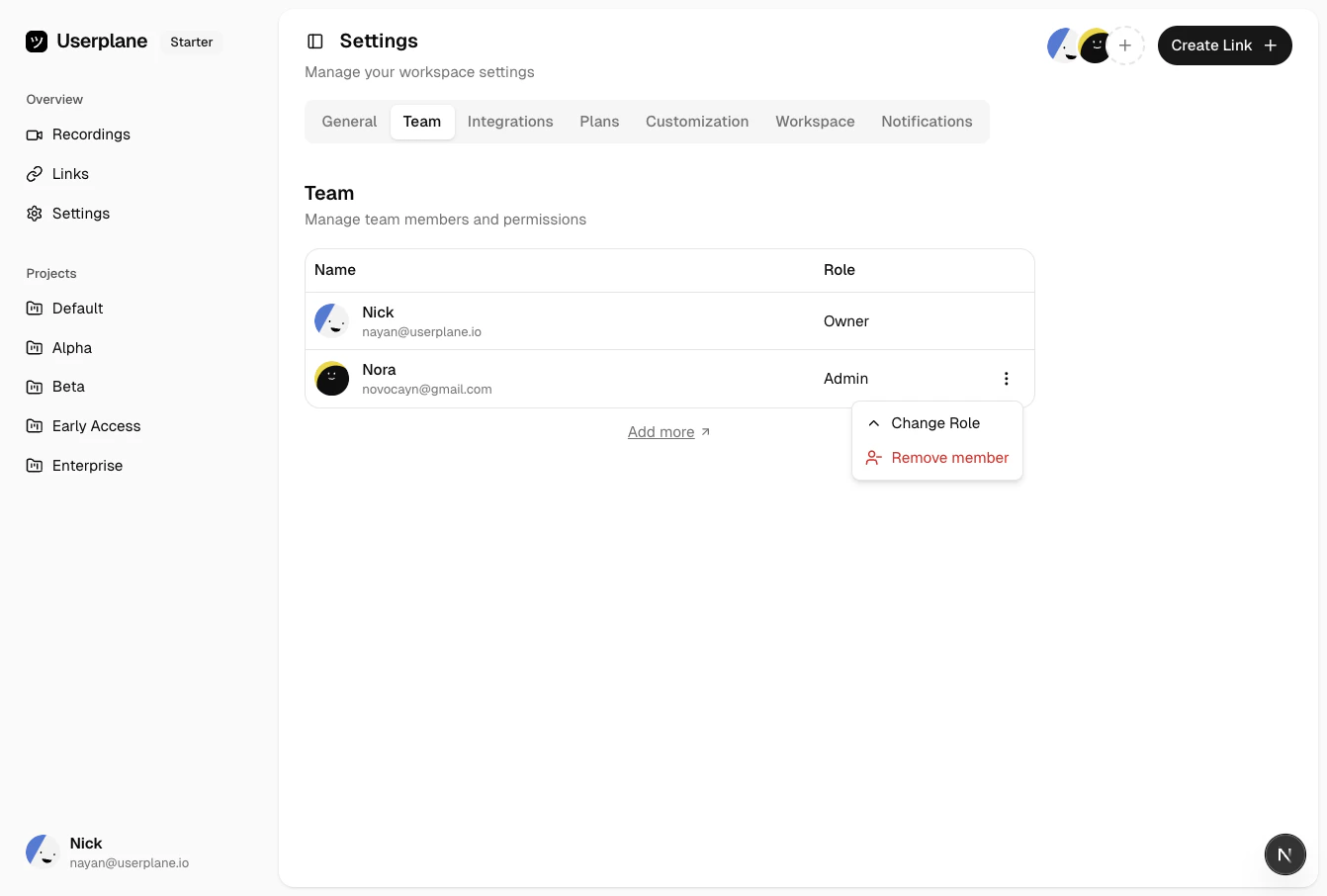
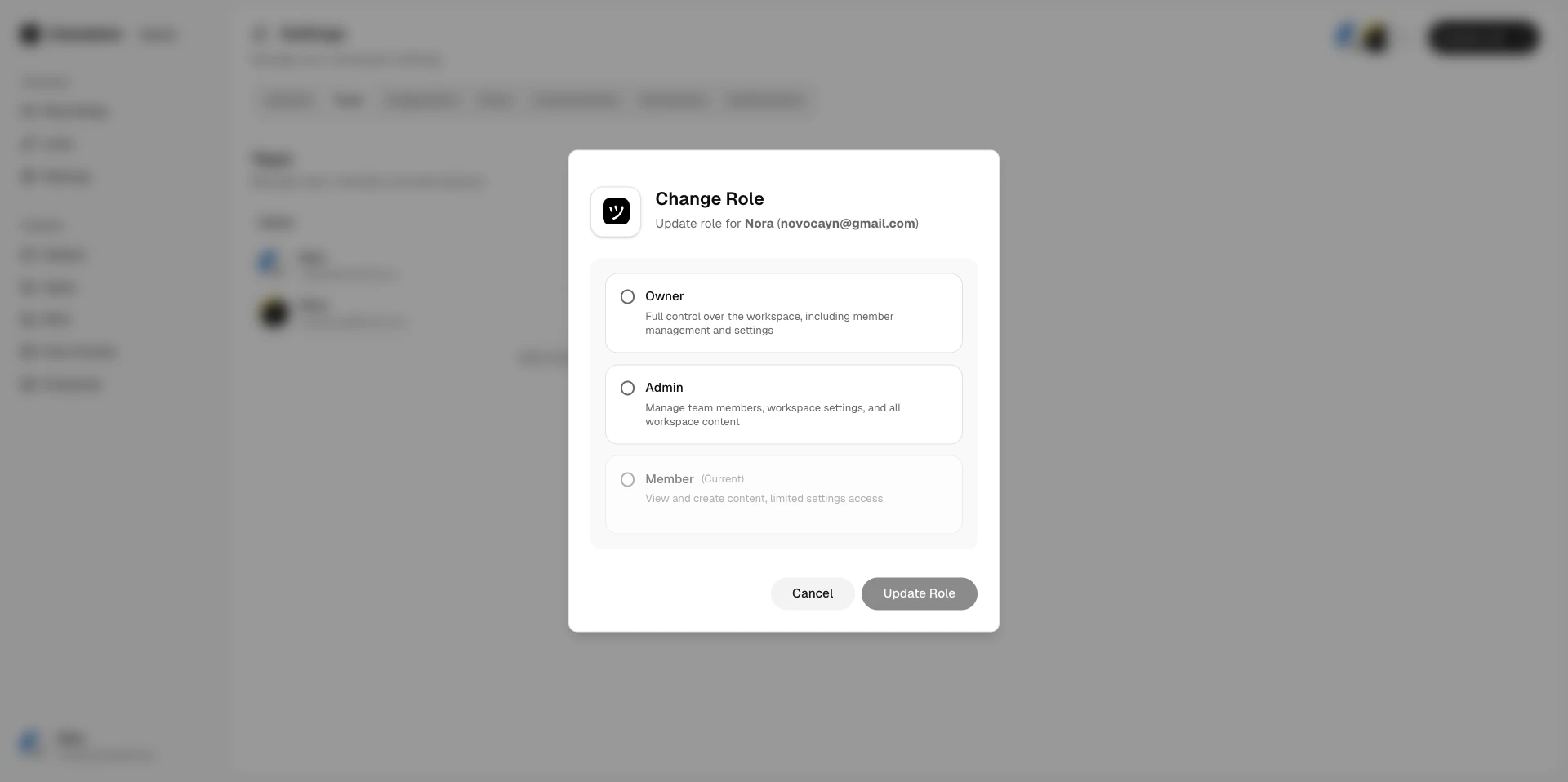
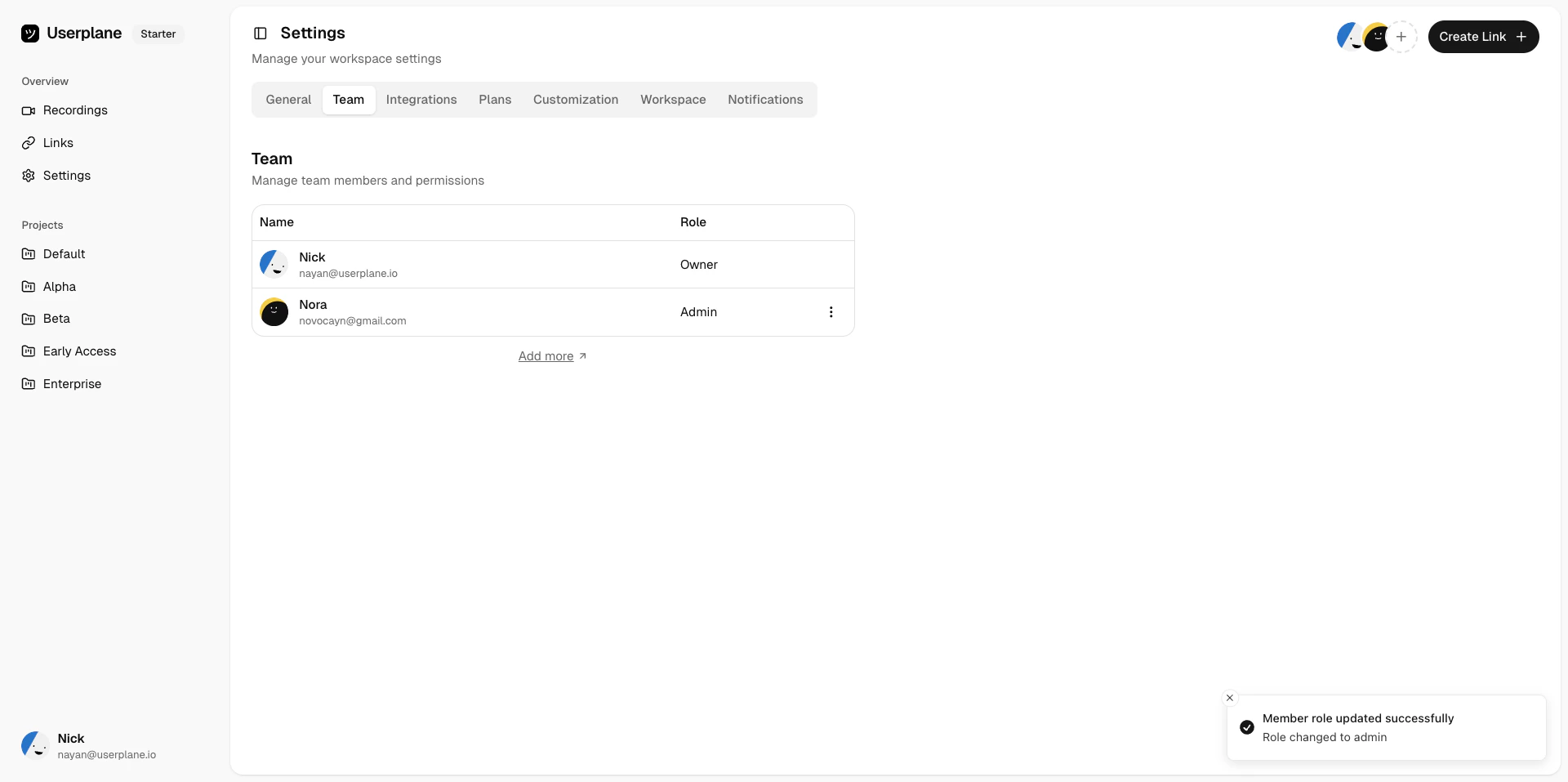
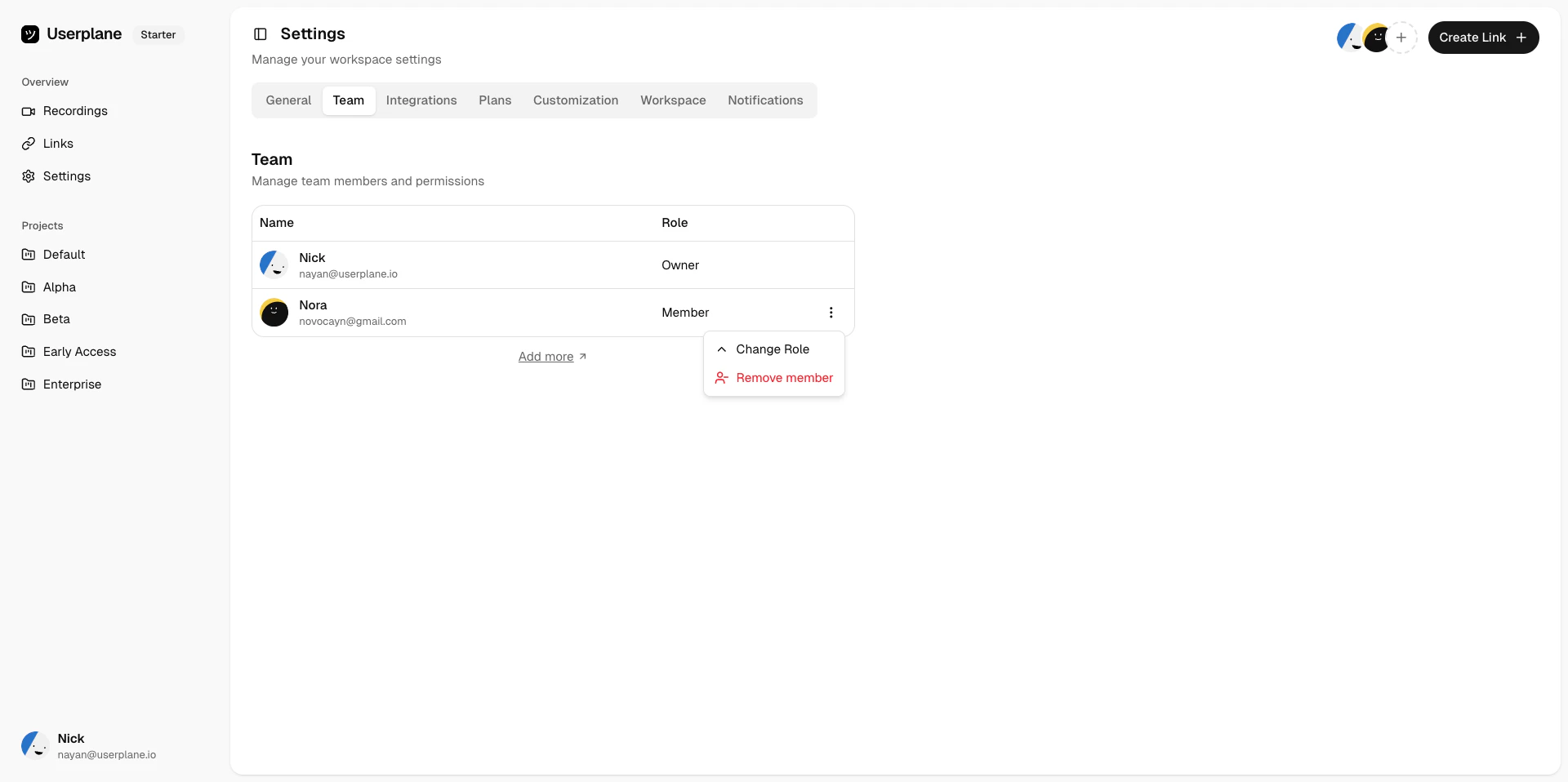
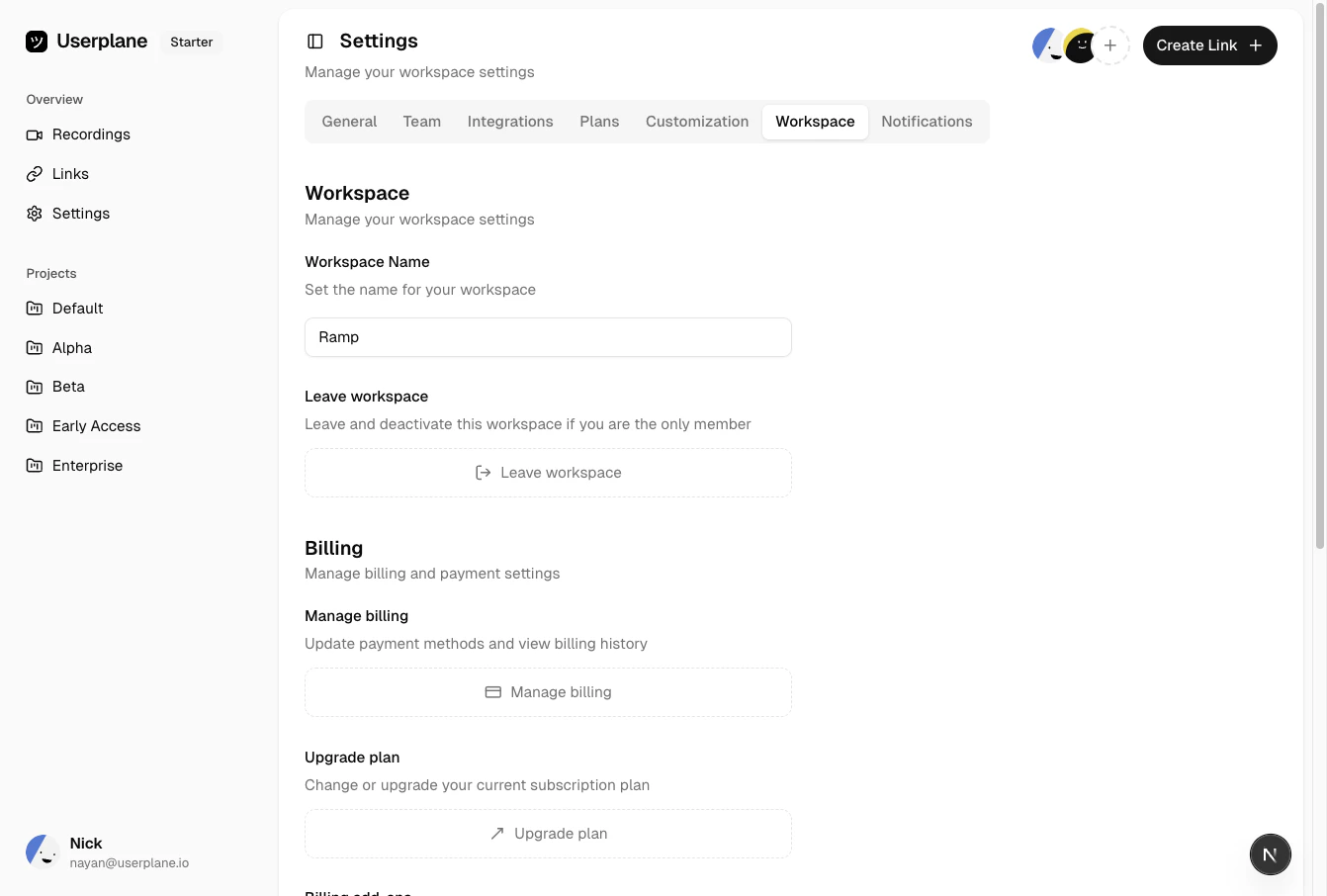
Enter the email address of the person you want to invite, then click Send Invite.
Invite member dialog
The invited person receives an email with a link to join the workspace.
Your workspace’s invite policy controls whether your workspace is
discoverable and how non-invited people can join — via direct access, email domain whitelist, or
access requests. Explicit invitations sent from this dialog work regardless of the policy.
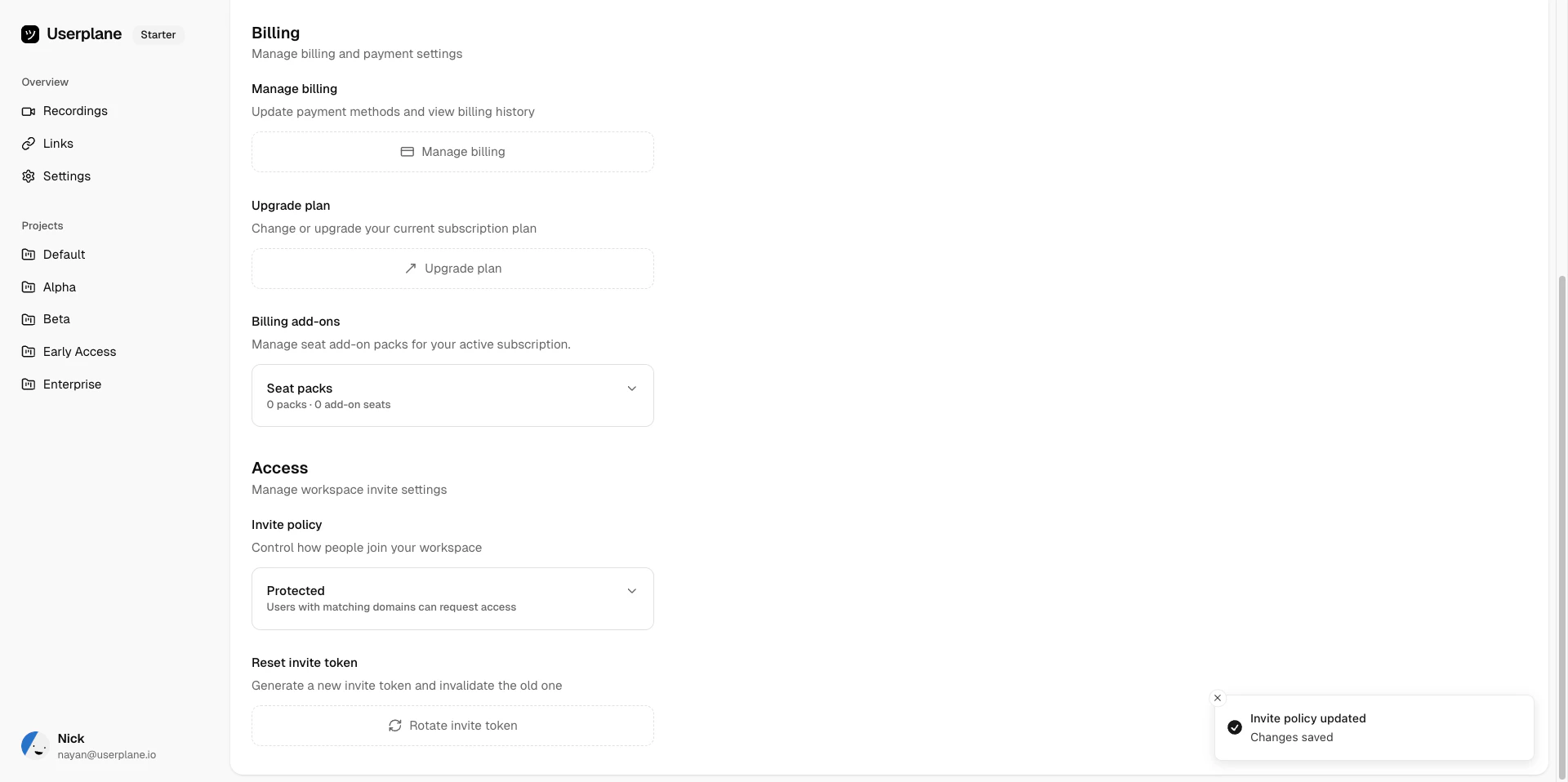
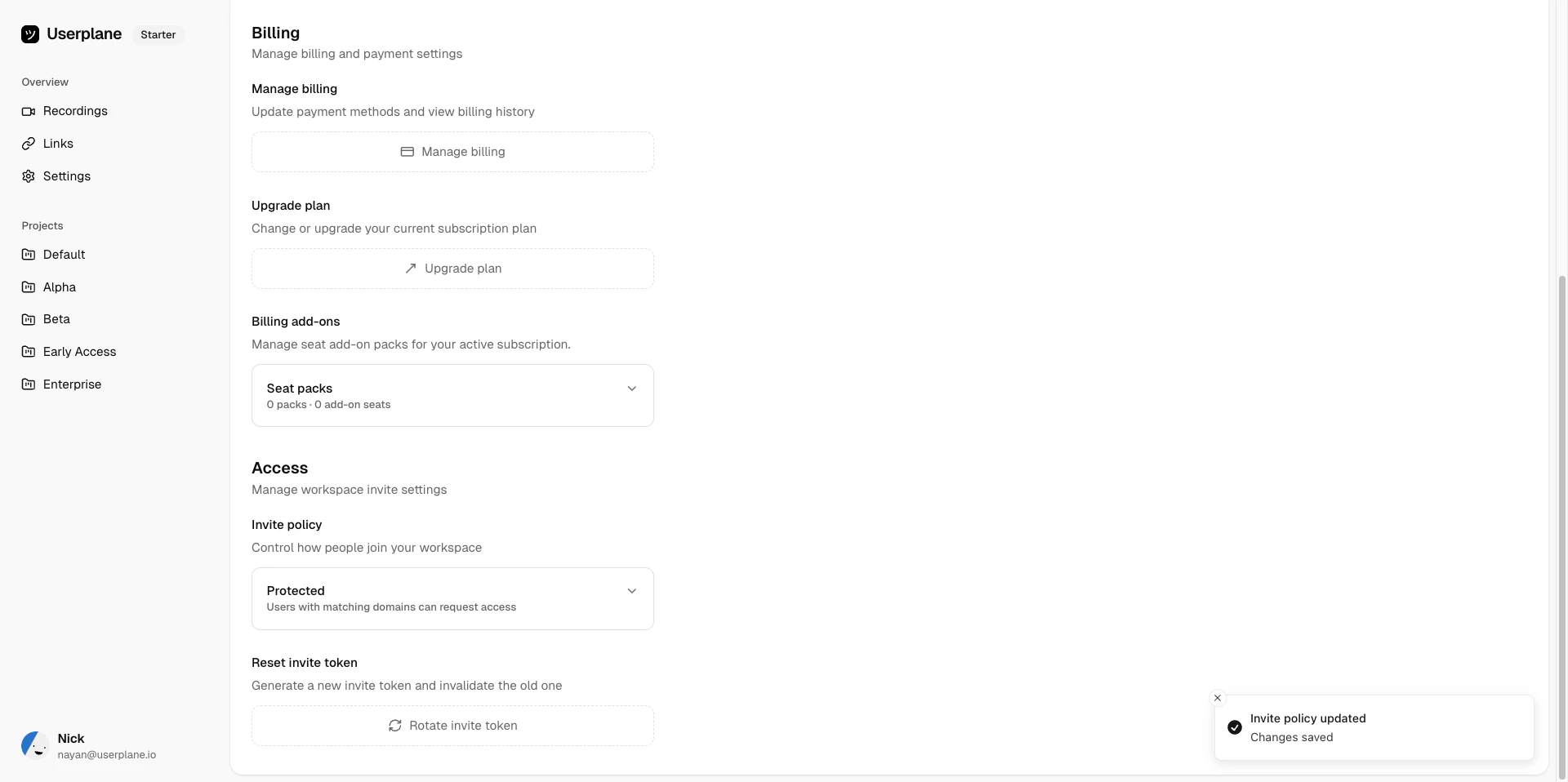
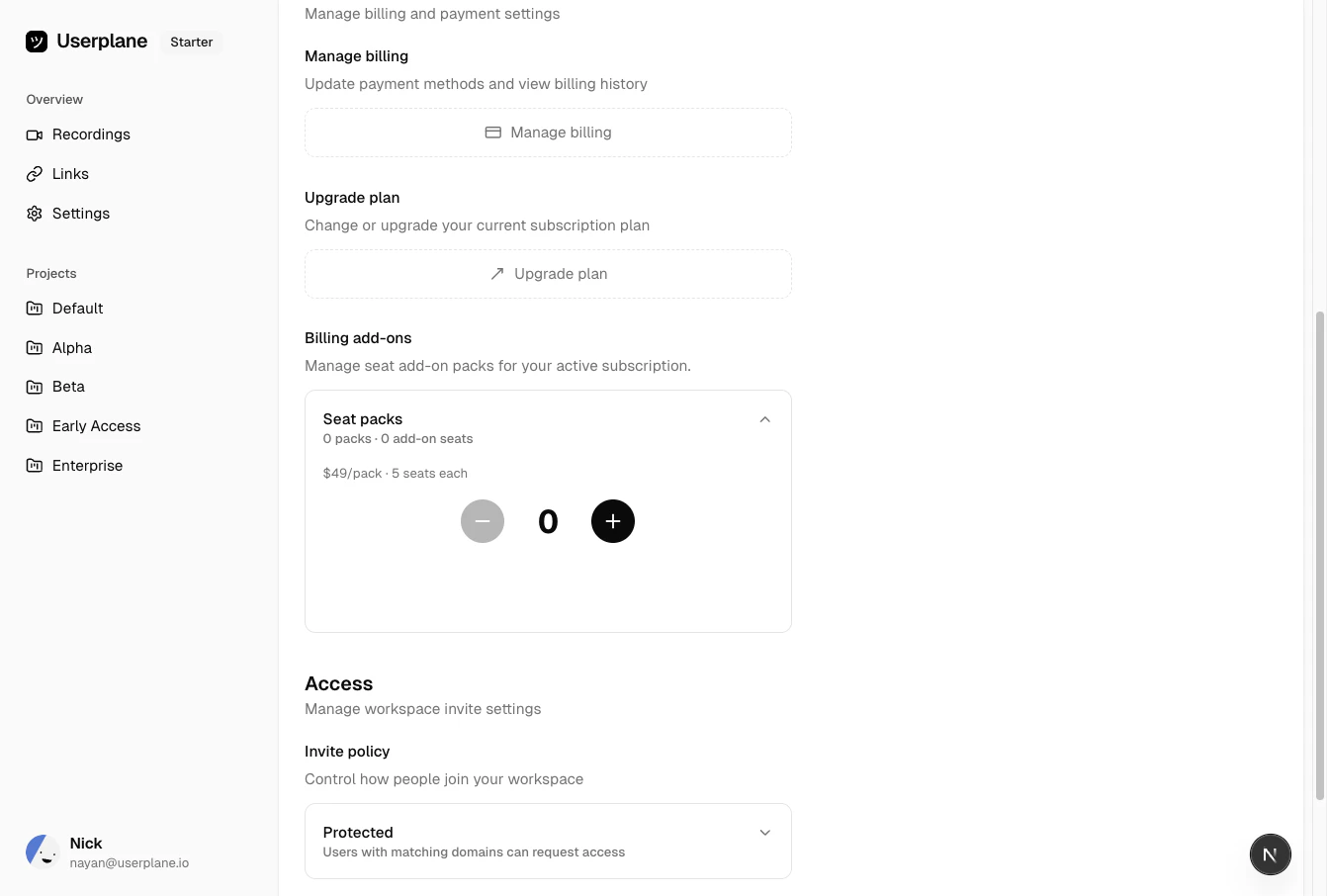
Each plan includes a set number of seats. If your workspace reaches its seat limit, you can purchase additional seats without upgrading your plan. See Seat Add-Ons for full details.
{"docsConfig":{"theme":"aspen","$schema":"https://mintlify.com/docs.json","name":"Userplane Docs","colors":{"primary":"#000000","light":"#FAFAFA","dark":"#000000"},"logo":{"light":"https://mintcdn.com/userplane/e34bWffW8FdiqmQz/static/logo-light.svg?fit=max\u0026auto=format\u0026n=e34bWffW8FdiqmQz\u0026q=85\u0026s=b60f979b7800d446f3f5d5274c095cb2","dark":"https://mintcdn.com/userplane/e34bWffW8FdiqmQz/static/logo-dark.svg?fit=max\u0026auto=format\u0026n=e34bWffW8FdiqmQz\u0026q=85\u0026s=f638b932d019423317aaca6685f22ea6"},"favicon":"https://mintcdn.com/userplane/e34bWffW8FdiqmQz/static/favicon.svg?fit=max\u0026auto=format\u0026n=e34bWffW8FdiqmQz\u0026q=85\u0026s=fd9fbcc5e1783343c767381ce1744d03","api":{"playground":{"display":"interactive"}},"appearance":{"default":"light","strict":true},"navbar":{"primary":{"type":"button","label":"Dashboard","href":"https://dash.userplane.io"}},"styling":{"latex":true},"navigation":{"pages":[]}},"deployment":{"deploymentMetadataValue":{"subdomain":"userplane","hasAudioNarration":false,"actualSubdomain":"userplane","customDomains":["docs.userplane.io"],"gitSource":{"type":"github","owner":"0xnyn","repo":"userplane","deployBranch":"main","contentDirectory":"apps/docs","isPrivate":true,"mountPath":"","label":""},"chroma":{"liveDeploymentHistoryId":"6a21eb6f2fb2a99bab92da64","collectionId":"8e53ea74-03f5-4b56-ab3a-aff2a4fe9720","schemaVersion":"v2"},"entitlements":{},"buildId":"6a21eb6f2fb2a99bab92da64:success","clientVersion":"0.0.3908","searchFilterCounts":[{"language":"default","tag":"Integrations","count":62},{"language":"default","tag":"Guide","count":47},{"language":"default","tag":"Extensions \u0026 Plugins","count":34},{"language":"default","tag":"API","count":28},{"language":"default","tag":"Developer","count":24},{"language":"default","tag":"Recordings","count":21},{"language":"default","tag":"Help Desk","count":16},{"language":"default","tag":"Claude Code","count":14},{"language":"default","tag":"Framework Guides","count":13},{"language":"default","tag":"Getting Started","count":12}]},"assistantConfig":{"enableAskAiButton":false,"enableStarterQuestions":false,"enableAskAiSearchBar":true},"hasChatPermissions":false,"hasWebMcpPermissions":false,"toggles":[{"name":"kill-isr","enabled":true,"variant":{"name":"disabled","enabled":false,"feature_enabled":true},"impressionData":false},{"name":"agent-mintlify-slack","enabled":true,"variant":{"name":"disabled","enabled":false,"feature_enabled":true},"impressionData":false},{"name":"editor-v7-file-tree","enabled":true,"variant":{"name":"disabled","enabled":false,"feature_enabled":true},"impressionData":false},{"name":"agent-integrations-settings","enabled":true,"variant":{"name":"disabled","enabled":false,"feature_enabled":true},"impressionData":false},{"name":"automations-pr-grouping","enabled":true,"variant":{"name":"disabled","enabled":false,"feature_enabled":true},"impressionData":false},{"name":"custom-prefix","enabled":true,"variant":{"name":"disabled","enabled":false,"feature_enabled":true},"impressionData":false},{"name":"analytics-v7","enabled":true,"variant":{"name":"disabled","enabled":false,"feature_enabled":true},"impressionData":false},{"name":"user-flows-analytics","enabled":true,"variant":{"name":"disabled","enabled":false,"feature_enabled":true},"impressionData":false},{"name":"no-publish-flow","enabled":true,"variant":{"name":"disabled","enabled":false,"feature_enabled":true},"impressionData":false},{"name":"workos-onboarding","enabled":true,"variant":{"name":"disabled","enabled":false,"feature_enabled":true},"impressionData":false},{"name":"llms-txt-v2","enabled":true,"variant":{"name":"disabled","enabled":false,"feature_enabled":true},"impressionData":false},{"name":"pause-universal-search-reconcile","enabled":true,"variant":{"name":"disabled","enabled":false,"feature_enabled":true},"impressionData":false},{"name":"snapshot-serving-live","enabled":true,"variant":{"name":"disabled","enabled":false,"feature_enabled":true},"impressionData":false},{"name":"stripTemperatureMiddleware","enabled":true,"variant":{"name":"disabled","enabled":false,"feature_enabled":true},"impressionData":false},{"name":"per-site-search-delta","enabled":true,"variant":{"name":"disabled","enabled":false,"feature_enabled":true},"impressionData":false},{"name":"support-platform-pylon-zendesk","enabled":true,"variant":{"name":"disabled","enabled":false,"feature_enabled":true},"impressionData":false},{"name":"editor-branches-v2-autocommit","enabled":true,"variant":{"name":"disabled","enabled":false,"feature_enabled":true},"impressionData":false},{"name":"editor-branches-v2","enabled":true,"variant":{"name":"disabled","enabled":false,"feature_enabled":true},"impressionData":false},{"name":"snapshot-serving","enabled":true,"variant":{"name":"disabled","enabled":false,"feature_enabled":true},"impressionData":false},{"name":"instant-rollback","enabled":true,"variant":{"name":"disabled","enabled":false,"feature_enabled":true},"impressionData":false},{"name":"granular-notifications-server","enabled":true,"variant":{"name":"disabled","enabled":false,"feature_enabled":true},"impressionData":false},{"name":"granular-notifications","enabled":true,"variant":{"name":"disabled","enabled":false,"feature_enabled":true},"impressionData":false},{"name":"editor-private-page-search","enabled":true,"variant":{"name":"disabled","enabled":false,"feature_enabled":true},"impressionData":false},{"name":"automations-fable","enabled":true,"variant":{"name":"disabled","enabled":false,"feature_enabled":true},"impressionData":false},{"name":"fixed-ai-action-pricing","enabled":true,"variant":{"name":"disabled","enabled":false,"feature_enabled":true},"impressionData":false},{"name":"automation-resolve-merge-conflict","enabled":true,"variant":{"name":"disabled","enabled":false,"feature_enabled":true},"impressionData":false},{"name":"scoped-publishing","enabled":true,"variant":{"name":"disabled","enabled":false,"feature_enabled":true},"impressionData":false},{"name":"mintql","enabled":true,"variant":{"name":"disabled","enabled":false,"feature_enabled":true},"impressionData":false},{"name":"page-level-analytics","enabled":true,"variant":{"name":"disabled","enabled":false,"feature_enabled":true},"impressionData":false},{"name":"teamspace","enabled":true,"variant":{"name":"disabled","enabled":false,"feature_enabled":true},"impressionData":false},{"name":"editor-version-history-v2","enabled":true,"variant":{"name":"disabled","enabled":false,"feature_enabled":true},"impressionData":false},{"name":"vite-origin","enabled":true,"variant":{"name":"disabled","enabled":false,"feature_enabled":true},"impressionData":false},{"name":"editor-nav-generations","enabled":true,"variant":{"name":"disabled","enabled":false,"feature_enabled":true},"impressionData":false},{"name":"billing-page-v2","enabled":true,"variant":{"name":"disabled","enabled":false,"feature_enabled":true},"impressionData":false},{"name":"workspace-projects","enabled":true,"variant":{"name":"disabled","enabled":false,"feature_enabled":true},"impressionData":false},{"name":"assistant-v5","enabled":true,"variant":{"name":"disabled","enabled":false,"feature_enabled":true},"impressionData":false},{"name":"byok-sep-25","enabled":true,"variant":{"name":"disabled","enabled":false,"feature_enabled":true},"impressionData":false},{"name":"fork-pr-previews","enabled":true,"variant":{"name":"disabled","enabled":false,"feature_enabled":true},"impressionData":false},{"name":"revalidation-jwt","enabled":true,"variant":{"name":"disabled","enabled":false,"feature_enabled":true},"impressionData":false},{"name":"editor-agent-model-picker","enabled":true,"variant":{"name":"disabled","enabled":false,"feature_enabled":true},"impressionData":false},{"name":"client-snapshot-docs-config","enabled":true,"variant":{"name":"disabled","enabled":false,"feature_enabled":true},"impressionData":false},{"name":"hobby-abuse-scan","enabled":true,"variant":{"name":"disabled","enabled":false,"feature_enabled":true},"impressionData":false},{"name":"dashboard-inbox","enabled":true,"variant":{"name":"disabled","enabled":false,"feature_enabled":true},"impressionData":false}],"isAtlas":false,"googleFontsInlined":false},"customCss":[],"page":{"pagePath":"workspace/team-management","slug":"/workspace/team-management","pageMetadata":{"title":"Team Management","description":"Add, remove, and manage workspace members and their roles","href":"/workspace/team-management"},"description":{"compiledSource":"\"use strict\";\nconst {jsx: _jsx} = arguments[0];\nconst {useMDXComponents: _provideComponents} = arguments[0];\nfunction _createMdxContent(props) {\n const _components = {\n p: \"p\",\n ..._provideComponents(),\n ...props.components\n };\n return _jsx(_components.p, {\n children: \"Add, remove, and manage workspace members and their roles\"\n });\n}\nfunction MDXContent(props = {}) {\n const {wrapper: MDXLayout} = {\n ..._provideComponents(),\n ...props.components\n };\n return MDXLayout ? _jsx(MDXLayout, {\n ...props,\n children: _jsx(_createMdxContent, {\n ...props\n })\n }) : _createMdxContent(props);\n}\nreturn {\n default: MDXContent\n};\n","frontmatter":{},"scope":{}},"pageType":"default","mdx":{"mdxSource":{"compiledSource":"\"use strict\";const{Fragment:_Fragment,jsx:_jsx,jsxs:_jsxs}=arguments[0];const{useMDXComponents:_provideComponents}=arguments[0];function _createMdxContent(props){const _components={a:`a`,li:`li`,p:`p`,strong:`strong`,ul:`ul`,..._provideComponents(),...props.components},{Frame,Heading,Note,OptimizedImage,Step,Steps,Tab,Tabs}=_components;if(!Frame)_missingMdxReference(`Frame`,true);if(!Heading)_missingMdxReference(`Heading`,true);if(!Note)_missingMdxReference(`Note`,true);if(!OptimizedImage)_missingMdxReference(`OptimizedImage`,true);if(!Step)_missingMdxReference(`Step`,true);if(!Steps)_missingMdxReference(`Steps`,true);if(!Tab)_missingMdxReference(`Tab`,true);if(!Tabs)_missingMdxReference(`Tabs`,true);return _jsxs(_Fragment,{children:[_jsx(_components.p,{children:`The Team section in Workspace Settings lets you manage who has access to your workspace and what they can do.`}),`\n`,_jsx(Heading,{level:`2`,id:`viewing-members`,children:`Viewing members`}),`\n`,_jsxs(_components.p,{children:[`Go to `,_jsx(_components.a,{href:`https://dash.userplane.io/_/settings?tab=team`,children:`Workspace Settings > Team`}),` to see all current workspace members. Each member entry shows their name, avatar, email, and role.`]}),`\n`,_jsx(Frame,{caption:`Team member list with roles`,children:_jsx(OptimizedImage,{src:`https://mintcdn.com/userplane/IKCB4f_KBaL0xsjW/media/workspace/team/team-list-roles.png?fit=max\u0026auto=format\u0026n=IKCB4f_KBaL0xsjW\u0026q=85\u0026s=cc414af77695cab4bb1c88e261da33f8`,\"data-og-width\":`1342`,width:`1342`,\"data-og-height\":`906`,height:`906`,\"data-path\":`media/workspace/team/team-list-roles.png`,\"data-optimize\":`true`,\"data-opv\":`3`,srcset:`https://mintcdn.com/userplane/IKCB4f_KBaL0xsjW/media/workspace/team/team-list-roles.png?w=280\u0026fit=max\u0026auto=format\u0026n=IKCB4f_KBaL0xsjW\u0026q=85\u0026s=3606e022abbe5a5d701f9bd06cfda83d 280w, https://mintcdn.com/userplane/IKCB4f_KBaL0xsjW/media/workspace/team/team-list-roles.png?w=560\u0026fit=max\u0026auto=format\u0026n=IKCB4f_KBaL0xsjW\u0026q=85\u0026s=e26312794b9d465061a666d039409c67 560w, https://mintcdn.com/userplane/IKCB4f_KBaL0xsjW/media/workspace/team/team-list-roles.png?w=840\u0026fit=max\u0026auto=format\u0026n=IKCB4f_KBaL0xsjW\u0026q=85\u0026s=f0e851e1a430bd21f7b459b5510fedb2 840w, https://mintcdn.com/userplane/IKCB4f_KBaL0xsjW/media/workspace/team/team-list-roles.png?w=1100\u0026fit=max\u0026auto=format\u0026n=IKCB4f_KBaL0xsjW\u0026q=85\u0026s=3677ecd3bc1bb8ef66b1f7705661c002 1100w, https://mintcdn.com/userplane/IKCB4f_KBaL0xsjW/media/workspace/team/team-list-roles.png?w=1650\u0026fit=max\u0026auto=format\u0026n=IKCB4f_KBaL0xsjW\u0026q=85\u0026s=b92da551aac07963f610390a68583ab5 1650w, https://mintcdn.com/userplane/IKCB4f_KBaL0xsjW/media/workspace/team/team-list-roles.png?w=2500\u0026fit=max\u0026auto=format\u0026n=IKCB4f_KBaL0xsjW\u0026q=85\u0026s=564d5178a5c0a7f14521a7bfb2a7fa70 2500w`})}),`\n`,_jsx(Heading,{level:`2`,id:`inviting-members`,children:`Inviting members`}),`\n`,_jsx(_components.p,{children:`You can invite members from the navigation bar or from the Team settings page. Both open the same invite dialog.`}),`\n`,_jsxs(Tabs,{children:[_jsx(Tab,{title:`From navigation bar`,id:`from-navigation-bar`,children:_jsxs(Steps,{children:[_jsxs(Step,{title:`Open the invite dialog`,children:[_jsx(_components.p,{children:`Click the invite button in the navigation bar.`}),_jsx(Frame,{caption:`Invite from navigation bar`,children:_jsx(OptimizedImage,{src:`https://mintcdn.com/userplane/IKCB4f_KBaL0xsjW/media/workspace/team/team-invite-navbar.png?fit=max\u0026auto=format\u0026n=IKCB4f_KBaL0xsjW\u0026q=85\u0026s=6dc34d24c8f5b24dc6b79aafe481c505`,\"data-og-width\":`1920`,width:`1920`,\"data-og-height\":`957`,height:`957`,\"data-path\":`media/workspace/team/team-invite-navbar.png`,\"data-optimize\":`true`,\"data-opv\":`3`,srcset:`https://mintcdn.com/userplane/IKCB4f_KBaL0xsjW/media/workspace/team/team-invite-navbar.png?w=280\u0026fit=max\u0026auto=format\u0026n=IKCB4f_KBaL0xsjW\u0026q=85\u0026s=b619785be16301ac6cfc6545a23c4003 280w, https://mintcdn.com/userplane/IKCB4f_KBaL0xsjW/media/workspace/team/team-invite-navbar.png?w=560\u0026fit=max\u0026auto=format\u0026n=IKCB4f_KBaL0xsjW\u0026q=85\u0026s=9e6437d37341ebd79a3be374dc119216 560w, https://mintcdn.com/userplane/IKCB4f_KBaL0xsjW/media/workspace/team/team-invite-navbar.png?w=840\u0026fit=max\u0026auto=format\u0026n=IKCB4f_KBaL0xsjW\u0026q=85\u0026s=e4acf58cedd1a26a8c6c735ba8a01f5c 840w, https://mintcdn.com/userplane/IKCB4f_KBaL0xsjW/media/workspace/team/team-invite-navbar.png?w=1100\u0026fit=max\u0026auto=format\u0026n=IKCB4f_KBaL0xsjW\u0026q=85\u0026s=0ea89f7f20de1bde26e3850e197e6cc5 1100w, https://mintcdn.com/userplane/IKCB4f_KBaL0xsjW/media/workspace/team/team-invite-navbar.png?w=1650\u0026fit=max\u0026auto=format\u0026n=IKCB4f_KBaL0xsjW\u0026q=85\u0026s=05bf8ea00634ab626b99e2d5d7dcfee2 1650w, https://mintcdn.com/userplane/IKCB4f_KBaL0xsjW/media/workspace/team/team-invite-navbar.png?w=2500\u0026fit=max\u0026auto=format\u0026n=IKCB4f_KBaL0xsjW\u0026q=85\u0026s=aa35d8e9d9bceb983d80f22a29400a90 2500w`})})]}),_jsxs(Step,{title:`Enter email and send`,children:[_jsxs(_components.p,{children:[`Enter the email address of the person you want to invite, then click `,_jsx(_components.strong,{children:`Send Invite`}),`.`]}),_jsx(Frame,{caption:`Enter email address`,children:_jsx(OptimizedImage,{src:`https://mintcdn.com/userplane/IKCB4f_KBaL0xsjW/media/workspace/team/team-invite-add-email.png?fit=max\u0026auto=format\u0026n=IKCB4f_KBaL0xsjW\u0026q=85\u0026s=f2dcde2eb816245d8effbc5ecea74a35`,\"data-og-width\":`1920`,width:`1920`,\"data-og-height\":`958`,height:`958`,\"data-path\":`media/workspace/team/team-invite-add-email.png`,\"data-optimize\":`true`,\"data-opv\":`3`,srcset:`https://mintcdn.com/userplane/IKCB4f_KBaL0xsjW/media/workspace/team/team-invite-add-email.png?w=280\u0026fit=max\u0026auto=format\u0026n=IKCB4f_KBaL0xsjW\u0026q=85\u0026s=03b6551ebfc3427d06eca5cd4042093e 280w, https://mintcdn.com/userplane/IKCB4f_KBaL0xsjW/media/workspace/team/team-invite-add-email.png?w=560\u0026fit=max\u0026auto=format\u0026n=IKCB4f_KBaL0xsjW\u0026q=85\u0026s=c016dbb34df8934274f5cb6cebfcd51e 560w, https://mintcdn.com/userplane/IKCB4f_KBaL0xsjW/media/workspace/team/team-invite-add-email.png?w=840\u0026fit=max\u0026auto=format\u0026n=IKCB4f_KBaL0xsjW\u0026q=85\u0026s=52548e83226bac95ad7f6d2ed00fb174 840w, https://mintcdn.com/userplane/IKCB4f_KBaL0xsjW/media/workspace/team/team-invite-add-email.png?w=1100\u0026fit=max\u0026auto=format\u0026n=IKCB4f_KBaL0xsjW\u0026q=85\u0026s=e28ed8e3f0a763a70ae26e185c2808a2 1100w, https://mintcdn.com/userplane/IKCB4f_KBaL0xsjW/media/workspace/team/team-invite-add-email.png?w=1650\u0026fit=max\u0026auto=format\u0026n=IKCB4f_KBaL0xsjW\u0026q=85\u0026s=bb89b9341f87a1a0392151bc747fc4b2 1650w, https://mintcdn.com/userplane/IKCB4f_KBaL0xsjW/media/workspace/team/team-invite-add-email.png?w=2500\u0026fit=max\u0026auto=format\u0026n=IKCB4f_KBaL0xsjW\u0026q=85\u0026s=3945cdf330eb41220c444dcbfa146915 2500w`})})]})]})}),_jsx(Tab,{title:`From team settings`,id:`from-team-settings`,children:_jsxs(Steps,{children:[_jsxs(Step,{title:`Open the invite dialog`,children:[_jsxs(_components.p,{children:[`Go to `,_jsx(_components.a,{href:`https://dash.userplane.io/_/settings?tab=team`,children:`Workspace Settings > Team`}),` and click `,_jsx(_components.strong,{children:`Invite Member`}),`.`]}),_jsx(Frame,{caption:`Team member list`,children:_jsx(OptimizedImage,{src:`https://mintcdn.com/userplane/IKCB4f_KBaL0xsjW/media/workspace/team/team-list.png?fit=max\u0026auto=format\u0026n=IKCB4f_KBaL0xsjW\u0026q=85\u0026s=b0dd7595acd5d16f82710e3aff41fb77`,\"data-og-width\":`1920`,width:`1920`,\"data-og-height\":`958`,height:`958`,\"data-path\":`media/workspace/team/team-list.png`,\"data-optimize\":`true`,\"data-opv\":`3`,srcset:`https://mintcdn.com/userplane/IKCB4f_KBaL0xsjW/media/workspace/team/team-list.png?w=280\u0026fit=max\u0026auto=format\u0026n=IKCB4f_KBaL0xsjW\u0026q=85\u0026s=70557fb182de6c2c1b1c68afb7739ca9 280w, https://mintcdn.com/userplane/IKCB4f_KBaL0xsjW/media/workspace/team/team-list.png?w=560\u0026fit=max\u0026auto=format\u0026n=IKCB4f_KBaL0xsjW\u0026q=85\u0026s=85b5ffb6698be9018f9c00db376a2be8 560w, https://mintcdn.com/userplane/IKCB4f_KBaL0xsjW/media/workspace/team/team-list.png?w=840\u0026fit=max\u0026auto=format\u0026n=IKCB4f_KBaL0xsjW\u0026q=85\u0026s=d3435d69cc38c6574637b0fb46e3ce17 840w, https://mintcdn.com/userplane/IKCB4f_KBaL0xsjW/media/workspace/team/team-list.png?w=1100\u0026fit=max\u0026auto=format\u0026n=IKCB4f_KBaL0xsjW\u0026q=85\u0026s=a9e991af39a82edb1a404c07e89d3cff 1100w, https://mintcdn.com/userplane/IKCB4f_KBaL0xsjW/media/workspace/team/team-list.png?w=1650\u0026fit=max\u0026auto=format\u0026n=IKCB4f_KBaL0xsjW\u0026q=85\u0026s=5dfb63d34995a213678636b00cc09b84 1650w, https://mintcdn.com/userplane/IKCB4f_KBaL0xsjW/media/workspace/team/team-list.png?w=2500\u0026fit=max\u0026auto=format\u0026n=IKCB4f_KBaL0xsjW\u0026q=85\u0026s=831a274bb614a981cc07c508113aff78 2500w`})})]}),_jsxs(Step,{title:`Enter email and send`,children:[_jsxs(_components.p,{children:[`Enter the email address of the person you want to invite, then click `,_jsx(_components.strong,{children:`Send Invite`}),`.`]}),_jsx(Frame,{caption:`Invite member dialog`,children:_jsx(OptimizedImage,{src:`https://mintcdn.com/userplane/IKCB4f_KBaL0xsjW/media/workspace/team/invite-dialog.png?fit=max\u0026auto=format\u0026n=IKCB4f_KBaL0xsjW\u0026q=85\u0026s=2b1755de8851f26d34be60d3c7ead4ab`,\"data-og-width\":`1342`,width:`1342`,\"data-og-height\":`906`,height:`906`,\"data-path\":`media/workspace/team/invite-dialog.png`,\"data-optimize\":`true`,\"data-opv\":`3`,srcset:`https://mintcdn.com/userplane/IKCB4f_KBaL0xsjW/media/workspace/team/invite-dialog.png?w=280\u0026fit=max\u0026auto=format\u0026n=IKCB4f_KBaL0xsjW\u0026q=85\u0026s=dbf400a64f4b2f437682c9d45cdb43ab 280w, https://mintcdn.com/userplane/IKCB4f_KBaL0xsjW/media/workspace/team/invite-dialog.png?w=560\u0026fit=max\u0026auto=format\u0026n=IKCB4f_KBaL0xsjW\u0026q=85\u0026s=1c86f712556537c414bf32d67a081600 560w, https://mintcdn.com/userplane/IKCB4f_KBaL0xsjW/media/workspace/team/invite-dialog.png?w=840\u0026fit=max\u0026auto=format\u0026n=IKCB4f_KBaL0xsjW\u0026q=85\u0026s=bda755444c515c8982ac18992feab43d 840w, https://mintcdn.com/userplane/IKCB4f_KBaL0xsjW/media/workspace/team/invite-dialog.png?w=1100\u0026fit=max\u0026auto=format\u0026n=IKCB4f_KBaL0xsjW\u0026q=85\u0026s=b4d91db96f6cca6fee0e8ad94024e45f 1100w, https://mintcdn.com/userplane/IKCB4f_KBaL0xsjW/media/workspace/team/invite-dialog.png?w=1650\u0026fit=max\u0026auto=format\u0026n=IKCB4f_KBaL0xsjW\u0026q=85\u0026s=5676f3833807b62d1f491ddcf7d0e224 1650w, https://mintcdn.com/userplane/IKCB4f_KBaL0xsjW/media/workspace/team/invite-dialog.png?w=2500\u0026fit=max\u0026auto=format\u0026n=IKCB4f_KBaL0xsjW\u0026q=85\u0026s=2972ffcc00596357ab76b9cf2d42d748 2500w`})})]})]})})]}),`\n`,_jsx(_components.p,{children:`The invited person receives an email with a link to join the workspace.`}),`\n`,_jsx(Note,{children:_jsxs(_components.p,{children:[`Your workspace’s `,_jsx(_components.a,{href:`/workspace/invite-policies`,children:`invite policy`}),` controls whether your workspace is\ndiscoverable and how non-invited people can join — via direct access, email domain whitelist, or\naccess requests. Explicit invitations sent from this dialog work regardless of the policy.`]})}),`\n`,_jsx(Heading,{level:`2`,id:`changing-roles`,children:`Changing roles`}),`\n`,_jsxs(Steps,{children:[_jsxs(Step,{title:`Find the member`,children:[_jsx(_components.p,{children:`Locate the member in the team list.`}),_jsx(Frame,{caption:`Team member list with roles`,children:_jsx(OptimizedImage,{src:`https://mintcdn.com/userplane/IKCB4f_KBaL0xsjW/media/workspace/team/team-list-roles.png?fit=max\u0026auto=format\u0026n=IKCB4f_KBaL0xsjW\u0026q=85\u0026s=cc414af77695cab4bb1c88e261da33f8`,\"data-og-width\":`1342`,width:`1342`,\"data-og-height\":`906`,height:`906`,\"data-path\":`media/workspace/team/team-list-roles.png`,\"data-optimize\":`true`,\"data-opv\":`3`,srcset:`https://mintcdn.com/userplane/IKCB4f_KBaL0xsjW/media/workspace/team/team-list-roles.png?w=280\u0026fit=max\u0026auto=format\u0026n=IKCB4f_KBaL0xsjW\u0026q=85\u0026s=3606e022abbe5a5d701f9bd06cfda83d 280w, https://mintcdn.com/userplane/IKCB4f_KBaL0xsjW/media/workspace/team/team-list-roles.png?w=560\u0026fit=max\u0026auto=format\u0026n=IKCB4f_KBaL0xsjW\u0026q=85\u0026s=e26312794b9d465061a666d039409c67 560w, https://mintcdn.com/userplane/IKCB4f_KBaL0xsjW/media/workspace/team/team-list-roles.png?w=840\u0026fit=max\u0026auto=format\u0026n=IKCB4f_KBaL0xsjW\u0026q=85\u0026s=f0e851e1a430bd21f7b459b5510fedb2 840w, https://mintcdn.com/userplane/IKCB4f_KBaL0xsjW/media/workspace/team/team-list-roles.png?w=1100\u0026fit=max\u0026auto=format\u0026n=IKCB4f_KBaL0xsjW\u0026q=85\u0026s=3677ecd3bc1bb8ef66b1f7705661c002 1100w, https://mintcdn.com/userplane/IKCB4f_KBaL0xsjW/media/workspace/team/team-list-roles.png?w=1650\u0026fit=max\u0026auto=format\u0026n=IKCB4f_KBaL0xsjW\u0026q=85\u0026s=b92da551aac07963f610390a68583ab5 1650w, https://mintcdn.com/userplane/IKCB4f_KBaL0xsjW/media/workspace/team/team-list-roles.png?w=2500\u0026fit=max\u0026auto=format\u0026n=IKCB4f_KBaL0xsjW\u0026q=85\u0026s=564d5178a5c0a7f14521a7bfb2a7fa70 2500w`})})]}),_jsxs(Step,{title:`Open the role selector`,children:[_jsx(_components.p,{children:`Click their current role to open the role dropdown.`}),_jsx(Frame,{caption:`Open the role dropdown`,children:_jsx(OptimizedImage,{src:`https://mintcdn.com/userplane/IKCB4f_KBaL0xsjW/media/workspace/team/team-role-dropdown.png?fit=max\u0026auto=format\u0026n=IKCB4f_KBaL0xsjW\u0026q=85\u0026s=de945b168fa72ba6362f4298dadc4934`,\"data-og-width\":`1342`,width:`1342`,\"data-og-height\":`906`,height:`906`,\"data-path\":`media/workspace/team/team-role-dropdown.png`,\"data-optimize\":`true`,\"data-opv\":`3`,srcset:`https://mintcdn.com/userplane/IKCB4f_KBaL0xsjW/media/workspace/team/team-role-dropdown.png?w=280\u0026fit=max\u0026auto=format\u0026n=IKCB4f_KBaL0xsjW\u0026q=85\u0026s=5c44ccd3b889c90ff90a05910d3d3a3f 280w, https://mintcdn.com/userplane/IKCB4f_KBaL0xsjW/media/workspace/team/team-role-dropdown.png?w=560\u0026fit=max\u0026auto=format\u0026n=IKCB4f_KBaL0xsjW\u0026q=85\u0026s=904d7d2c49cbde97de7147265d2703e0 560w, https://mintcdn.com/userplane/IKCB4f_KBaL0xsjW/media/workspace/team/team-role-dropdown.png?w=840\u0026fit=max\u0026auto=format\u0026n=IKCB4f_KBaL0xsjW\u0026q=85\u0026s=d78543756826a23ec3962123449f4655 840w, https://mintcdn.com/userplane/IKCB4f_KBaL0xsjW/media/workspace/team/team-role-dropdown.png?w=1100\u0026fit=max\u0026auto=format\u0026n=IKCB4f_KBaL0xsjW\u0026q=85\u0026s=30b3c7818c7a7c7fc5aebf7d9caf9001 1100w, https://mintcdn.com/userplane/IKCB4f_KBaL0xsjW/media/workspace/team/team-role-dropdown.png?w=1650\u0026fit=max\u0026auto=format\u0026n=IKCB4f_KBaL0xsjW\u0026q=85\u0026s=d9e37cf8239cbdc504f2eccf14a14c06 1650w, https://mintcdn.com/userplane/IKCB4f_KBaL0xsjW/media/workspace/team/team-role-dropdown.png?w=2500\u0026fit=max\u0026auto=format\u0026n=IKCB4f_KBaL0xsjW\u0026q=85\u0026s=68dce278bc3cfc214d1b86fedfa66c8c 2500w`})})]}),_jsxs(Step,{title:`Choose the new role`,children:[_jsx(_components.p,{children:`Select the new role. The change takes effect immediately.`}),_jsx(Frame,{caption:`Changing a member's role`,children:_jsx(OptimizedImage,{src:`https://mintcdn.com/userplane/IKCB4f_KBaL0xsjW/media/workspace/team/team-role-change.png?fit=max\u0026auto=format\u0026n=IKCB4f_KBaL0xsjW\u0026q=85\u0026s=249d289e9934914f9581777f4471a8ad`,\"data-og-width\":`1920`,width:`1920`,\"data-og-height\":`958`,height:`958`,\"data-path\":`media/workspace/team/team-role-change.png`,\"data-optimize\":`true`,\"data-opv\":`3`,srcset:`https://mintcdn.com/userplane/IKCB4f_KBaL0xsjW/media/workspace/team/team-role-change.png?w=280\u0026fit=max\u0026auto=format\u0026n=IKCB4f_KBaL0xsjW\u0026q=85\u0026s=0a683a52e8b54662091f880c9b02fa24 280w, https://mintcdn.com/userplane/IKCB4f_KBaL0xsjW/media/workspace/team/team-role-change.png?w=560\u0026fit=max\u0026auto=format\u0026n=IKCB4f_KBaL0xsjW\u0026q=85\u0026s=5f9849822856a02a64f5db54ff12f7b4 560w, https://mintcdn.com/userplane/IKCB4f_KBaL0xsjW/media/workspace/team/team-role-change.png?w=840\u0026fit=max\u0026auto=format\u0026n=IKCB4f_KBaL0xsjW\u0026q=85\u0026s=f309fc773225ba933fead3f729d89608 840w, https://mintcdn.com/userplane/IKCB4f_KBaL0xsjW/media/workspace/team/team-role-change.png?w=1100\u0026fit=max\u0026auto=format\u0026n=IKCB4f_KBaL0xsjW\u0026q=85\u0026s=599fb56dc457707255a30cca00e4cee2 1100w, https://mintcdn.com/userplane/IKCB4f_KBaL0xsjW/media/workspace/team/team-role-change.png?w=1650\u0026fit=max\u0026auto=format\u0026n=IKCB4f_KBaL0xsjW\u0026q=85\u0026s=ed371360802f18e63c1b84bc89352a3b 1650w, https://mintcdn.com/userplane/IKCB4f_KBaL0xsjW/media/workspace/team/team-role-change.png?w=2500\u0026fit=max\u0026auto=format\u0026n=IKCB4f_KBaL0xsjW\u0026q=85\u0026s=d158afe923fcc8f49ec366f1beac349d 2500w`})}),_jsx(Frame,{caption:`Role updated successfully`,children:_jsx(OptimizedImage,{src:`https://mintcdn.com/userplane/IKCB4f_KBaL0xsjW/media/workspace/team/team-role-success.png?fit=max\u0026auto=format\u0026n=IKCB4f_KBaL0xsjW\u0026q=85\u0026s=f91dc677049fc43da0750371ebc7406a`,\"data-og-width\":`1920`,width:`1920`,\"data-og-height\":`957`,height:`957`,\"data-path\":`media/workspace/team/team-role-success.png`,\"data-optimize\":`true`,\"data-opv\":`3`,srcset:`https://mintcdn.com/userplane/IKCB4f_KBaL0xsjW/media/workspace/team/team-role-success.png?w=280\u0026fit=max\u0026auto=format\u0026n=IKCB4f_KBaL0xsjW\u0026q=85\u0026s=ed80df88243b359440284d06baf40641 280w, https://mintcdn.com/userplane/IKCB4f_KBaL0xsjW/media/workspace/team/team-role-success.png?w=560\u0026fit=max\u0026auto=format\u0026n=IKCB4f_KBaL0xsjW\u0026q=85\u0026s=1160d3538f9f7513ef8e293a2b0614a5 560w, https://mintcdn.com/userplane/IKCB4f_KBaL0xsjW/media/workspace/team/team-role-success.png?w=840\u0026fit=max\u0026auto=format\u0026n=IKCB4f_KBaL0xsjW\u0026q=85\u0026s=3fdeb9f948081490d07204c5ba57b82f 840w, https://mintcdn.com/userplane/IKCB4f_KBaL0xsjW/media/workspace/team/team-role-success.png?w=1100\u0026fit=max\u0026auto=format\u0026n=IKCB4f_KBaL0xsjW\u0026q=85\u0026s=d0dc00eb11d0c7ff03ffdebea06c4e8d 1100w, https://mintcdn.com/userplane/IKCB4f_KBaL0xsjW/media/workspace/team/team-role-success.png?w=1650\u0026fit=max\u0026auto=format\u0026n=IKCB4f_KBaL0xsjW\u0026q=85\u0026s=326983cc8b907d58a95e095eb4abf52e 1650w, https://mintcdn.com/userplane/IKCB4f_KBaL0xsjW/media/workspace/team/team-role-success.png?w=2500\u0026fit=max\u0026auto=format\u0026n=IKCB4f_KBaL0xsjW\u0026q=85\u0026s=e1512c3e6286873750bf6fddcfe6fcdf 2500w`})})]})]}),`\n`,_jsxs(_components.p,{children:[`See `,_jsx(_components.a,{href:`/workspace/roles-permissions`,children:`Roles \u0026 Permissions`}),` for what each role can do.`]}),`\n`,_jsx(Heading,{level:`2`,id:`removing-members`,children:`Removing members`}),`\n`,_jsxs(Steps,{children:[_jsx(Step,{title:`Find the member`,children:_jsx(_components.p,{children:`Locate the member in the team list.`})}),_jsxs(Step,{title:`Click Remove`,children:[_jsxs(_components.p,{children:[`Click the actions menu and select `,_jsx(_components.strong,{children:`Remove`}),`.`]}),_jsx(Frame,{caption:`Member actions`,children:_jsx(OptimizedImage,{src:`https://mintcdn.com/userplane/IKCB4f_KBaL0xsjW/media/workspace/team/team-actions.png?fit=max\u0026auto=format\u0026n=IKCB4f_KBaL0xsjW\u0026q=85\u0026s=1df1b60c3e0ec7ac9a44727a11799458`,\"data-og-width\":`1920`,width:`1920`,\"data-og-height\":`958`,height:`958`,\"data-path\":`media/workspace/team/team-actions.png`,\"data-optimize\":`true`,\"data-opv\":`3`,srcset:`https://mintcdn.com/userplane/IKCB4f_KBaL0xsjW/media/workspace/team/team-actions.png?w=280\u0026fit=max\u0026auto=format\u0026n=IKCB4f_KBaL0xsjW\u0026q=85\u0026s=b388d7f2bb7e5788b691cd5cdde1f8a4 280w, https://mintcdn.com/userplane/IKCB4f_KBaL0xsjW/media/workspace/team/team-actions.png?w=560\u0026fit=max\u0026auto=format\u0026n=IKCB4f_KBaL0xsjW\u0026q=85\u0026s=500ba2a7c712972bd6a16e9e5cc6718f 560w, https://mintcdn.com/userplane/IKCB4f_KBaL0xsjW/media/workspace/team/team-actions.png?w=840\u0026fit=max\u0026auto=format\u0026n=IKCB4f_KBaL0xsjW\u0026q=85\u0026s=619456315ff4b585bc2752ae135c05d5 840w, https://mintcdn.com/userplane/IKCB4f_KBaL0xsjW/media/workspace/team/team-actions.png?w=1100\u0026fit=max\u0026auto=format\u0026n=IKCB4f_KBaL0xsjW\u0026q=85\u0026s=f05f038efd5b2b4082c168c9b7aa8287 1100w, https://mintcdn.com/userplane/IKCB4f_KBaL0xsjW/media/workspace/team/team-actions.png?w=1650\u0026fit=max\u0026auto=format\u0026n=IKCB4f_KBaL0xsjW\u0026q=85\u0026s=acdf31c994a7198bf277603dd8d1d1e6 1650w, https://mintcdn.com/userplane/IKCB4f_KBaL0xsjW/media/workspace/team/team-actions.png?w=2500\u0026fit=max\u0026auto=format\u0026n=IKCB4f_KBaL0xsjW\u0026q=85\u0026s=64c566cf39a317a60c152f38b40dc4fd 2500w`})})]})]}),`\n`,_jsx(_components.p,{children:`Removed members lose access to the workspace immediately. Their past recordings and links remain in the workspace.`}),`\n`,_jsx(Heading,{level:`2`,id:`seat-limits-and-add-ons`,children:`Seat limits and add-ons`}),`\n`,_jsxs(_components.p,{children:[`Each plan includes a set number of seats. If your workspace reaches its seat limit, you can purchase additional seats without upgrading your plan. See `,_jsx(_components.a,{href:`/billing/seat-add-ons`,children:`Seat Add-Ons`}),` for full details.`]}),`\n`,_jsxs(Steps,{children:[_jsxs(Step,{title:`Open Billing settings`,children:[_jsxs(_components.p,{children:[`Go to `,_jsx(_components.a,{href:`https://dash.userplane.io/_/settings?tab=workspace`,children:`Workspace Settings > Billing`}),`.`]}),_jsx(Frame,{caption:`Billing settings`,children:_jsx(OptimizedImage,{src:`https://mintcdn.com/userplane/iHJrxtyvOmNXmfMS/media/billing/workspace-settings/manage-billing.png?fit=max\u0026auto=format\u0026n=iHJrxtyvOmNXmfMS\u0026q=85\u0026s=1d81f626c8741c49da3767e17cb71ec6`,\"data-og-width\":`1920`,width:`1920`,\"data-og-height\":`958`,height:`958`,\"data-path\":`media/billing/workspace-settings/manage-billing.png`,\"data-optimize\":`true`,\"data-opv\":`3`,srcset:`https://mintcdn.com/userplane/iHJrxtyvOmNXmfMS/media/billing/workspace-settings/manage-billing.png?w=280\u0026fit=max\u0026auto=format\u0026n=iHJrxtyvOmNXmfMS\u0026q=85\u0026s=e1fe14fb1dd51c190f831ceb26ffc81d 280w, https://mintcdn.com/userplane/iHJrxtyvOmNXmfMS/media/billing/workspace-settings/manage-billing.png?w=560\u0026fit=max\u0026auto=format\u0026n=iHJrxtyvOmNXmfMS\u0026q=85\u0026s=6f38d38838857ee8e85f9dab76e35421 560w, https://mintcdn.com/userplane/iHJrxtyvOmNXmfMS/media/billing/workspace-settings/manage-billing.png?w=840\u0026fit=max\u0026auto=format\u0026n=iHJrxtyvOmNXmfMS\u0026q=85\u0026s=715d58219d6d687e3bdb0348c8739a74 840w, https://mintcdn.com/userplane/iHJrxtyvOmNXmfMS/media/billing/workspace-settings/manage-billing.png?w=1100\u0026fit=max\u0026auto=format\u0026n=iHJrxtyvOmNXmfMS\u0026q=85\u0026s=55b201b37b71e6cfeddf41c1b0171760 1100w, https://mintcdn.com/userplane/iHJrxtyvOmNXmfMS/media/billing/workspace-settings/manage-billing.png?w=1650\u0026fit=max\u0026auto=format\u0026n=iHJrxtyvOmNXmfMS\u0026q=85\u0026s=0a30c4360dfbe897c8e589028a5e5173 1650w, https://mintcdn.com/userplane/iHJrxtyvOmNXmfMS/media/billing/workspace-settings/manage-billing.png?w=2500\u0026fit=max\u0026auto=format\u0026n=iHJrxtyvOmNXmfMS\u0026q=85\u0026s=e1cf08b640f16d6fe781bc27e63b66f7 2500w`})})]}),_jsxs(Step,{title:`Find the Seats section`,children:[_jsxs(_components.p,{children:[`Locate the `,_jsx(_components.strong,{children:`Seats`}),` add-on section in your billing settings.`]}),_jsx(Frame,{caption:`Seat add-ons`,children:_jsx(OptimizedImage,{src:`https://mintcdn.com/userplane/iHJrxtyvOmNXmfMS/media/billing/workspace-settings/billing-add-ons.png?fit=max\u0026auto=format\u0026n=iHJrxtyvOmNXmfMS\u0026q=85\u0026s=308fea5df9639ed137c53bce9f3ce71e`,\"data-og-width\":`1920`,width:`1920`,\"data-og-height\":`958`,height:`958`,\"data-path\":`media/billing/workspace-settings/billing-add-ons.png`,\"data-optimize\":`true`,\"data-opv\":`3`,srcset:`https://mintcdn.com/userplane/iHJrxtyvOmNXmfMS/media/billing/workspace-settings/billing-add-ons.png?w=280\u0026fit=max\u0026auto=format\u0026n=iHJrxtyvOmNXmfMS\u0026q=85\u0026s=40d06e76becaff84c8ddf27eb468de01 280w, https://mintcdn.com/userplane/iHJrxtyvOmNXmfMS/media/billing/workspace-settings/billing-add-ons.png?w=560\u0026fit=max\u0026auto=format\u0026n=iHJrxtyvOmNXmfMS\u0026q=85\u0026s=a2e74ac67fc9269b4bb364ad8b1b5674 560w, https://mintcdn.com/userplane/iHJrxtyvOmNXmfMS/media/billing/workspace-settings/billing-add-ons.png?w=840\u0026fit=max\u0026auto=format\u0026n=iHJrxtyvOmNXmfMS\u0026q=85\u0026s=24d063670e3b4ae4fddd5da0aa7f34cd 840w, https://mintcdn.com/userplane/iHJrxtyvOmNXmfMS/media/billing/workspace-settings/billing-add-ons.png?w=1100\u0026fit=max\u0026auto=format\u0026n=iHJrxtyvOmNXmfMS\u0026q=85\u0026s=4acd9c1f4244d3d6593cd4be9bfcc181 1100w, https://mintcdn.com/userplane/iHJrxtyvOmNXmfMS/media/billing/workspace-settings/billing-add-ons.png?w=1650\u0026fit=max\u0026auto=format\u0026n=iHJrxtyvOmNXmfMS\u0026q=85\u0026s=0216c7ff109447d4018a4eea0e7fe515 1650w, https://mintcdn.com/userplane/iHJrxtyvOmNXmfMS/media/billing/workspace-settings/billing-add-ons.png?w=2500\u0026fit=max\u0026auto=format\u0026n=iHJrxtyvOmNXmfMS\u0026q=85\u0026s=780c2b0d60fc21398224d64849f3c07f 2500w`})})]}),_jsxs(Step,{title:`Add seats`,children:[_jsxs(_components.p,{children:[`Click `,_jsx(_components.strong,{children:`Add Seats`}),`, choose how many additional seats you need, and complete the purchase. The extra seats are available immediately.`]}),_jsx(Frame,{caption:`Seat packs`,children:_jsx(OptimizedImage,{src:`https://mintcdn.com/userplane/iHJrxtyvOmNXmfMS/media/billing/seat-packs.png?fit=max\u0026auto=format\u0026n=iHJrxtyvOmNXmfMS\u0026q=85\u0026s=01dd1500b87e1b1621ff6fbbb2631d3a`,\"data-og-width\":`1342`,width:`1342`,\"data-og-height\":`906`,height:`906`,\"data-path\":`media/billing/seat-packs.png`,\"data-optimize\":`true`,\"data-opv\":`3`,srcset:`https://mintcdn.com/userplane/iHJrxtyvOmNXmfMS/media/billing/seat-packs.png?w=280\u0026fit=max\u0026auto=format\u0026n=iHJrxtyvOmNXmfMS\u0026q=85\u0026s=2c56796d46706b739667fd3df41cff40 280w, https://mintcdn.com/userplane/iHJrxtyvOmNXmfMS/media/billing/seat-packs.png?w=560\u0026fit=max\u0026auto=format\u0026n=iHJrxtyvOmNXmfMS\u0026q=85\u0026s=fe271833d8c00a731051b88bafafb71a 560w, https://mintcdn.com/userplane/iHJrxtyvOmNXmfMS/media/billing/seat-packs.png?w=840\u0026fit=max\u0026auto=format\u0026n=iHJrxtyvOmNXmfMS\u0026q=85\u0026s=a3d04ca4345fd3d3a18fa3a2358649cd 840w, https://mintcdn.com/userplane/iHJrxtyvOmNXmfMS/media/billing/seat-packs.png?w=1100\u0026fit=max\u0026auto=format\u0026n=iHJrxtyvOmNXmfMS\u0026q=85\u0026s=6d8dde158576fdbcc33e3b2ce3f4cb9c 1100w, https://mintcdn.com/userplane/iHJrxtyvOmNXmfMS/media/billing/seat-packs.png?w=1650\u0026fit=max\u0026auto=format\u0026n=iHJrxtyvOmNXmfMS\u0026q=85\u0026s=389b9767cab93f8bbe0ff27479d0cde1 1650w, https://mintcdn.com/userplane/iHJrxtyvOmNXmfMS/media/billing/seat-packs.png?w=2500\u0026fit=max\u0026auto=format\u0026n=iHJrxtyvOmNXmfMS\u0026q=85\u0026s=6bb290156d3b1b682f494892beb4e6d7 2500w`})}),_jsx(Frame,{caption:`Seat pack options`,children:_jsx(OptimizedImage,{src:`https://mintcdn.com/userplane/iHJrxtyvOmNXmfMS/media/billing/seat-packs-expanded.png?fit=max\u0026auto=format\u0026n=iHJrxtyvOmNXmfMS\u0026q=85\u0026s=60615537b1ef6bab7c0407a8ca108336`,\"data-og-width\":`1342`,width:`1342`,\"data-og-height\":`906`,height:`906`,\"data-path\":`media/billing/seat-packs-expanded.png`,\"data-optimize\":`true`,\"data-opv\":`3`,srcset:`https://mintcdn.com/userplane/iHJrxtyvOmNXmfMS/media/billing/seat-packs-expanded.png?w=280\u0026fit=max\u0026auto=format\u0026n=iHJrxtyvOmNXmfMS\u0026q=85\u0026s=76ad10cb31b6bc9bea6797483ec20231 280w, https://mintcdn.com/userplane/iHJrxtyvOmNXmfMS/media/billing/seat-packs-expanded.png?w=560\u0026fit=max\u0026auto=format\u0026n=iHJrxtyvOmNXmfMS\u0026q=85\u0026s=eb2bee4f5720a37582d2f42de1b2b480 560w, https://mintcdn.com/userplane/iHJrxtyvOmNXmfMS/media/billing/seat-packs-expanded.png?w=840\u0026fit=max\u0026auto=format\u0026n=iHJrxtyvOmNXmfMS\u0026q=85\u0026s=1a041eb4009aab56c08a3f71f41c06bc 840w, https://mintcdn.com/userplane/iHJrxtyvOmNXmfMS/media/billing/seat-packs-expanded.png?w=1100\u0026fit=max\u0026auto=format\u0026n=iHJrxtyvOmNXmfMS\u0026q=85\u0026s=6dde4c6c6cfde42ce6f9a2e50a113c04 1100w, https://mintcdn.com/userplane/iHJrxtyvOmNXmfMS/media/billing/seat-packs-expanded.png?w=1650\u0026fit=max\u0026auto=format\u0026n=iHJrxtyvOmNXmfMS\u0026q=85\u0026s=2dcd98ae6a9083b09d6667bf316f7b0b 1650w, https://mintcdn.com/userplane/iHJrxtyvOmNXmfMS/media/billing/seat-packs-expanded.png?w=2500\u0026fit=max\u0026auto=format\u0026n=iHJrxtyvOmNXmfMS\u0026q=85\u0026s=bb4ced3ec0568942022b2f4aee6a1c80 2500w`})})]})]}),`\n`,_jsx(Heading,{level:`2`,id:`related-articles`,children:`Related articles`}),`\n`,_jsxs(_components.ul,{children:[`\n`,_jsxs(_components.li,{children:[_jsx(_components.a,{href:`/workspace/invite-policies`,children:`Invite Policies`}),` — control how new members join.`]}),`\n`,_jsxs(_components.li,{children:[_jsx(_components.a,{href:`/workspace/roles-permissions`,children:`Roles \u0026 Permissions`}),` — what each role can do.`]}),`\n`,_jsxs(_components.li,{children:[_jsx(_components.a,{href:`/workspace/access-management`,children:`Access Management`}),` — approve or decline access requests.`]}),`\n`]})]})}function MDXContent(props={}){const{wrapper:MDXLayout}={..._provideComponents(),...props.components};return MDXLayout?_jsx(MDXLayout,{...props,children:_jsx(_createMdxContent,{...props})}):_createMdxContent(props)}return{default:MDXContent};function _missingMdxReference(id,component){throw new Error(`Expected `+(component?`component`:`object`)+\" `\"+id+\"` to be defined: you likely forgot to import, pass, or provide it.\")}","frontmatter":{},"scope":{"config":{},"pageMetadata":{"title":"Team Management","description":"Add, remove, and manage workspace members and their roles","href":"/workspace/team-management"}}},"mdxSourceWithNoJs":null},"mdxExtracts":{"tableOfContents":[{"title":"Viewing members","slug":"viewing-members","depth":2,"children":[]},{"title":"Inviting members","slug":"inviting-members","depth":2,"children":[]},{"title":"Changing roles","slug":"changing-roles","depth":2,"children":[]},{"title":"Removing members","slug":"removing-members","depth":2,"children":[]},{"title":"Seat limits and add-ons","slug":"seat-limits-and-add-ons","depth":2,"children":[]},{"title":"Related articles","slug":"related-articles","depth":2,"children":[]}],"codeExamples":{}},"jsLinks":["/_mintlify/custom/userplane/95cb985acf23057a/eslint.config.js"],"subdomain":"userplane","siteName":"Userplane Docs","title":"Team Management - Userplane Docs","navMaps":{"firstHrefInVersion":{},"firstHrefInLanguage":{}},"lastModified":"2026-03-23T22:38:59.282Z","originalFileLocation":"workspace/team-management.mdx"},"headHtml":"\u003cscript data-mint-head>(function(){var d=document.documentElement,p=\"light\";if(!p){try{p=localStorage.getItem(\"isDarkMode\")}catch(e){}if(p==='true')p='dark';else if(p==='false')p='light';if(p!=='light'\u0026\u0026p!=='dark'\u0026\u0026p!=='system')p=\"light\"}var r=p==='system'?(matchMedia(\"(prefers-color-scheme: dark)\").matches?'dark':'light'):p;d.classList.remove(r==='dark'?'light':'dark');d.classList.add(r);d.setAttribute(\"data-theme-preference\",p)})();\u003c/script>\u003cmeta data-mint-head name=\"description\" content=\"Add, remove, and manage workspace members and their roles\">\u003cmeta data-mint-head name=\"application-name\" content=\"Userplane Docs\">\u003cmeta data-mint-head name=\"generator\" content=\"Mintlify\">\u003clink data-mint-head rel=\"icon\" type=\"image/png\" sizes=\"192x192\" href=\"/mintlify-assets/_mintlify/favicons/userplane/fDBjjV0nXQ3P7r2U/_generated/favicon/android-chrome-192x192.png\" media=\"(prefers-color-scheme: light)\">\u003clink data-mint-head rel=\"apple-touch-icon\" type=\"image/png\" sizes=\"180x180\" href=\"/mintlify-assets/_mintlify/favicons/userplane/fDBjjV0nXQ3P7r2U/_generated/favicon/apple-touch-icon.png\">\u003clink data-mint-head rel=\"icon\" type=\"image/png\" sizes=\"16x16\" href=\"/mintlify-assets/_mintlify/favicons/userplane/fDBjjV0nXQ3P7r2U/_generated/favicon/favicon-16x16.png\" media=\"(prefers-color-scheme: light)\">\u003clink data-mint-head rel=\"icon\" type=\"image/png\" sizes=\"32x32\" href=\"/mintlify-assets/_mintlify/favicons/userplane/fDBjjV0nXQ3P7r2U/_generated/favicon/favicon-32x32.png\" media=\"(prefers-color-scheme: light)\">\u003clink data-mint-head rel=\"shortcut icon\" type=\"image/x-icon\" href=\"/mintlify-assets/_mintlify/favicons/userplane/fDBjjV0nXQ3P7r2U/_generated/favicon/favicon.ico\" media=\"(prefers-color-scheme: light)\">\u003clink data-mint-head rel=\"icon\" type=\"image/png\" sizes=\"192x192\" href=\"/mintlify-assets/_mintlify/favicons/userplane/fDBjjV0nXQ3P7r2U/_generated/favicon-dark/android-chrome-192x192.png\" media=\"(prefers-color-scheme: dark)\">\u003clink data-mint-head rel=\"icon\" type=\"image/png\" sizes=\"16x16\" href=\"/mintlify-assets/_mintlify/favicons/userplane/fDBjjV0nXQ3P7r2U/_generated/favicon-dark/favicon-16x16.png\" media=\"(prefers-color-scheme: dark)\">\u003clink data-mint-head rel=\"icon\" type=\"image/png\" sizes=\"32x32\" href=\"/mintlify-assets/_mintlify/favicons/userplane/fDBjjV0nXQ3P7r2U/_generated/favicon-dark/favicon-32x32.png\" media=\"(prefers-color-scheme: dark)\">\u003clink data-mint-head rel=\"shortcut icon\" type=\"image/x-icon\" href=\"/mintlify-assets/_mintlify/favicons/userplane/fDBjjV0nXQ3P7r2U/_generated/favicon-dark/favicon.ico\" media=\"(prefers-color-scheme: dark)\">\u003cmeta data-mint-head property=\"og:title\" content=\"Team Management - Userplane Docs\">\u003cmeta data-mint-head property=\"og:description\" content=\"Add, remove, and manage workspace members and their roles\">\u003cmeta data-mint-head property=\"og:site_name\" content=\"Userplane Docs\">\u003cmeta data-mint-head property=\"og:url\" content=\"https://docs.userplane.io/workspace/team-management\">\u003cmeta data-mint-head property=\"og:type\" content=\"website\">\u003cmeta data-mint-head name=\"twitter:card\" content=\"summary_large_image\">\u003cmeta data-mint-head name=\"twitter:title\" content=\"Team Management - Userplane Docs\">\u003cmeta data-mint-head name=\"twitter:description\" content=\"Add, remove, and manage workspace members and their roles\">\u003cmeta data-mint-head name=\"msapplication-config\" content=\"/mintlify-assets/_mintlify/favicons/userplane/fDBjjV0nXQ3P7r2U/_generated/favicon/browserconfig.xml\">\u003cmeta data-mint-head name=\"apple-mobile-web-app-title\" content=\"Userplane Docs\">\u003cmeta data-mint-head name=\"msapplication-TileColor\" content=\"#000000\">\u003clink data-mint-head rel=\"canonical\" href=\"https://docs.userplane.io/workspace/team-management\">\u003clink data-mint-head rel=\"alternate\" type=\"application/xml\" href=\"/sitemap.xml\">\u003clink data-mint-head rel=\"alternate\" type=\"text/markdown\" href=\"/workspace/team-management.md\">\u003cscript data-mint-head type=\"application/ld+json\">{\"@context\":\"https://schema.org\",\"@graph\":[{\"@type\":\"Organization\",\"@id\":\"https://docs.userplane.io/#organization\",\"name\":\"Userplane Docs\",\"url\":\"https://docs.userplane.io\",\"logo\":{\"@type\":\"ImageObject\",\"url\":\"https://mintcdn.com/userplane/e34bWffW8FdiqmQz/static/logo-light.svg?fit=max\u0026auto=format\u0026n=e34bWffW8FdiqmQz\u0026q=85\u0026s=b60f979b7800d446f3f5d5274c095cb2\"}},{\"@type\":\"WebSite\",\"@id\":\"https://docs.userplane.io#website\",\"name\":\"Userplane Docs\",\"url\":\"https://docs.userplane.io\",\"publisher\":{\"@id\":\"https://docs.userplane.io/#organization\"}},{\"@type\":\"WebPage\",\"@id\":\"https://docs.userplane.io/workspace/team-management#webpage\",\"url\":\"https://docs.userplane.io/workspace/team-management\",\"name\":\"Team Management\",\"description\":\"Add, remove, and manage workspace members and their roles\",\"dateModified\":\"2026-03-23T22:38:59.282Z\",\"isPartOf\":{\"@id\":\"https://docs.userplane.io#website\"},\"breadcrumb\":{\"@id\":\"https://docs.userplane.io/workspace/team-management#breadcrumb\"}},{\"@type\":\"BreadcrumbList\",\"@id\":\"https://docs.userplane.io/workspace/team-management#breadcrumb\",\"itemListElement\":[{\"@type\":\"ListItem\",\"position\":1,\"name\":\"Userplane Docs\",\"item\":\"https://docs.userplane.io\"},{\"@type\":\"ListItem\",\"position\":2,\"name\":\"Team Management\",\"item\":\"https://docs.userplane.io/workspace/team-management\"}]},{\"@type\":[\"Article\",\"TechArticle\"],\"@id\":\"https://docs.userplane.io/workspace/team-management#article\",\"headline\":\"Team Management\",\"name\":\"Team Management\",\"description\":\"Add, remove, and manage workspace members and their roles\",\"url\":\"https://docs.userplane.io/workspace/team-management\",\"mainEntityOfPage\":{\"@id\":\"https://docs.userplane.io/workspace/team-management#webpage\"},\"dateModified\":\"2026-03-23T22:38:59.282Z\",\"publisher\":{\"@id\":\"https://docs.userplane.io/#organization\"},\"isPartOf\":{\"@id\":\"https://docs.userplane.io#website\"}}]}\u003c/script>\u003cscript data-mint-head type=\"application/ld+json\">{\"@context\":\"https://schema.org\",\"@type\":\"WebSite\",\"name\":\"Userplane Docs\",\"creator\":{\"@type\":\"Organization\",\"name\":\"Mintlify\",\"url\":\"https://mintlify.com\"}}\u003c/script>","siteName":"Userplane Docs","nav":{"global":null,"tabs":[{"tab":"Guide","groups":[{"group":"Getting Started","icon":"rocket","pages":[{"title":"Introduction","href":"/introduction"},{"title":"Quickstart","href":"/quickstart"}]},{"group":"Setup \u0026 Onboarding","icon":"wrench","pages":[{"title":"Workspace Setup","href":"/getting-started/workspace-setup"},{"title":"Help Desk Setup","href":"/getting-started/helpdesk-setup"},{"title":"Support Agent Onboarding","href":"/getting-started/for-support-agents"},{"title":"Support Engineer Onboarding","href":"/getting-started/for-support-engineers"},{"title":"Developer Onboarding","href":"/getting-started/for-developers"}]},{"group":"Recordings","icon":"video","pages":[{"group":"Capture","pages":[{"title":"Requesting a Recording","href":"/recording/requesting"},{"title":"Reusable Recording Links","href":"/recording-links/reusable"},{"title":"Link Reference","href":"/recording/link-reference"},{"title":"Recording Domains","href":"/recording/domains"}]},{"group":"Review","pages":[{"title":"Reviewing Recordings","href":"/recording/reviewing"},{"title":"Recording Playback","href":"/recording/playback"},{"title":"Issue Analyzer","href":"/recording/issue-analyzer"},{"title":"Sharing Recordings","href":"/recording/sharing"},{"title":"Recording Expiry","href":"/recording/expiry"},{"title":"Recording Projects","href":"/recording/projects"}]},{"group":"Link Settings","pages":[{"title":"Managing Recording Links","href":"/recording-links/managing"},{"title":"Customizing Recording Links","href":"/recording-links/overview"},{"title":"Branding Your Links","href":"/recording-links/branding"},{"title":"Domain Recording Preferences","href":"/recording-links/domain-preferences"},{"title":"Recording Limits \u0026 Duration","href":"/recording-links/limits"},{"title":"Sensitive Data Redaction","href":"/recording-links/sensitive-data-redaction"},{"title":"Recording Link Metadata","description":"Attach custom key-value pairs to recording links for tracking and organization","href":"/recording-links/link-metadata"}]}]},{"group":"Workspace","icon":"building","pages":[{"group":"Team \u0026 Access","pages":[{"title":"Team Management","href":"/workspace/team-management"},{"title":"Roles \u0026 Permissions","description":"Understand what owners, admins, and members can do in a workspace","href":"/workspace/roles-permissions"},{"title":"Invite Policies","href":"/workspace/invite-policies"},{"title":"Access Management","href":"/workspace/access-management"}]},{"group":"Projects","pages":[{"title":"Projects","href":"/workspace/projects"},{"title":"Project Lifecycle","href":"/workspace/project-lifecycle"}]},{"group":"Domains","pages":[{"title":"Domains","href":"/workspace/domains"},{"title":"Managing Domains","href":"/workspace/domain-management"},{"title":"Domain Verification","href":"/workspace/domain-verification"}]},{"title":"Workspace Lifecycle","href":"/workspace/workspace-lifecycle"}]},{"group":"Account","icon":"circle-user","pages":[{"title":"Updating Your Profile","href":"/account/profile"},{"title":"Notification Channels \u0026 Preferences","href":"/account/notifications"},{"title":"Connected Apps","href":"/account/connections"},{"title":"Leaving a Workspace","href":"/account/leaving-workspace"}]},{"group":"Billing","icon":"credit-card","pages":[{"title":"Subscription Overview","href":"/billing/overview"},{"title":"Trial Plans","href":"/billing/trial"},{"group":"Plans \u0026 Usage","pages":[{"title":"Understanding Usage Limits","href":"/billing/usage-limits"},{"title":"Monitoring Your Usage","href":"/billing/monitoring-usage"},{"title":"Upgrading Your Plan","href":"/billing/upgrading"},{"title":"Downgrading Your Plan","href":"/billing/downgrading"},{"title":"Seat Add-Ons","href":"/billing/seat-add-ons"}]}]},{"group":"Support","icon":"life-ring","pages":[{"title":"Contact Us","href":"/support/contact"},{"title":"Data \u0026 Governance","href":"/support/data-governance"}]}]},{"tab":"Developer","pages":[{"title":"Developer","href":"/developer/installation"}]},{"tab":"API","pages":[{"title":"API","href":"/api/introduction"}]},{"tab":"Integrations","pages":[{"title":"Integrations","href":"/integrations/intercom"}]}]},"title":"Team Management - Userplane Docs","buildId":"dpl_CUnGQP1HgFUzoxatVC37y4zP83Vx","deploymentId":"dpl_CUnGQP1HgFUzoxatVC37y4zP83Vx","dynamics":["07c022d89b","a74be98ba7"],"chunks":["Frame-BCFzRGe_.js","DynamicMarkdown-BUuAYxJE.js","zoom-image-lightbox-DQ5W4Q2v.js","PlusIcon-jZ8vgk6R.js","lightbox-handle-r17bVUz3.js"]}